Neutral tones turn green, magenta, blue, or yellow when the display chain stops treating gray as truly balanced. Common causes include white point drift, the wrong color temperature, bad ICC profiles, wide-gamut oversaturation, panel inconsistency, ambient lighting, and image enhancement modes.
Why Neutral Gray Is the First Place Problems Show Up
Gray is unforgiving. Because it should contain balanced red, green, and blue, even a small channel imbalance becomes visible as a color cast.
A cool preset pushes whites and grays toward blue. A warm preset can make neutral office documents look cream or yellow. Most screens target D65, or about 6,500K, because it is a practical neutral baseline for web, productivity, and gaming workflows; many calibration workflows also use D65 daylight as the white point.

Gamma can add to the confusion. If midtones are lifted or crushed, a subtle tint may look stronger in gray UI panels, game fog, spreadsheet backgrounds, or photo shadows.
Common Causes Behind False Color Casts
The fastest way to diagnose the issue is to separate display settings from system-level color management.
Quick checks:
- Color temperature: choose 6,500K, D65, sRGB, Standard, or User mode.
- Picture mode: avoid Vivid, Dynamic, Cinema, Eco, and heavy blue-light modes.
- ICC profile: remove stale profiles after GPU, monitor, or OS changes.
- HDR: turn it off for SDR work unless the full workflow supports it.
- Cable/input: test another port, cable, or device before blaming the panel.
Factory modes are often tuned for showroom punch, not neutral accuracy. Gaming monitors may boost saturation and contrast to make scenes pop, while office displays may ship with cooler whites for a brighter-looking desktop.

Calibration matters because proper profiling adjusts more than brightness and contrast; it aligns color output, gamma, white point, tone response, and consistency against a target profile like sRGB or DCI-P3.
Panel Type, Viewing Angle, and Gamut Can Shift Gray
Hardware still matters. VA panels are valued for deep contrast, but they can shift brightness and color off-axis. IPS panels usually hold color more consistently from side angles, which is why IPS is commonly preferred for visual work requiring color accuracy and consistency.
Wide-gamut displays add another trap. If an sRGB image is shown without proper gamut mapping, reds, greens, and skin tones may look too vivid, and neutral areas can feel off beside saturated content. A wide gamut is not automatically accurate; it needs the right mode, profile, and application support.
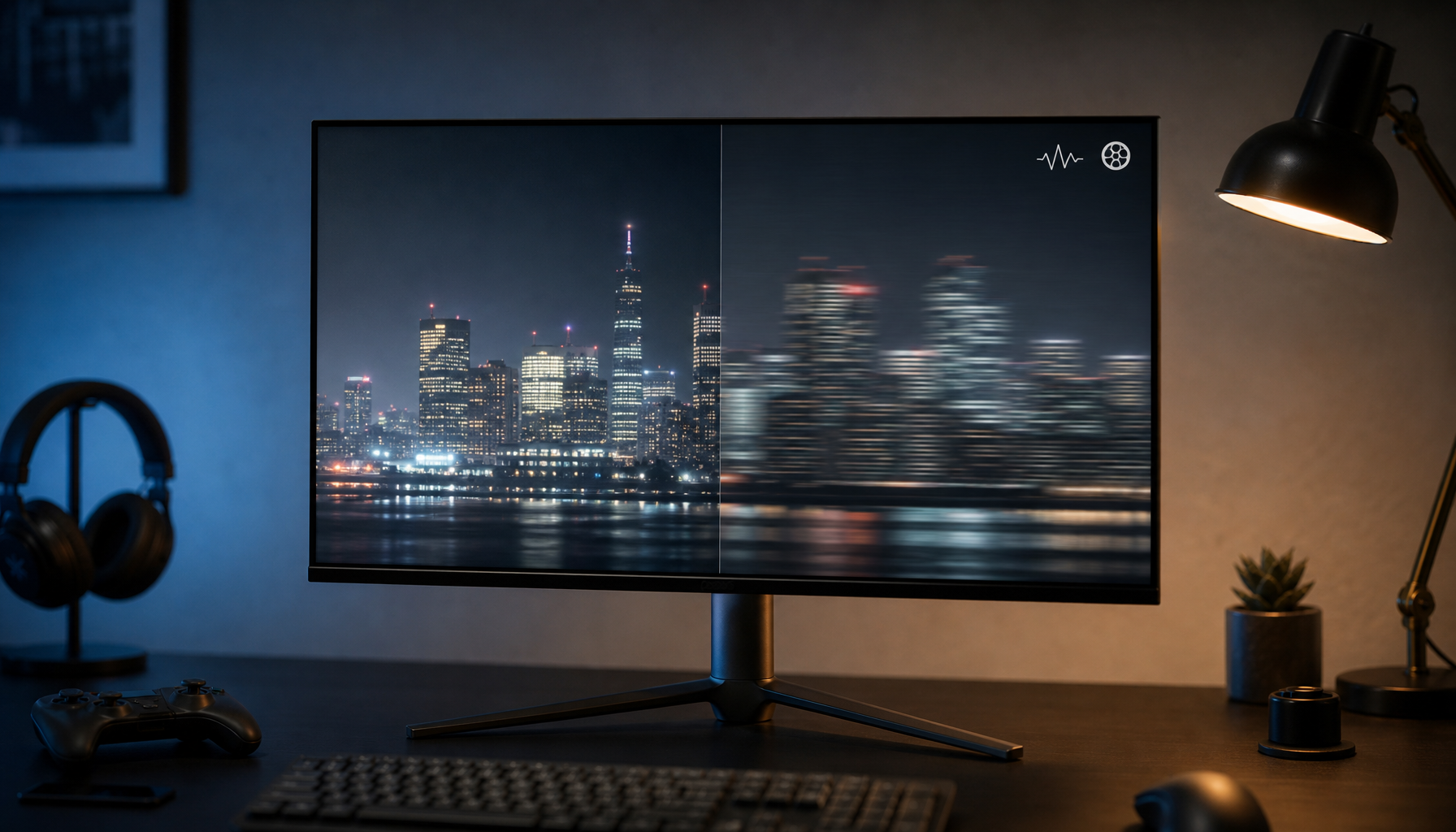
Uniformity also counts. A white document may look pink on one side and green on the other if the backlight or panel compensation is uneven.

Calibration: The Reliable Fix
Start simple. Let the monitor warm up for at least 30 minutes, reset the picture mode, disable dynamic contrast and auto brightness, then set brightness for your actual room.
For better precision, use a colorimeter. A calibrator measures known color patches on screen and builds a profile to compensate for the monitor’s real behavior; dedicated monitor calibrators are especially useful when editing photos, grading video, or matching multiple displays.

For most users, target:
- White point: D65 / 6,500K.
- Gamma: 2.2.
- Mode: sRGB for web and office work.
- Brightness: comfortable for the room, not maximum.
- Recheck: monthly or after driver and OS changes.
False color can also refer to a video exposure tool, but a color cast in neutral tones is usually a calibration or color-management problem, not that monitoring feature.
When It Matters Most
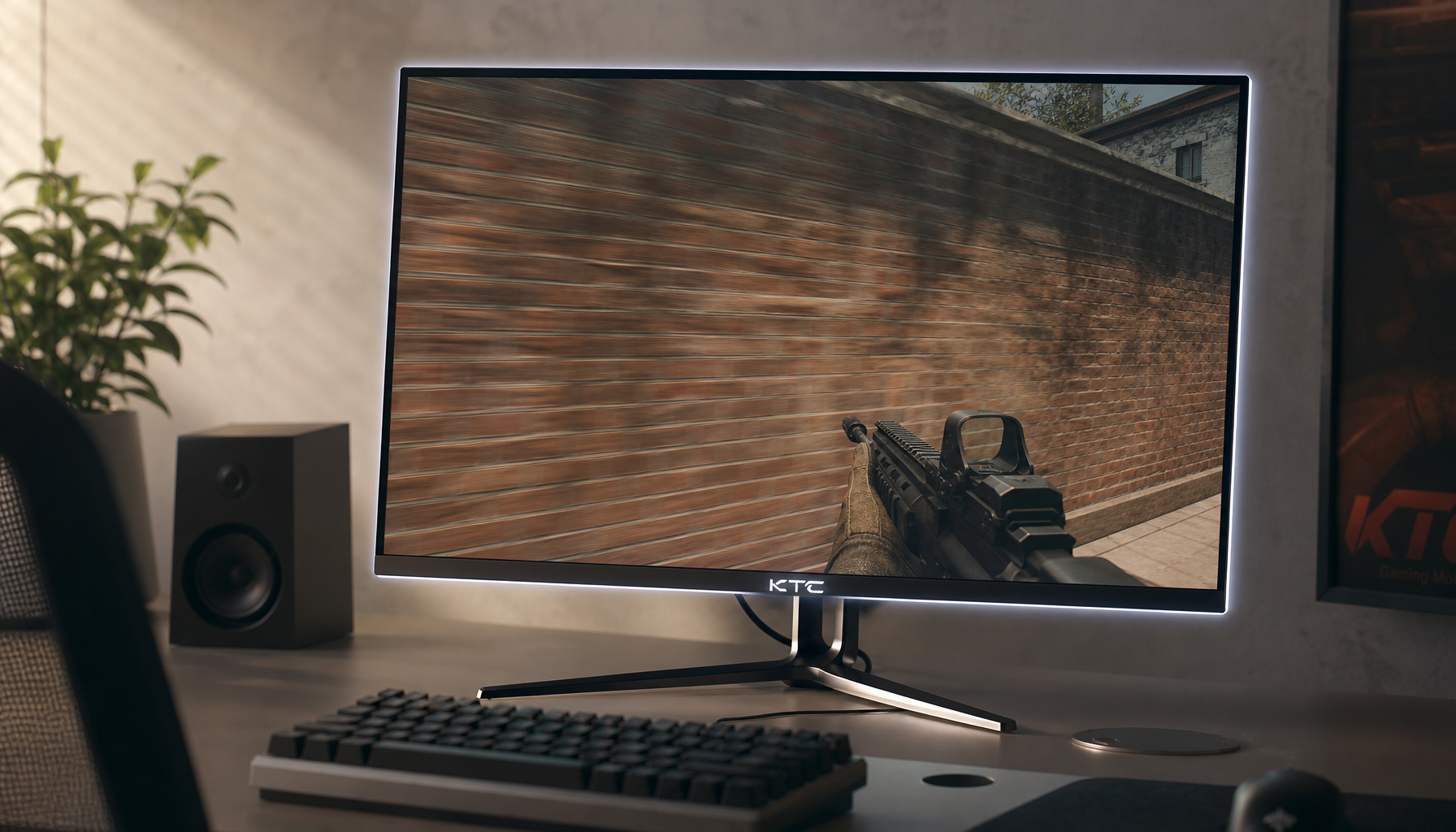
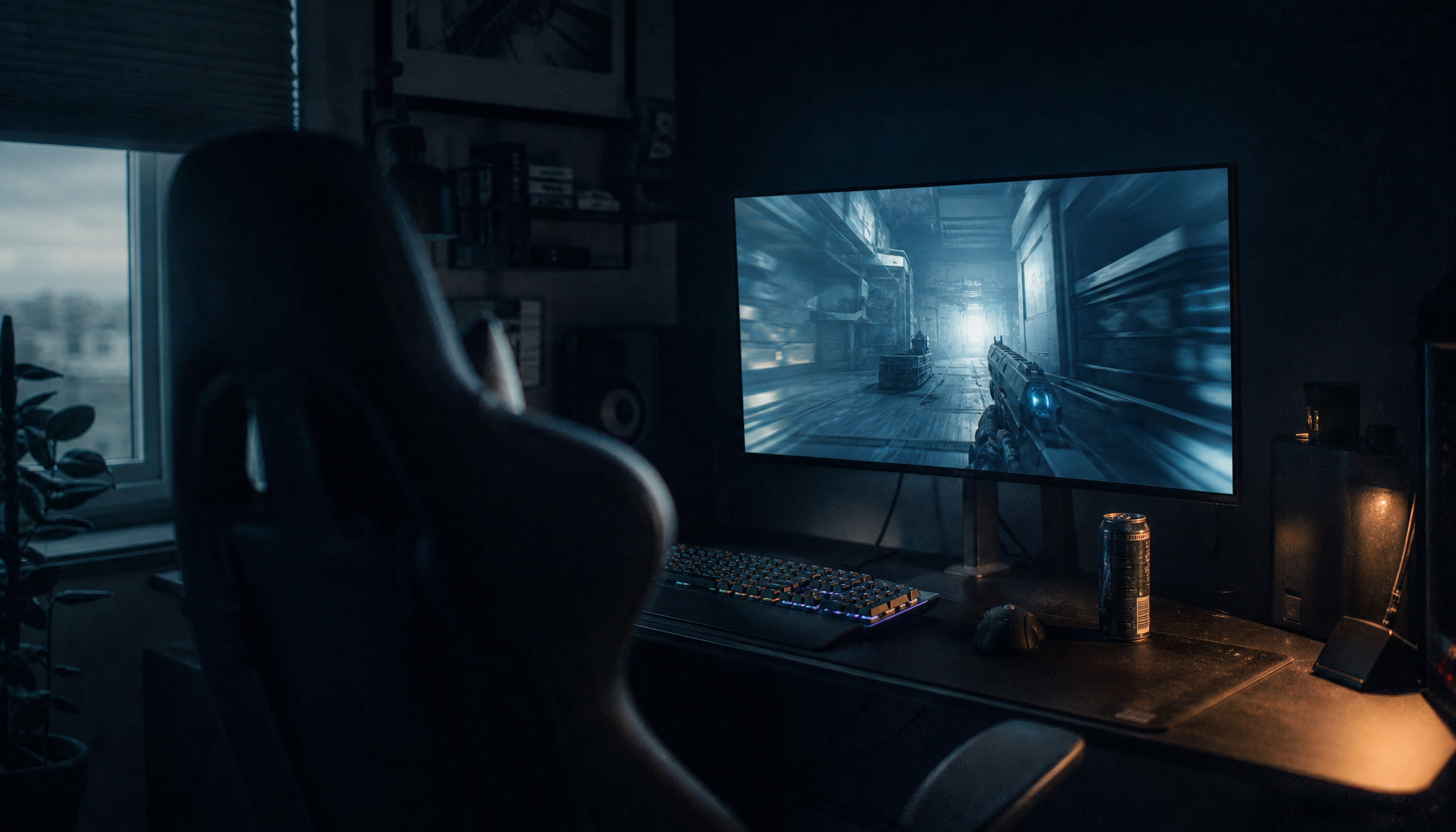
For gaming, bad neutral balance can hide enemy silhouettes in gray smoke, tint snow maps blue, or crush detail in dark corridors. For office work, it makes documents harder to judge and can increase visual fatigue over long sessions.
For creators, it is more serious: you may overcorrect an image because the monitor lied first. A value-oriented display setup is not about buying the most expensive screen; it is about controlling the full chain so neutral gray stays neutral, colors stay intentional, and every hour at the screen feels trustworthy.