Seasonal temperature swings can affect display consistency, comfort, and long-term reliability. Stabilize the room first, then fine-tune brightness, ventilation, and placement so your monitor performs predictably through heat, cold, and humidity shifts.
Keep the Room in a Display-Friendly Comfort Zone
For most home offices, aim for a steady working range near 68°F to 76°F, which aligns with workplace thermostat guidance. That range is comfortable for you and reasonable for electronics, which can be sensitive to rapid thermal swings.
A performance monitor is not just a screen; it is a heat-producing system. High refresh rates, HDR brightness, USB-C power delivery, and built-in speakers can all add thermal load.
If your office shifts from chilly mornings to warm afternoons, avoid aggressive thermostat changes. Let the room change gradually so the panel, backlight, internal boards, and plastics expand and contract less abruptly.
Control Brightness Before Heat Builds Up
Brightness is the fastest monitor setting to adjust when the room gets hot. Running a 27-inch or 32-inch display near maximum brightness all day creates extra heat and may accelerate backlight wear.
For productivity, set brightness to match the room instead of chasing a showroom look. In a dim winter office, 25% to 45% brightness may be enough. In a sunny summer room, use blinds first, then raise brightness only as needed.

Quick seasonal tuning:
- Summer: lower brightness, reduce HDR use, and improve airflow.
- Winter: avoid max brightness in a cold room right after startup.
- Sunny afternoons: block direct light instead of overpowering glare.
- Gaming sessions: use performance mode only when you need it.
This keeps image quality strong without making the display work harder than necessary.
Protect Airflow, Humidity, and Ports
Thermal comfort depends on more than temperature; air movement and humidity also matter, and office climate guidance highlights humidity and air movement as key comfort factors. Your monitor benefits from the same thinking.
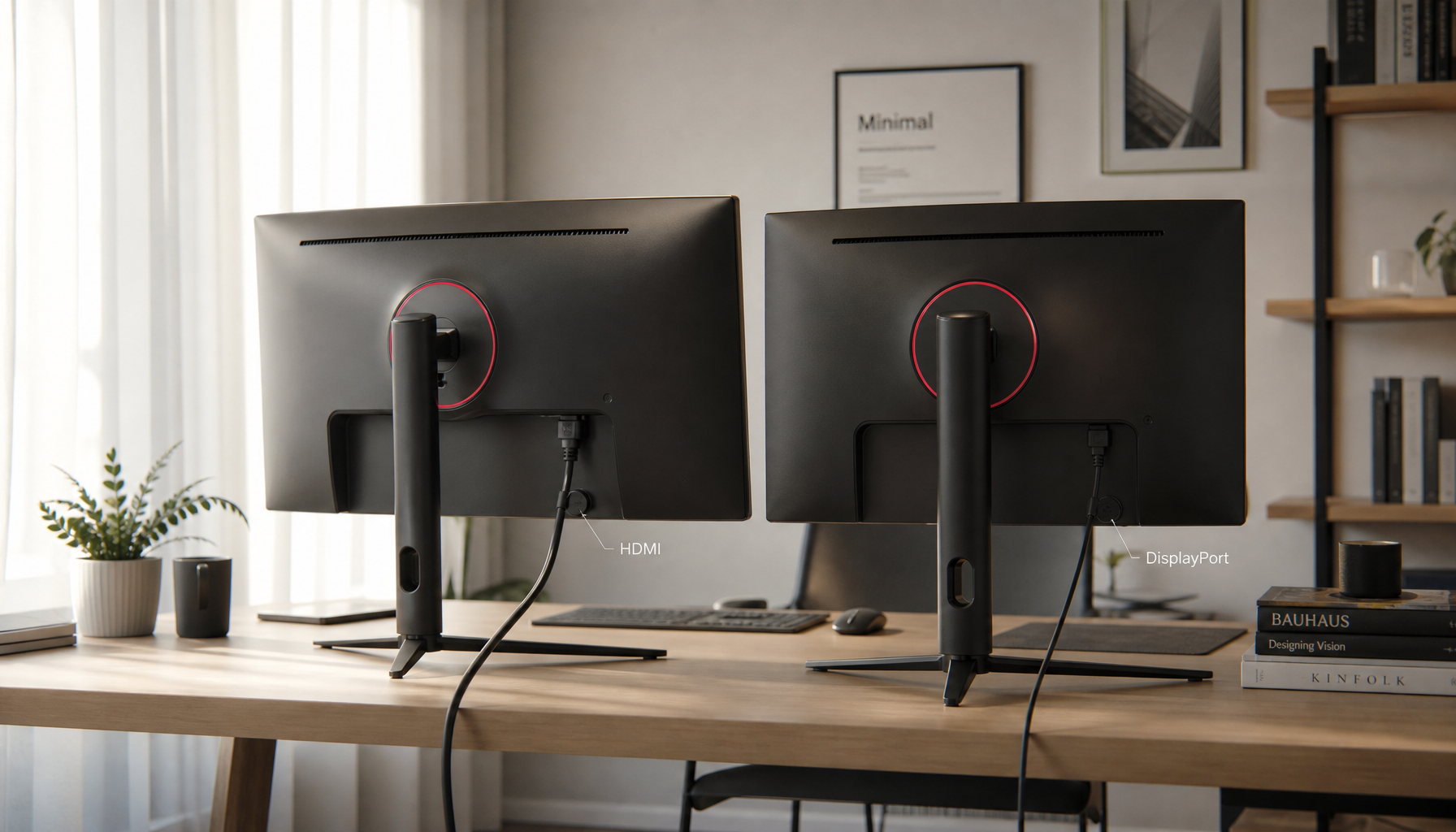
Leave a few inches of open space behind the display, especially around vents, power bricks, docks, and USB-C hubs. Avoid pushing the monitor flush against a wall, curtain, radiator, or sun-facing window.

Humidity is the quiet variable. Very dry air can increase static, while damp rooms can raise condensation risk around ports, cables, and metal contacts. If your office feels sticky, musty, or unusually dry, use a basic room sensor and adjust with a dehumidifier or humidifier.

Comfort ranges are not identical to electronics specifications, so prioritize your monitor’s manual if it gives a narrower operating range.
Use Warm-Up and Cool-Down Habits
When a room is cold, give the display a few minutes before judging color, brightness, or motion clarity. Panels and backlights can stabilize after startup, especially if the monitor sat overnight in a chilly office.
For OLED, mini-LED, and high-refresh gaming monitors, avoid jumping immediately into maximum-brightness HDR after a cold start. Begin with normal desktop use, then switch into your calibrated gaming or creative preset.
For portable smart screens, be extra careful. They are thinner, often powered by USB-C, and more likely to move between rooms, bags, cars, and desks. If the screen feels cold or warm to the touch, let it acclimate before plugging it in.
Build a Simple Seasonal Monitor Checklist
A good home display setup is a small environmental monitoring system. Strong environmental programs rely on relevant measurement and corrective action, and that same mindset applies at desk scale through relevant measurement.
Check these once each season:
- Clean vents and remove dust from the rear panel.
- Inspect power cables, USB-C ports, and docking hubs.
- Recalibrate brightness and color presets for daylight changes.
- Move the screen away from direct sun, heaters, and AC blasts.
- Track room temperature with a small desk sensor.

For gaming, this protects refresh stability and motion clarity. For office productivity, it keeps text sharp and eye strain lower. For portable smart screens, it preserves reliable startup, charging, and touch response across changing rooms and seasons.