Yes, you can run five monitors from one PC without a dedicated workstation GPU, but only if your graphics hardware, ports, dock or MST hub, operating system, and monitor bandwidth all support five independent displays.
Does your desk look ready for mission control, but your PC only has two or three obvious display ports? Multi-screen setups are not just vanity hardware: one productivity study found that multi-screen users were 7% faster, produced 10% more output, and made 33% fewer errors than single-screen users. Here is how to decide whether your existing PC can drive five displays, where consumer GPUs and docks hit limits, and what to buy only when it actually solves the problem.
The Short Answer: Five Monitors Are Possible, But Outputs Are Not the Whole Story
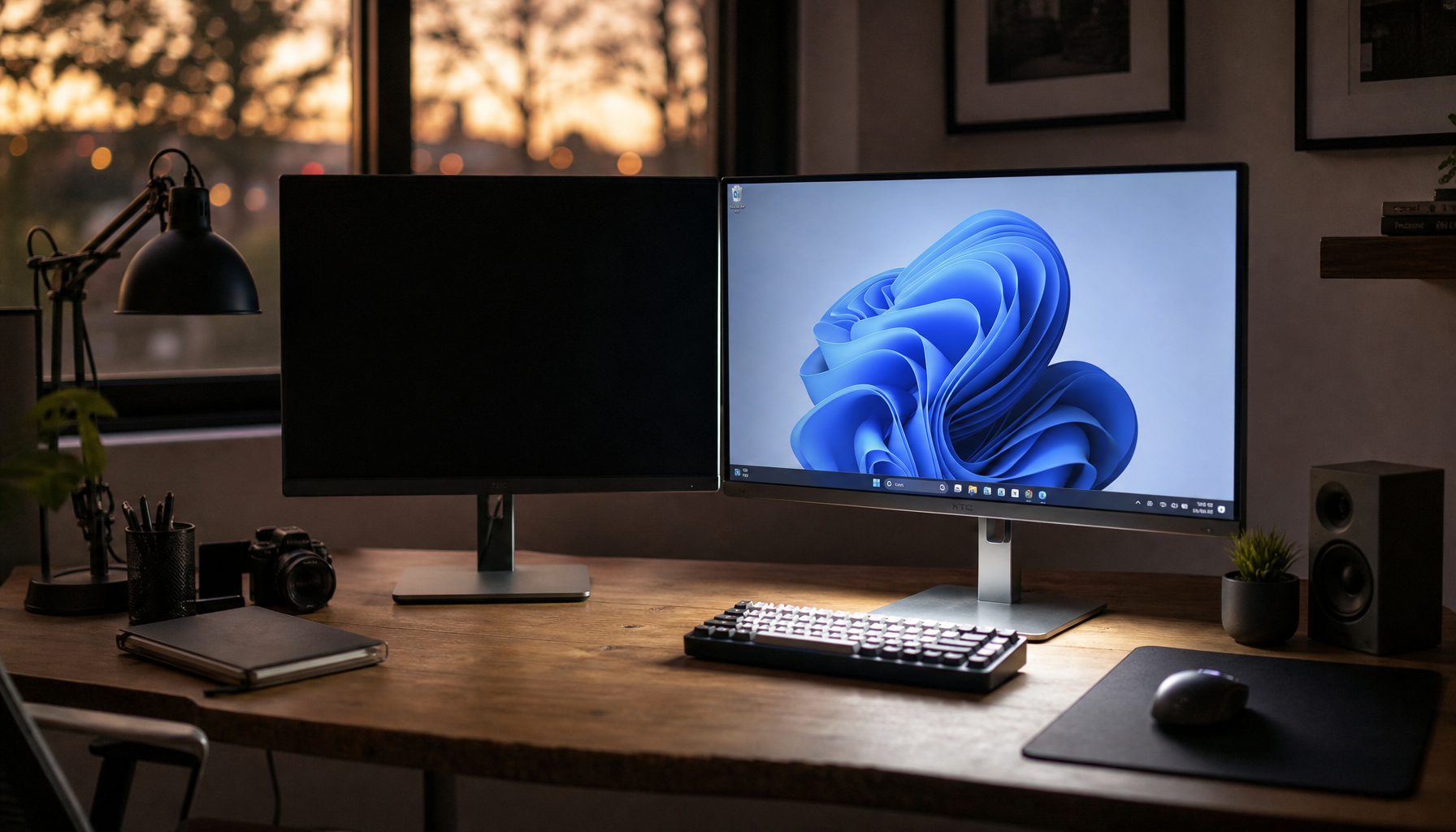
A five-monitor setup means one computer extends the desktop across five separate screens instead of simply mirroring the same image. Most modern desktop operating systems support arranging and extending multiple displays through display settings, where you can identify each screen, drag the layout to match your desk, and choose Extend rather than Duplicate using the built-in multiple-display controls.
Software support does not guarantee hardware support. Your PC needs enough display pipelines from the GPU, enough physical or dock-provided outputs, and enough bandwidth for the resolution and refresh rate you want. Five 1080p office screens at 60 Hz are much easier to run than five 4K gaming monitors at high refresh rates.
In practical builds, treat five monitors as a system design problem, not a cable shopping problem. The right question is not “Can I plug in five cables?” It is “Can this GPU or integrated graphics platform generate five independent display signals at the quality I need?”
Dedicated Workstation GPU vs. Consumer GPU vs. Integrated Graphics

A dedicated workstation GPU is a graphics card designed for professional multi-display, CAD, rendering, simulation, financial, control room, and certified-driver workloads. You do not automatically need one for five monitors, especially if your work is office productivity, dashboards, chat, coding, spreadsheets, browser research, or monitoring tools.
A consumer GPU can be enough when it officially supports the number of active displays you need. Many mainstream cards physically include three or four outputs, and some support four active displays even if more connectors are present. That means a five-screen build may need a second low-cost GPU, a dock, a USB graphics adapter, or a DisplayPort MST hub, depending on the PC.
Integrated graphics can also work in the right motherboard and CPU combination, especially when the BIOS allows integrated graphics to stay active alongside a discrete GPU. A common value-oriented route is to run three or four monitors from a consumer GPU and one or two lighter-duty office displays from motherboard outputs. This is not a workstation GPU setup, but it still depends on official motherboard, CPU, and driver support.
Why Simple Splitters Usually Fail

A basic HDMI splitter usually duplicates one signal. That is useful for showing the same presentation on two screens, but it does not create five independent desktops. For productivity, trading layouts, streaming control panels, or a creator workspace, duplication is usually the wrong mode.
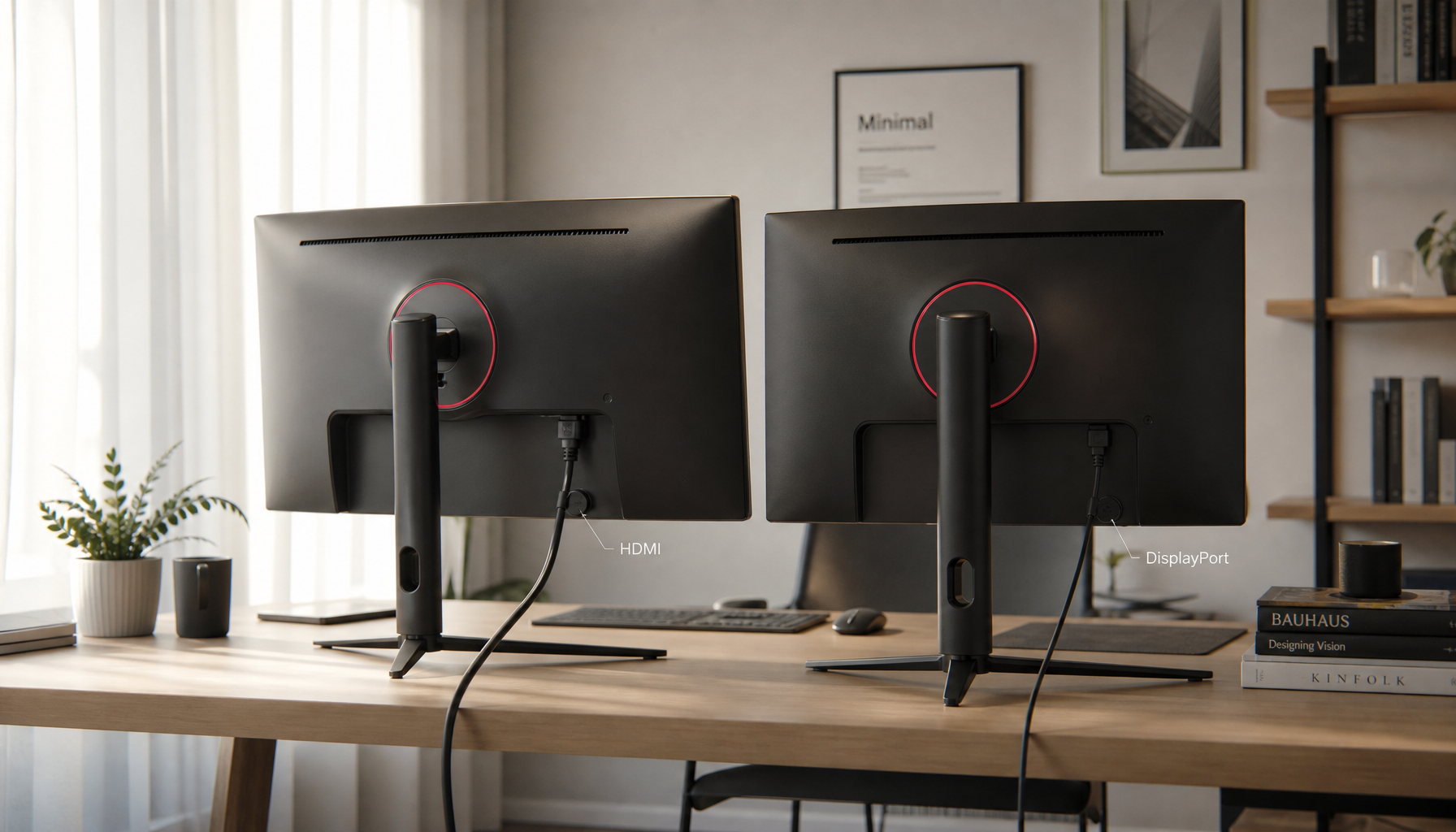
DisplayPort MST is different. MST, or Multi-Stream Transport, can split one DisplayPort signal into multiple independent displays when the GPU, port version, hub or dock, and monitors support it. DisplayPort is often favored for high-resolution and multi-monitor configurations because it supports features like daisy chaining and higher display bandwidth than older interfaces in many setups, making DisplayPort and Mini DisplayPort stronger choices than VGA or legacy DVI for modern multi-screen desks.
The important nuance is bandwidth. One DisplayPort output may support two 1080p monitors easily but struggle with several high-refresh 4K panels. If you are building a five-monitor layout, lower-priority side displays can be 1080p or 1440p at 60 Hz while the center gaming or design monitor gets the premium connection.
Cable and Port Choices That Actually Matter
Cable type affects resolution, refresh rate, audio, and reliability. HDMI is broadly compatible, DisplayPort is often the better desktop monitor connection, USB-C can carry video when it supports DisplayPort Alt Mode, DVI is legacy but still usable for some 1080p screens, and VGA should be treated as a last-resort analog option.
For a five-display PC, direct digital connections are the cleanest path. A monitor cable should match the port’s real capability, not just the connector shape; a cable that physically fits may still fail to carry the resolution or refresh rate you expect. Modern monitor planning should start with HDMI, DisplayPort, or USB-C because monitor cable types differ sharply in bandwidth and use case.
Connection |
Best role in a five-monitor PC |
Watch-out |
DisplayPort |
Primary desktop displays, MST hubs, daisy chains |
Version and GPU display limits matter |
HDMI |
TVs, common monitors, office screens |
Splitters usually mirror rather than extend |
USB-C |
Laptop docks, portable screens, clean desks |
Not every USB-C port carries video |
DVI |
Older 1080p or QHD displays |
Video only, not ideal for modern 4K |
VGA |
Legacy projector or old monitor |
Softer analog image and poor future value |
A Practical Five-Monitor Layout That Does Not Need a Workstation GPU

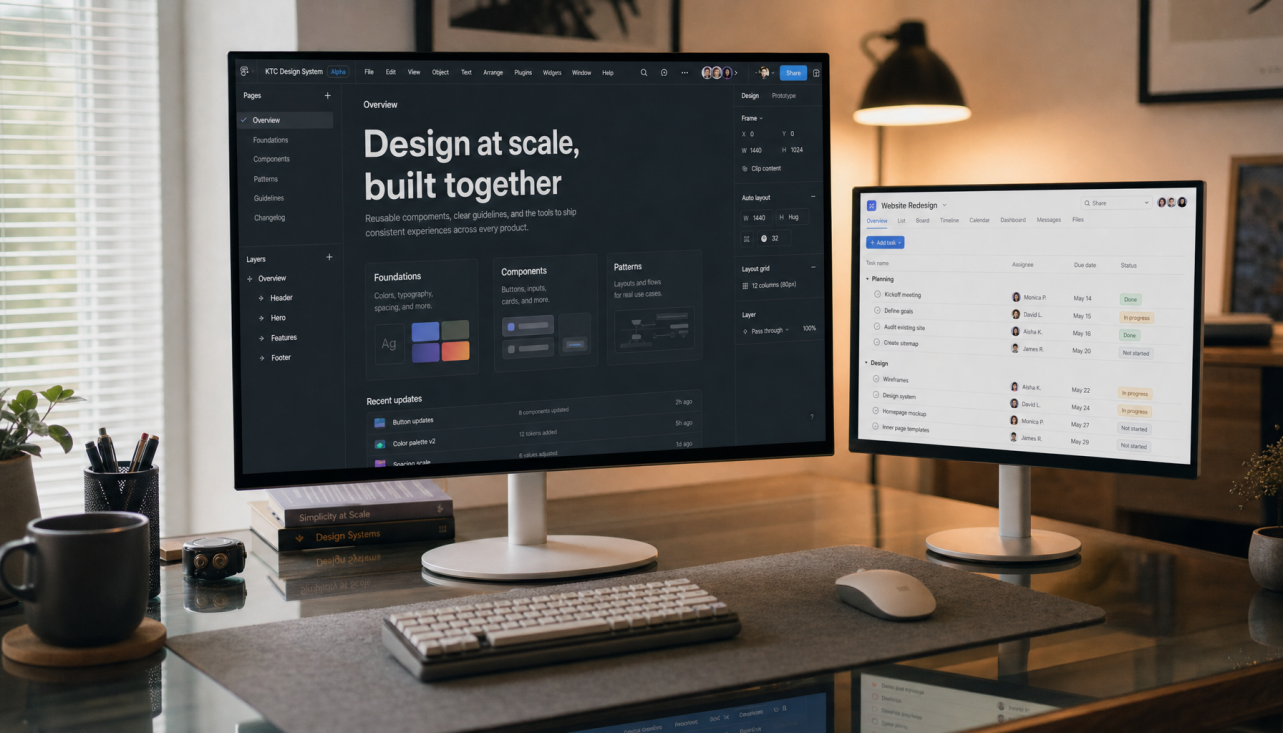
A strong non-workstation build might use a consumer GPU for three displays, motherboard graphics for one display, and a USB-C dock or DisplayPort MST hub for the fifth. For example, the center screen could be a 27-inch 1440p or 4K monitor for your main work or game, with two side monitors for chat, documentation, email, logs, dashboards, or reference pages. A fourth display can sit vertically for long documents, and a fifth can be a portable screen for music controls, system monitoring, or streaming tools.

This approach lines up with how multi-screen productivity actually pays off. The University of Utah multi-screen research compared single-monitor and multi-monitor work across slide, spreadsheet, and document tasks, and the multi-screen setups scored higher across performance and usability measures, including task focus and movement among information sources. The practical value is not “more screens”; it is fewer hidden windows and less mental friction when work depends on multiple sources.
A simple budget calculation helps. If five displays save even a few minutes per hour for someone who lives in spreadsheets, code review, live operations, or content production, the payback can arrive faster than buying a workstation-class GPU that adds little value to mostly 2D workloads. Spend first on compatibility and ergonomics, then on GPU horsepower only when the workload demands it.
When You Should Still Buy a Stronger GPU
You should consider a stronger consumer GPU or workstation GPU when the five screens are high resolution, high refresh, color-critical, or used for GPU-heavy work. Five 4K panels, a game running on one display, video editing on another, and live preview or rendering tools across the rest can push far beyond a basic office setup.
Gaming deserves special caution. Dual- or multi-monitor desks are excellent for keeping chat, walkthroughs, browser tabs, and system stats visible, but games can misbehave when the cursor drifts to another screen or when the main display is not correctly selected. Practical dual-monitor advice emphasizes matching the on-screen arrangement to the physical desk and keeping displays at native resolution while adjusting scaling, which matters even more when a five-screen setup mixes 1080p, 1440p, 4K, landscape, and portrait panels.
For professional color work, matching screens matters more than raw monitor count. Mixed panels can work, but brightness, scaling, color temperature, and viewing angles will need tuning. For competitive gaming, keep the primary high-refresh monitor on the GPU’s strongest DisplayPort or HDMI output, then let secondary monitors run at modest refresh rates.
Operating System Setup: Make the Desktop Behave Like the Desk

Once the hardware is connected, configuration decides whether the setup feels powerful or irritating. Use Identify to label each display, drag the numbered boxes so they match the real desk, then apply Extend. If a display is missing, use Detect, check the monitor input source, reseat the cable, and test a different cable before assuming the GPU is the problem.
Set your main display to the screen directly in front of you. That is where the Start menu, taskbar focus, full-screen apps, and many games behave most predictably. Then adjust resolution and scaling per monitor. Mixed-resolution five-screen desks often feel best when every monitor stays at native resolution, while scaling is adjusted so text and windows feel consistent from screen to screen.
Ergonomics are not optional at this scale. Five displays can empower you or exhaust you. Keep the primary task centered, put secondary screens where your eyes naturally travel, use portrait orientation for documents or code, and avoid placing critical content so high or far to the side that you crane your neck all day.
Troubleshooting a Five-Monitor PC
If the fifth monitor does not appear, the most likely causes are display-count limits, bandwidth limits, a non-video USB-C port, a passive adapter where an active one is required, or a splitter that only duplicates. Start by reducing the setup to one new display at a time. Confirm each monitor and cable works alone, then add the dock, MST hub, or adapter back into the chain.
If all monitors appear but one is blurry, check whether it is using VGA, a low-grade adapter, the wrong resolution, or a non-native refresh rate. If one monitor flickers or drops out, shorten the cable path, try a better cable, reduce the refresh rate, or move that monitor to a direct GPU output. For MST chains, reduce the number of displays on that chain before replacing major hardware.
FAQ
Can one HDMI port run five monitors?
One HDMI port can feed a splitter, but most splitters duplicate the same image. For five independent desktops, you need hardware that exposes independent display streams, such as multiple GPU outputs, supported docks, DisplayPort MST, USB graphics adapters, or multiple GPUs.
Can USB adapters count as real monitor outputs?
They can be useful for office screens, dashboards, documents, and messaging apps. They are usually not ideal for gaming, high-refresh motion, color-critical work, or latency-sensitive tasks.
Are five monitors better than one ultrawide?
Not always. A single ultrawide is cleaner and more immersive for a centered main task, while five monitors are better when you need persistent separation between apps, sources, dashboards, communications, and reference material. The best power setup often combines a strong central display with smaller secondary screens.
Final Verdict
You can run five monitors from a single PC without a dedicated workstation GPU if the PC supports five independent display outputs through its GPU, integrated graphics, dock, MST hub, or adapters. Build around verified display limits first, reserve your best connection for the main screen, and let the supporting displays do what multi-monitor setups do best: keep your workflow visible, fast, and under control.