







If your cursor, apps, or game launcher keep moving to a monitor that is turned off, change the multi-display mode to use only the visible screen or remove that monitor from the extended desktop layout.
Why a Powered-Off Monitor Can Still Stay Active
A PC does not always treat a powered-off monitor as disconnected. If the cable is still attached through a video connection, dock, or KVM switch, the system may continue to remember that screen as part of your extended desktop. That is why a window can open on a black panel, your cursor can vanish past the edge, or a game can launch on the wrong display.
The key distinction is simple: power state is not the same as layout state. Display layout controls whether screens are duplicated, extended, or limited to one display, and the display page lets you rearrange monitors, choose scaling, and set resolution. Turning a monitor off only affects what you see; it may not change what the system thinks is available.
For a gaming desk, this often shows up after shutting off a side productivity monitor before launching a full-screen title. For an office setup, it happens when a laptop remains connected to a dock overnight. For portable smart screens, it can appear when the panel is powered down but the connection still reports a display path.
The Fast Fix: Use the Projection Shortcut
Press the logo key + P, then choose “PC screen only” if you want to use only your main display. If you are on a laptop and want only the external monitor active, choose “Second screen only.” This projection menu is the fastest way to stop the desktop from extending into a screen you cannot see.

This works because projection mode directly changes active display behavior. Duplicate mirrors the same image, Extend creates separate workspaces across monitors, PC screen only limits output to the primary display, and Second screen only limits output to the external display.
Situation |
Best Projection Choice |
Result |
Main monitor on, second monitor off |
PC screen only |
Apps and cursor stay on the main display |
Laptop display off, external monitor on |
Second screen only |
The external monitor becomes the active workspace |
Both monitors on for work |
Extend |
Separate workspace across screens |
Presenting or sharing one view |
Duplicate |
Same image on both displays |
The upside of the projection shortcut is speed. You can use it before a competitive match, a video call, or a focus session without digging through settings. The downside is that it changes your active mode, so if you later turn the second monitor back on, you may need to return to Extend.
The Reliable Fix: Change the Layout in Display Settings
If the projection shortcut solves the immediate problem but the issue keeps returning, open Start > Settings > System > Display, or right-click the desktop and choose Display settings. Select the monitor that is off or unwanted, then change the multi-display behavior so the system shows only on the active display.

This is where precision matters. In multi-monitor setups, each screen appears as a numbered box, and you can drag those boxes to match the physical position of your desk setup. The Identify button helps match the numbers to the physical screens, while the selected display is the one affected by layout, scaling, and resolution changes.
For example, if Display 2 is a powered-off 27-inch side monitor and Display 1 is your 32-inch gaming display, select Display 2 and look for the multi-display option. If the desktop is extended to it, switch to showing only on Display 1. Once applied, windows and the cursor should stop traveling into the inactive space.
What Each Display Mode Costs You
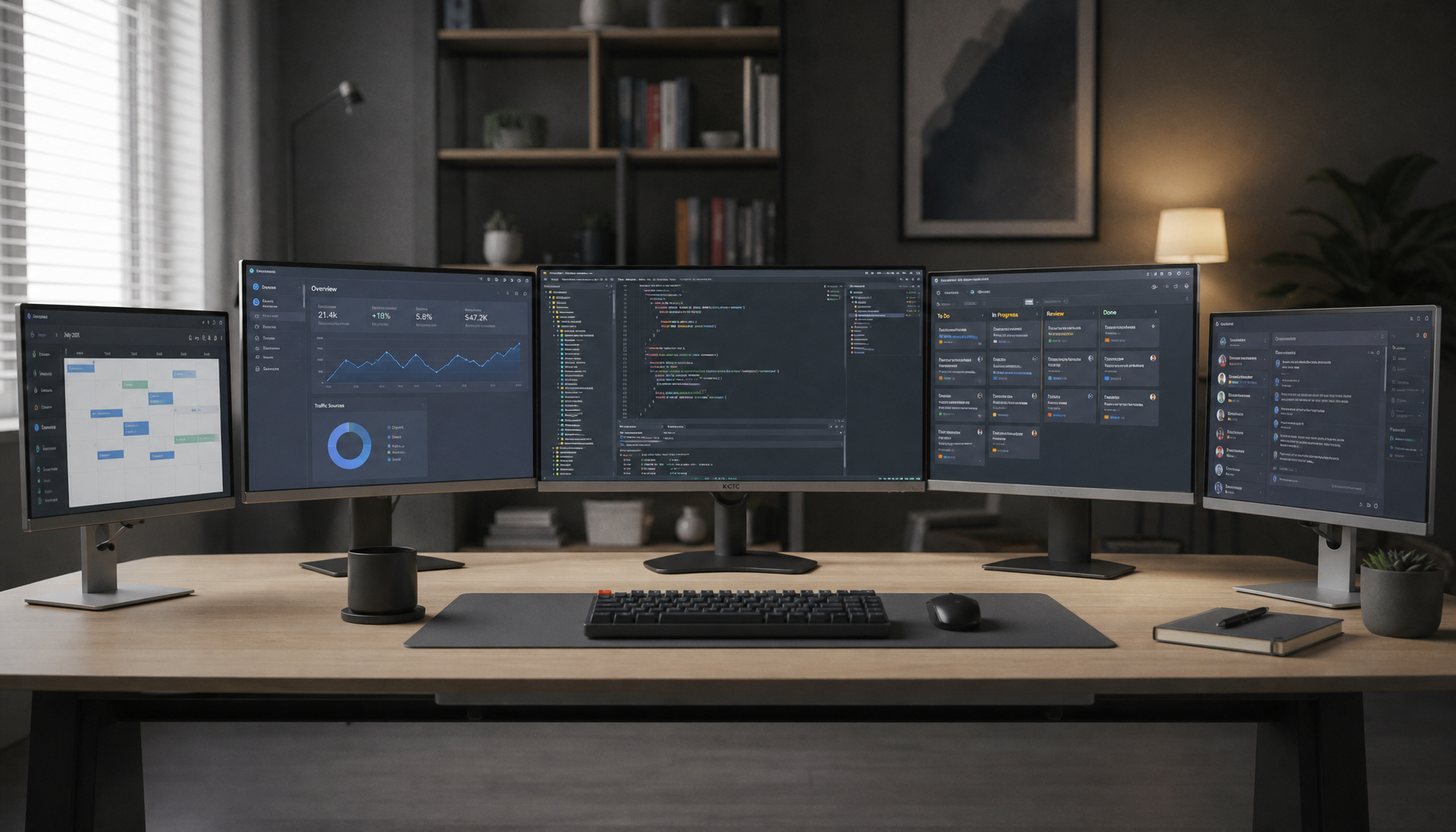
Extended desktop is powerful because it gives you more workspace. A spreadsheet can live on one screen while a browser, IDE, chat window, or game launcher sits on the other. Extended desktop lets you move program windows between displays, while mirrored mode shows the same desktop on all screens during additional monitor setup.
The tradeoff is control. Extend assumes every active display area is usable. If one of those screens is physically dark, the system may still route windows there. Duplicate avoids the lost-window problem, but it can limit resolution or refresh behavior because both screens must show the same content. PC screen only or Second screen only gives the cleanest single-monitor experience, but you lose the extra workspace until you switch back.
For performance-focused users, single-screen mode is often the cleanest state before gaming. It reduces confusion over which screen receives the full-screen app and makes it easier to confirm refresh rate, HDR, and scaling on the display that actually matters. For productivity users, Extend remains the best mode when all screens are powered and visible.
Fix Lost Windows Without Changing Everything
If an app is already trapped on the powered-off display, you can usually bring it back without reconnecting the monitor. First, use the projection shortcut and select PC screen only. The system will normally consolidate open windows onto the remaining active display. If that does not happen, reopen Display Settings and temporarily switch from Extend to a single-display mode.
You can also select the app from the taskbar and use keyboard movement shortcuts, but the cleaner display-level fix is better because it solves the layout problem rather than chasing one window at a time. On a multi-display workstation, layout discipline matters as much as brightness or resolution: the desktop should match the physical screens you can actually use.
Check Resolution, Scaling, and Primary Display After the Change
After you remove the powered-off monitor from the active layout, confirm that your main screen still uses its recommended resolution and comfortable scaling. Resolution and scale live in the same Display settings area, and the recommended resolution is usually the right choice for clarity.
This matters because a fast projection-mode change can sometimes make a monitor look wrong when the real issue is scaling or resolution. A 4K productivity monitor at 100% scaling can make text too small for long work sessions, while a gaming monitor below native resolution can look soft. A clean layout fix should preserve both control and visual sharpness.
Also confirm which monitor is the main display. Your main display is where the system tends to place the taskbar, Start menu, and new app windows. If you often turn off a side monitor, make your always-on monitor the main one.
Cable and Connection Behavior Matters
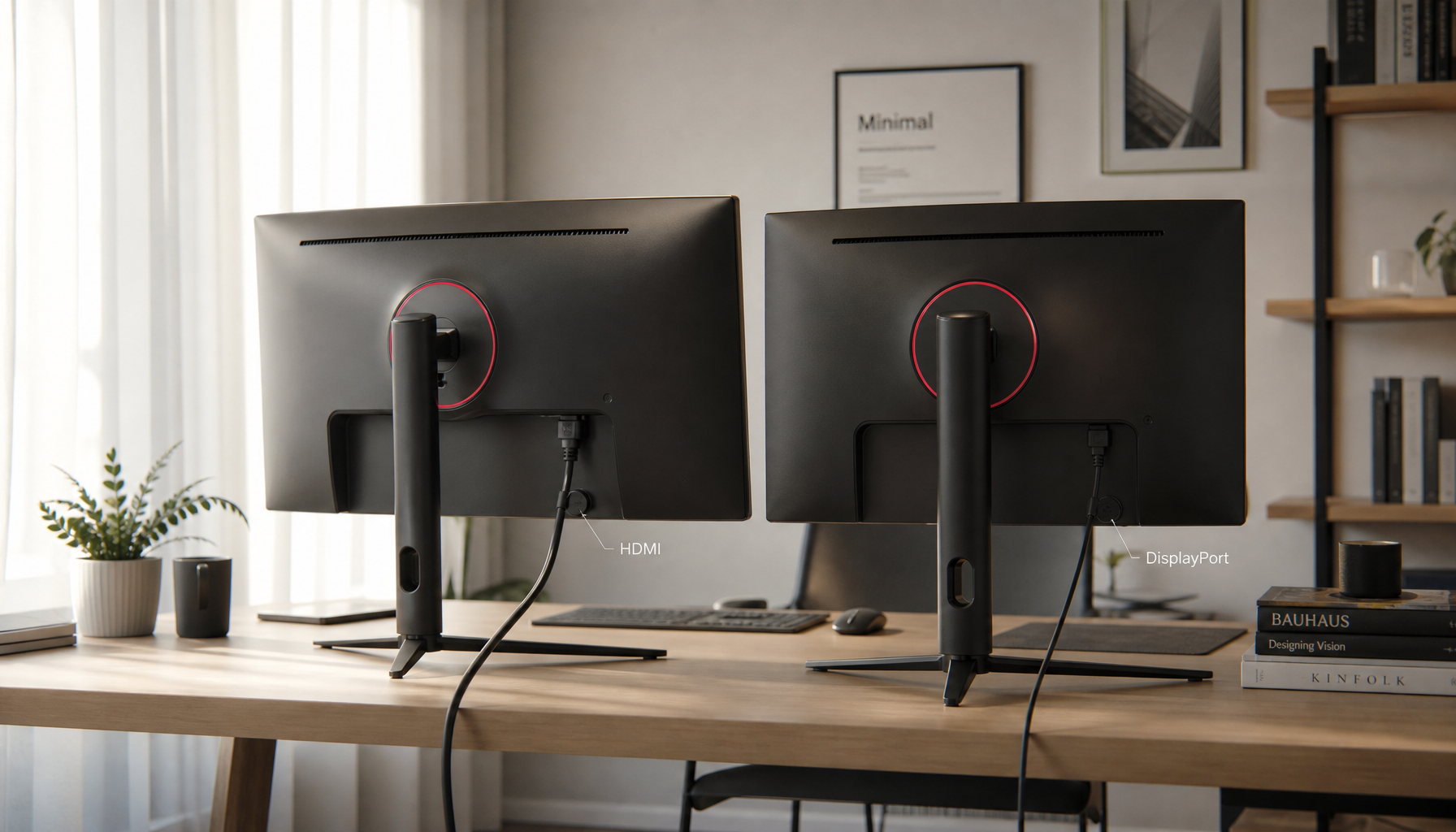
If the same powered-off monitor keeps staying active, the connection may be continuing to report itself to the PC. Digital connections are generally preferred for image quality because they send a cleaner signal path than older analog connections, and display calibration guidance has long favored a digital connection for avoiding analog signal problems.
That does not mean every cable behaves identically for hot-plug detection. Some docks, adapters, KVM switches, and hubs keep the display identity alive even when the monitor is off. If your goal is for the system to forget the screen completely, physically disconnecting the cable, switching off the dock output, or using a KVM input that truly drops the display may work better than pressing the monitor’s power button.

The benefit is certainty: once the display is no longer detected, the desktop cannot extend into it. The drawback is friction: unplugging cables daily is inconvenient, especially in a clean desk setup. For most users, the projection shortcut is the better everyday control, while physical disconnection is the fallback for stubborn docks or adapter chains.
Tune the Active Monitor After You Stabilize the Layout
Once the system stops sending work into the dark, tune the screen you are actually using. A monitor should run at native resolution for sharp text and clean pixel mapping, and basic calibration starts with physical monitor controls before driver-level changes. Everyday LCD setup often comes down to brightness, contrast, and RGB balance, with desktop brightness no higher than a well-lit book.

For an office display, that means lowering brightness enough to prevent fatigue while preserving near-black detail in dark UI elements. For a gaming monitor, it means balancing visibility with contrast so shadows remain readable without crushing detail. For a portable smart screen, it means matching brightness to the room so the screen feels useful instead of washed out or glaring.
Industrial display guidance reaches the same practical conclusion from a reliability angle: display performance is not only pixels and resolution, but also visibility, responsiveness, and dependable operation in the actual environment through display performance. Your layout should follow that same principle. A monitor that is not visible should not remain part of the working surface.
When to Use Software Settings Versus Hardware Changes
Use display settings when the monitor is temporarily off, when you want a reversible workflow, or when you switch between gaming and productivity modes. Use hardware changes when a dock, KVM, or adapter keeps reintroducing the powered-off screen despite your preferred layout.
Fix |
Pros |
Cons |
Projection shortcut |
Fast, reversible, keyboard-driven |
May need repeating when switching setups |
Display Settings |
More precise, controls layout and main display |
Requires manual adjustment |
Unplug cable or dock output |
Forces the system to stop seeing the monitor |
Less convenient for daily use |
Keep all screens powered |
Preserves full workspace |
Wastes attention and desk power when unused |
For a reliable daily routine, set your always-on monitor as the main display, use Extend only when both screens are visible, and switch to PC screen only before powering off secondary panels. That gives you a predictable layout without sacrificing the expanded workspace when you actually need it.
FAQ
Why do my apps open on a monitor that is turned off?
The monitor may still be part of the extended desktop layout. Switch to PC screen only with the projection shortcut, or open Display Settings and remove the inactive screen from the extended arrangement.
Should I use Duplicate instead of Extend?
Duplicate is useful for presentations because both screens show the same image. Extend is better for productivity because each monitor becomes a separate workspace, but it is also the mode most likely to send windows to a powered-off screen.
Will this affect image quality or refresh rate?
Changing from Extend to PC screen only should not reduce quality on the active monitor, but you should still confirm recommended resolution, scaling, and refresh-related settings after changing layouts. The active display should remain tuned for the work or game in front of you.
A powered-off monitor should not control your workspace. Treat display mode as part of your performance setup: keep Extend for visible screens, use PC screen only when a panel is dark, and verify that the active monitor stays sharp, comfortable, and ready for the task.


%20to%20select%20'PC%20screen%20only'%20or%20by%20changing%20your%20display%20layout.
)