Native resolution only confirms that the final pixel grid matches your screen. Game text can still look soft when the console, cable, monitor, HDR mode, or the game’s rendering pipeline reduces UI detail before it reaches those pixels.
Native Resolution Is Not the Whole Signal Chain
A 4K console output can still carry compromised text if the image is not full-detail RGB or 4:4:4 chroma. Chroma subsampling keeps brightness detail but reduces color detail, which is why thin colored HUD text, red icons, and menu labels can look smeared even while the game world looks sharp.

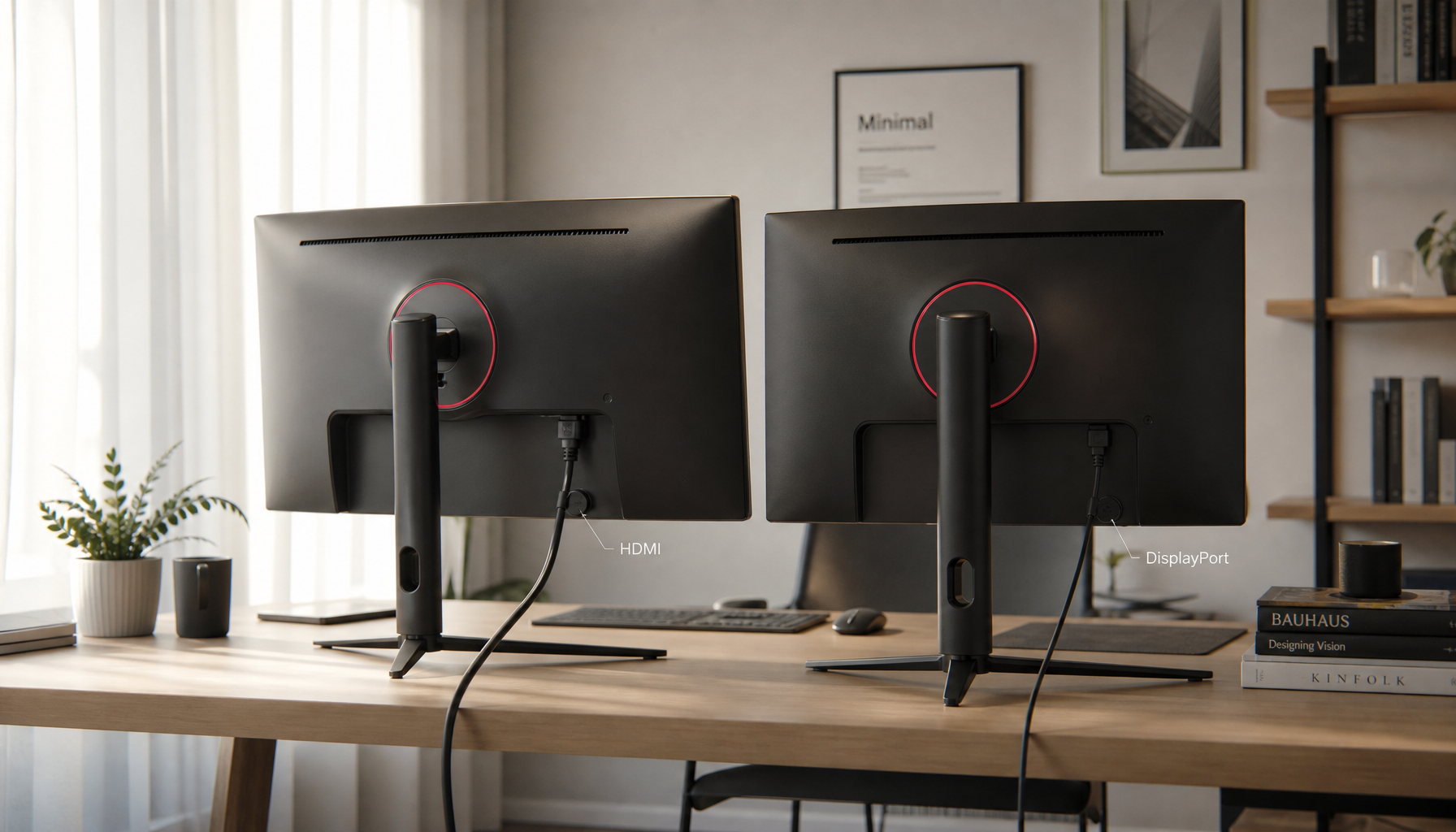
This often happens when bandwidth gets tight. A console pushing 4K, 120 Hz, HDR, and high color depth may fall back to a lower chroma format over the wrong HDMI mode or cable. For text-heavy gaming and desktop-style menus, full RGB or 4:4:4 matters more than many players expect.
The fast check is to use your console’s video information screen and your monitor’s signal info panel. Look for 3,840 x 2,160, the intended refresh rate, HDR status, and RGB or 4:4:4 where available.
The Game May Render UI Below Native
Game engines do not always render every layer at the same resolution. The 3D scene, post-processing, HUD, subtitles, and inventory UI can be separate passes, and developers may scale parts differently to protect frame rate.
That matters because resolution is simply the screen’s pixel count, while clarity depends on how much detail is created before scaling. Higher resolution improves sharpness, but it also increases GPU workload, so modern games often use dynamic resolution, temporal upscaling, or internal scaling to balance visual quality and performance. A game can output native 4K while some UI textures were authored or rendered lower.
This is especially visible in small subtitles, thin sans-serif menu fonts, minimap labels, inventory item names, red or orange HUD text, and UI placed over heavy motion blur, film grain, or TAA. Performance modes that prioritize 60 FPS or 120 FPS can make the effect easier to notice.

Player forum reports show the symptom is real across games, but forum threads alone rarely prove the cause without clean screenshots, platform settings, and patch versions.
Monitor Size, PPI, and Viewing Distance Still Count
Native 1440p on a 27-inch monitor feels sharper than 1080p on the same size because pixel density is higher. Stretch that image across a larger screen or sit close to it, and text edges become easier to notice.
Pixel density is the practical bridge between resolution and perceived sharpness. A 27-inch 1440p screen is about 109 PPI, while a 32-inch 4K screen is about 138 PPI and a 27-inch 4K screen is about 163 PPI. The higher the PPI, the finer the text edge, assuming the signal and game UI are clean.
For console setups, viewing distance helps. A 32-inch 4K monitor at a desk exposes UI softness more than a living-room TV viewed from several feet away. That is why the same game can look fine from the couch but fuzzy on a performance monitor.

Quick Fixes That Usually Help
Start with the signal path, then move into game settings. You want the cleanest possible output before judging the panel.
- Use a certified HDMI 2.1 cable for 4K 120 Hz.
- Set the console to native resolution, not “automatic,” if it chooses wrong.
- Enable the monitor’s enhanced HDMI mode, if available.
- Test RGB or 4:4:4 output instead of limited or subsampled modes.
- Disable excessive sharpness, noise reduction, and motion smoothing.
Inside the game, compare quality mode and performance mode. If the blurry text improves in quality mode, the issue is likely internal scaling or post-processing, not your monitor.
Also check accessibility settings. Larger subtitle size, bold text, and HUD scale can make console UI cleaner without sacrificing responsiveness.
When It Is the Monitor’s Fault
Some displays are built for speed first and text second. Aggressive overdrive, odd subpixel layouts, weak scaling, matte coating haze, or poor sharpness processing can all reduce perceived text clarity.
For a gaming monitor that also serves as a productivity display, prioritize enough pixel density, clean RGB or 4:4:4 support, proper HDMI bandwidth, and readable factory text behavior. A high-refresh panel is not automatically a sharp text panel.

The best console display is not just “native resolution.” It is the full chain: game UI assets, console output format, cable bandwidth, monitor processing, pixel density, and your viewing distance working together.