Place the monitor where your body naturally faces the task, then reclaim the room with smart mounting, compact furniture, and clean cable routing. The goal is immersive screen space when you work or play, without making the room feel crowded when the display is off.
Start With the Room, Not the Screen
In a multi-purpose room, the best monitor position is the one that respects traffic flow first. Before buying a desk or arm, measure the wall, outlets, window direction, chair pullback, and walking path through the room.

A corner, alcove, or wall-adjacent setup usually works better than floating a desk in the center of the room. Small-space planning works best when every item supports comfort, storage, or movement, and vertical space can keep the floor visually clear.
As a practical target, keep at least 24 inches behind the chair if the desk sits near a wall. If the room doubles as a guest room, dining area, or living space, choose the shallowest desk that still gives you proper viewing distance.
Use Ergonomics as Your Placement Filter
A monitor that saves space but causes neck strain is not a win. For most users, the screen should sit about an arm’s length away, with the top of the display at or slightly below eye level; a screen positioned too high can increase strain.
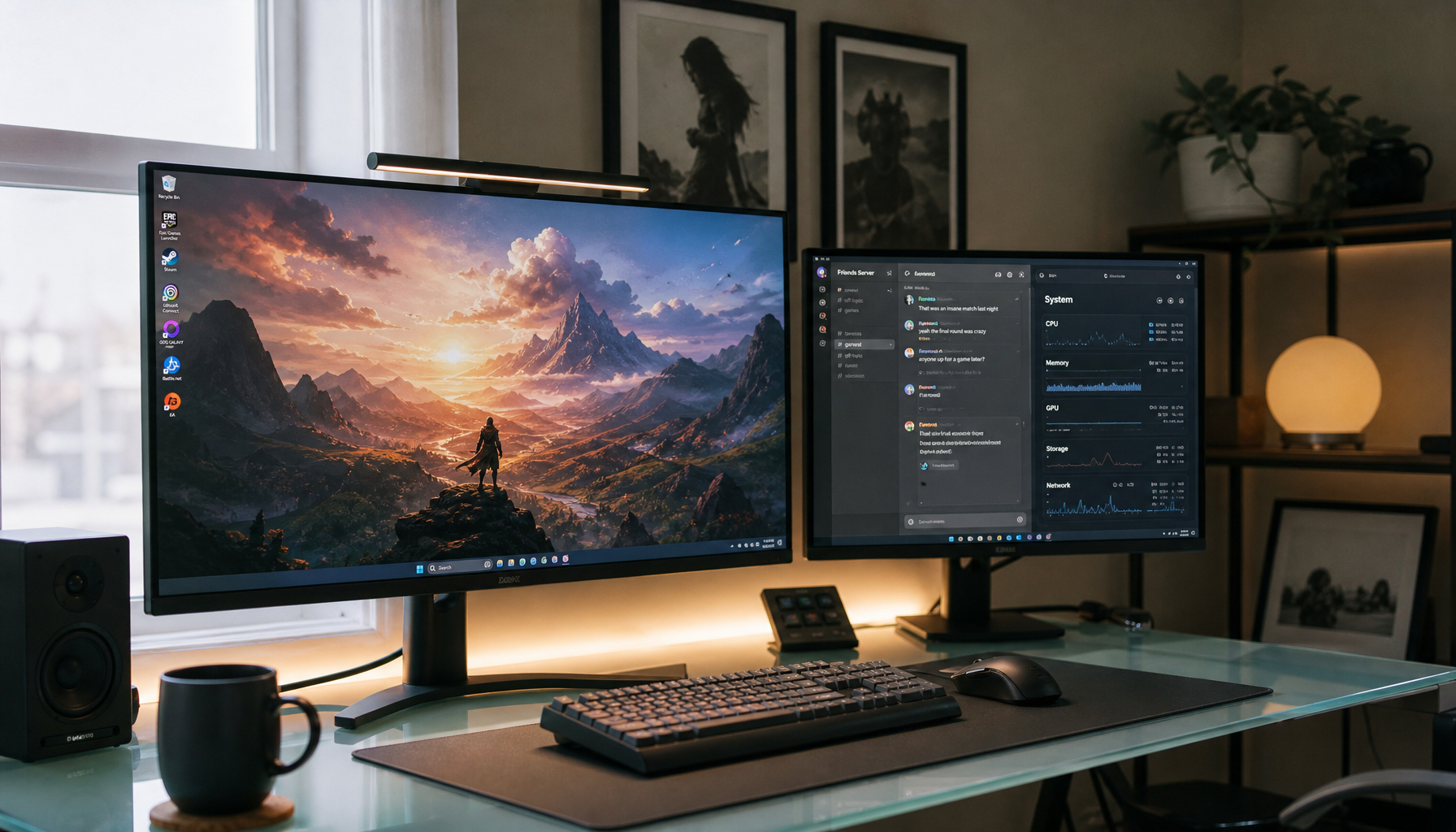
The cleanest setup is usually a single primary monitor centered with your keyboard and chair. If you use two displays, put the main screen directly ahead and angle the secondary display inward instead of spreading both screens wide across the desk.
Quick positioning check:
- Sit back naturally, then extend one arm toward the screen.
- Keep the top edge near eye level or slightly below.
- Center the primary display with your torso.
- Angle side displays inward, not flat against the wall.
- Increase text scaling before moving too close.

Progressive or bifocal lens users may need the monitor slightly lower so they do not tilt their head back during long sessions.
Mount It to Win Back Surface Area
Monitor arms are the performance upgrade most multi-purpose rooms need. A VESA-compatible arm lifts the display off the desk, opens space for writing or dining, and lets you swing the screen back when the room shifts from work mode to living mode.

Wall-mounted shelves, pegboards, and under-desk storage also help reduce visual noise. In compact rooms, mounted monitors and wireless peripherals can make the workstation feel less permanent and less crowded.
If you need more screen space, consider one larger display instead of two wide stands. A 27-inch monitor often gives enough room for productivity without overwhelming a shared room, while a portable secondary screen can appear only when needed.
Control Light, Glare, and Visual Weight
Do not place the monitor directly in front of a bright window or with a window reflecting behind you. A screen set at a right angle to windows usually reduces glare and helps preserve natural light, which makes smaller rooms feel more open.
If you are unsure, turn the monitor off during the brightest part of the day and look for reflections on the dark screen. If the room changes from daytime office to evening lounge, match screen brightness to the environment and use warmer light at night.

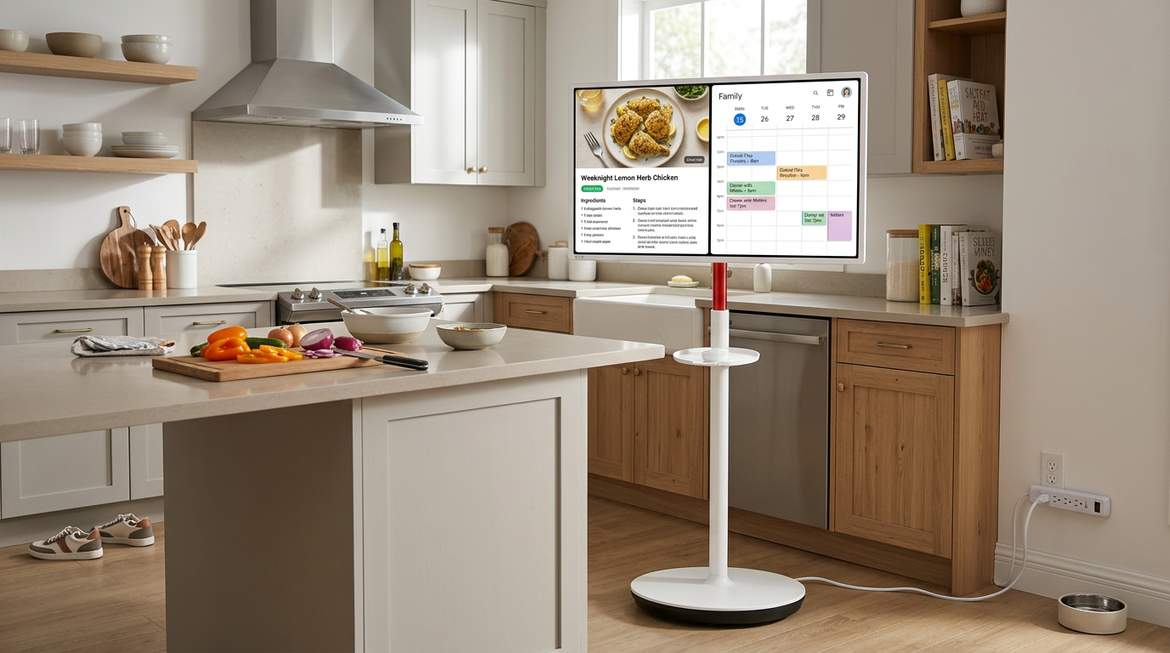
The monitor should feel visually intentional, not like equipment left behind in the room. Choose a slim stand or arm, route one visible cable when possible, and use furniture finishes that match the space.
Keep the Setup Flexible
A multi-purpose room should change modes quickly. Use a compact desk with drawers, a rolling file cabinet, or a fold-down surface so the workstation can disappear visually after work.
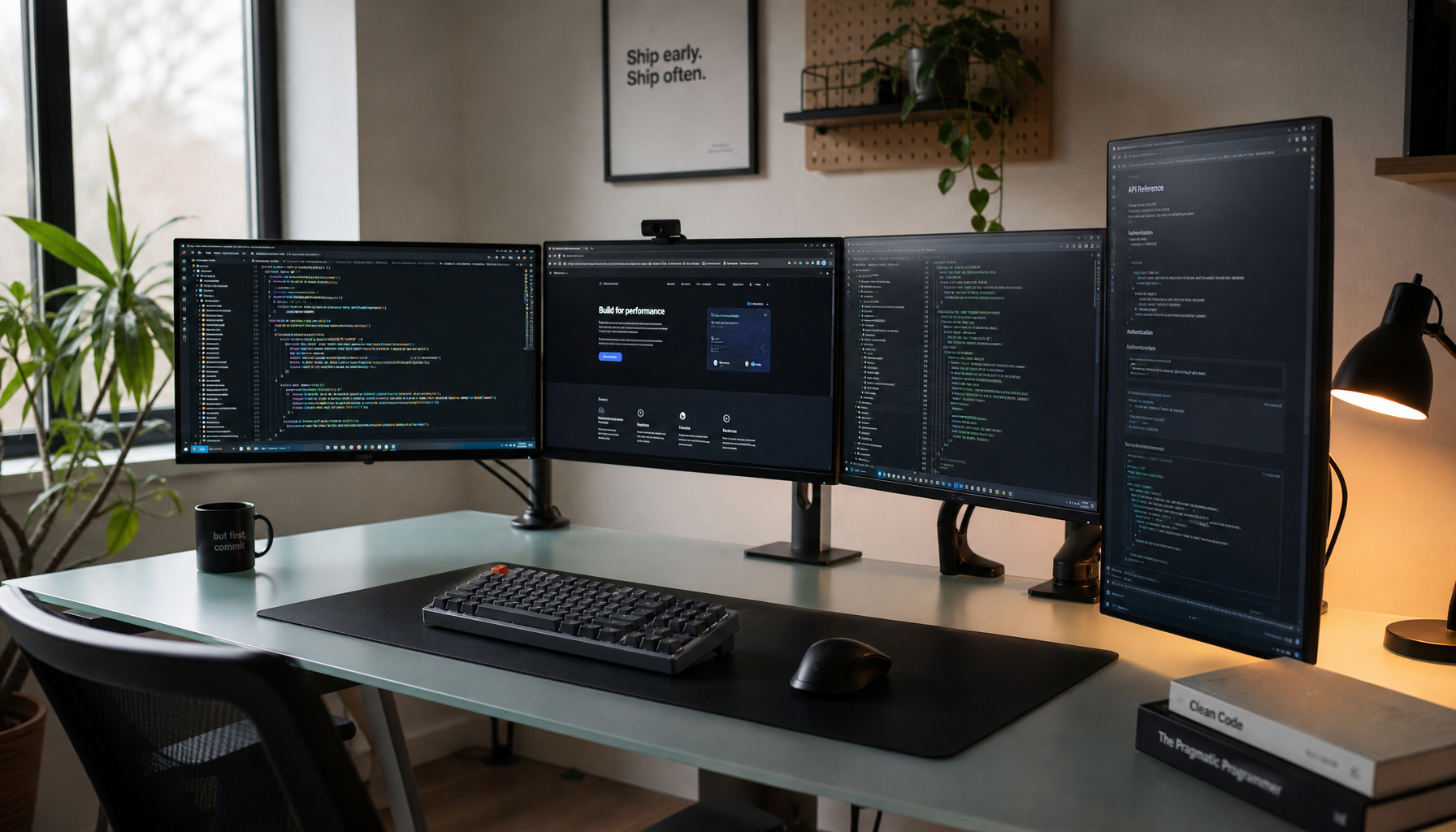
For triple-monitor or gaming-heavy setups, use a centered main screen with side displays angled inward; triple-monitor setups work best when the side screens support the main view instead of forcing constant neck rotation.
The value move is not always the biggest screen. It is the setup that gives you sharp focus, clean movement, and a room that still works for everything else.