A flexible home office needs cable management that moves as fast as your workflow. The goal is a modular setup where monitors, docks, chargers, and portable screens can change positions without creating a floor-level hazard or a visual mess.
Why Weekly Setup Changes Break Perfect Cable Runs
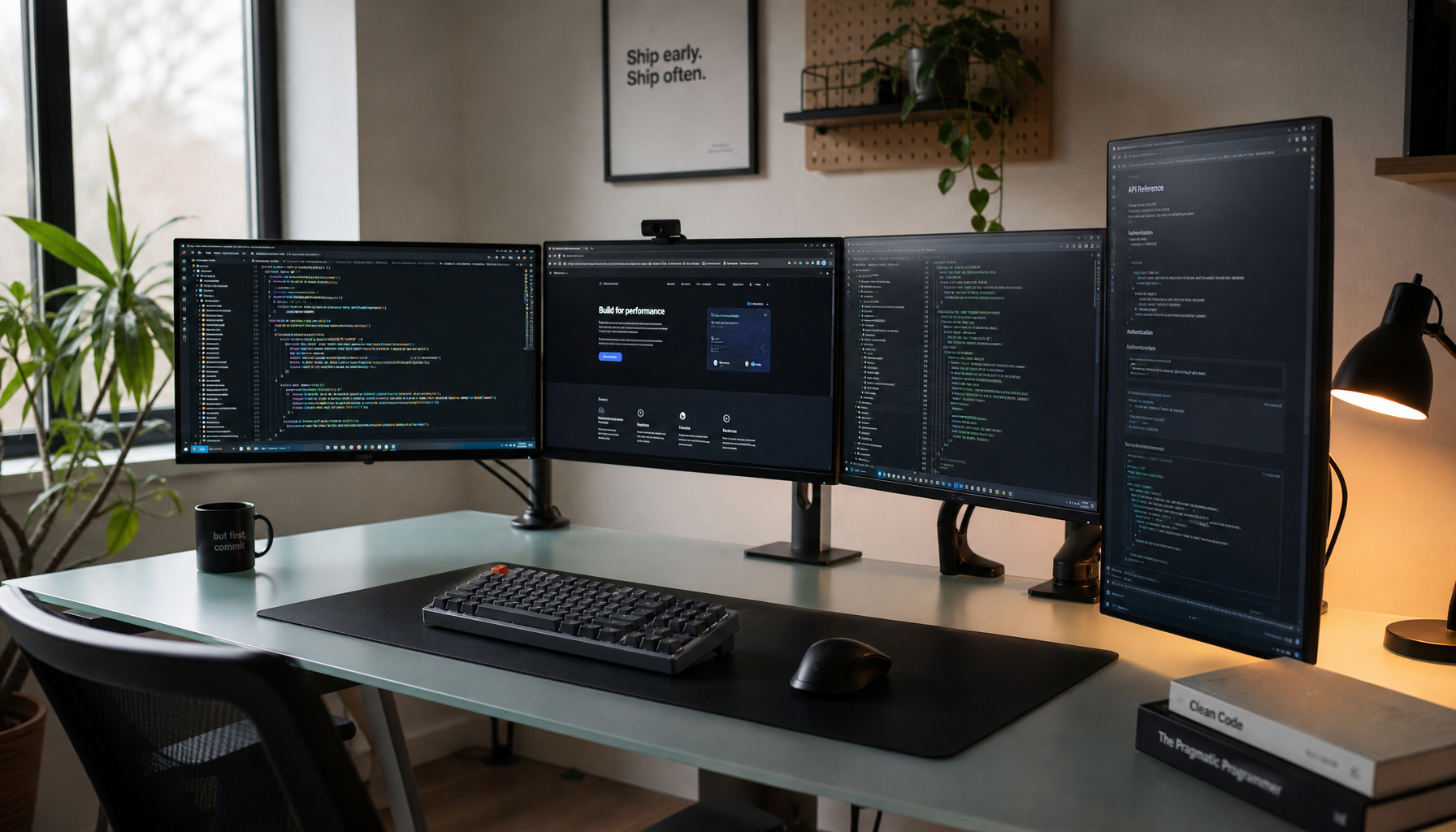
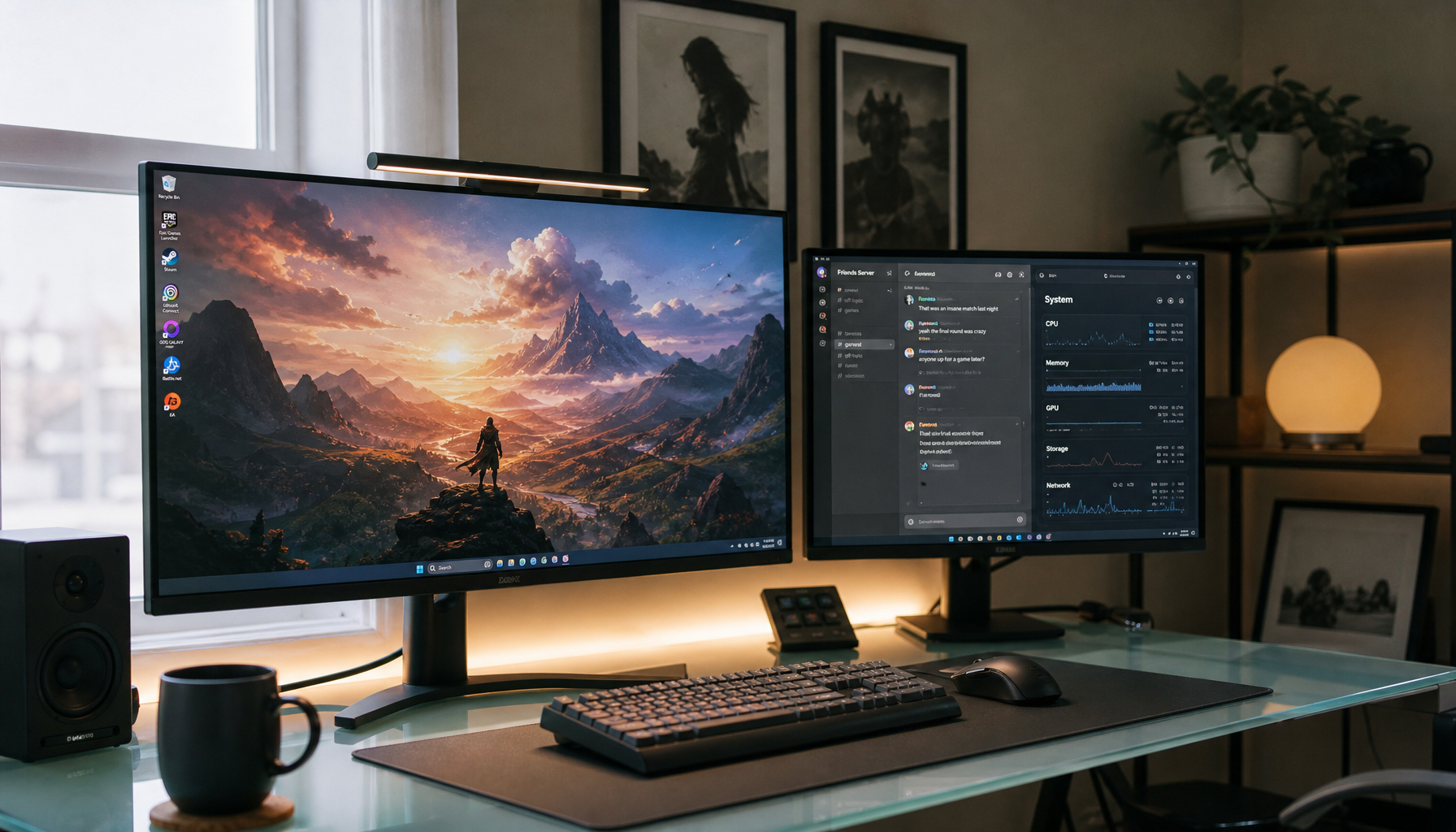
The modern desk is no longer one laptop and one lamp. A display-focused setup may rotate between a 32-inch productivity monitor, a gaming panel, a portable smart screen, a webcam, a USB-C dock, speakers, and multiple chargers.

That is why rigid cable management fails. If every cord is tied into one tight bundle, changing from deep-work mode to gaming mode becomes a teardown.
Start by thinking in zones: display cables, power cables, charging cables, and temporary accessories. Under-desk routing can improve appearance, reduce distraction, and lower trip risk when you plan cable routes before locking anything down.
Build a Modular Cable Core
For a weekly changing setup, the power strip should be the anchor. Mount it under the desktop or place it in a cable box close to your main devices, so monitor power, dock power, and charging bricks do not stretch across the full desk width.
Use reusable straps for anything likely to move. Hook-and-loop ties are better than permanent ties when monitor arms shift, a portable display comes out, or your laptop changes sides.

A practical setup includes an under-desk tray for the power strip and adapters, reusable ties for display and dock cables, adhesive clips for daily charging cords, a cable sleeve for the main visible drop, and labels near both plug ends. This keeps the desk clean without turning it into a fixed installation. It also makes troubleshooting faster because you can identify each cable without tracing a black cord through a black bundle.
Give Displays Their Own Cable Strategy
Monitors are the performance center of the desk, so treat them differently from small accessories. A display cable needs enough slack for tilt, height adjustment, and arm movement, but not so much that it loops behind the desk.
For standing desks, keep the power strip and display adapters moving with the desktop. Cable planning for sit-stand workstations should leave enough slack for full height travel while keeping wires off the floor. Poor cable organization can also create tripping hazards and make troubleshooting harder.

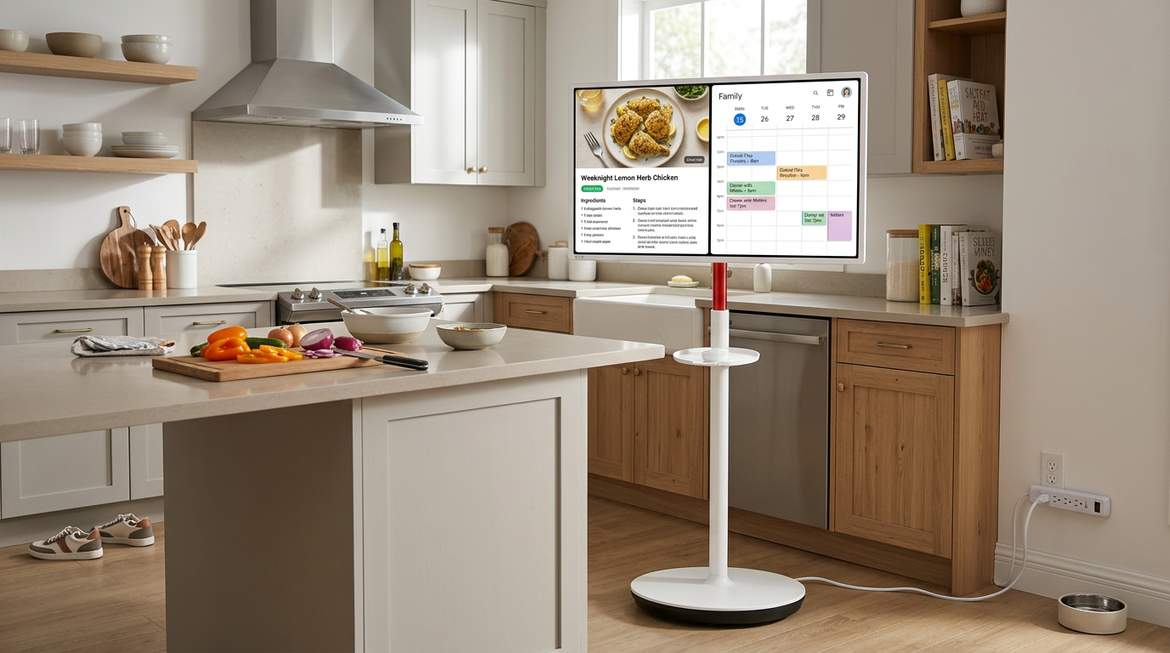
Portable smart screens need a ready lane. Keep one USB-C cable clipped near the edge of the desk, not buried in the main bundle. That small choice turns a second-screen moment into a plug-and-work action instead of a desk reset.

Avoid the Common Flex-Desk Mistakes
The biggest mistake is over-bundling. Power, HDMI, DisplayPort, USB-C, Ethernet, and charger cables may all run in the same direction, but they do not all need to be tied into one permanent rope.
The second mistake is hiding every cable so well that nothing is reachable. Weekly changing setups need access. A clean desk should still let you unplug a monitor, swap a dock, or move a charger in under a minute.
Also avoid routing cords under rugs or across walkways. Even when it looks cleaner, hidden floor cables can be damaged or become unsafe; consumer cable advice commonly warns against running cables under carpets and stressing cords with tight bends, especially around power connections and outlets near desk areas.
The Better Standard: Clean, Reconfigurable, Reliable
A high-performance workspace should feel immersive, not fragile. The best cable plan supports fast changes: a gaming monitor on Friday, dual productivity screens on Monday, a portable display for calls, and a clean desk at the end of each day.
Think of cable management as display infrastructure. Route the permanent gear, clip the daily-use cables, label the plugs, and leave movement space where screens actually move. That is how a flexible home office stays sharp without sacrificing speed.