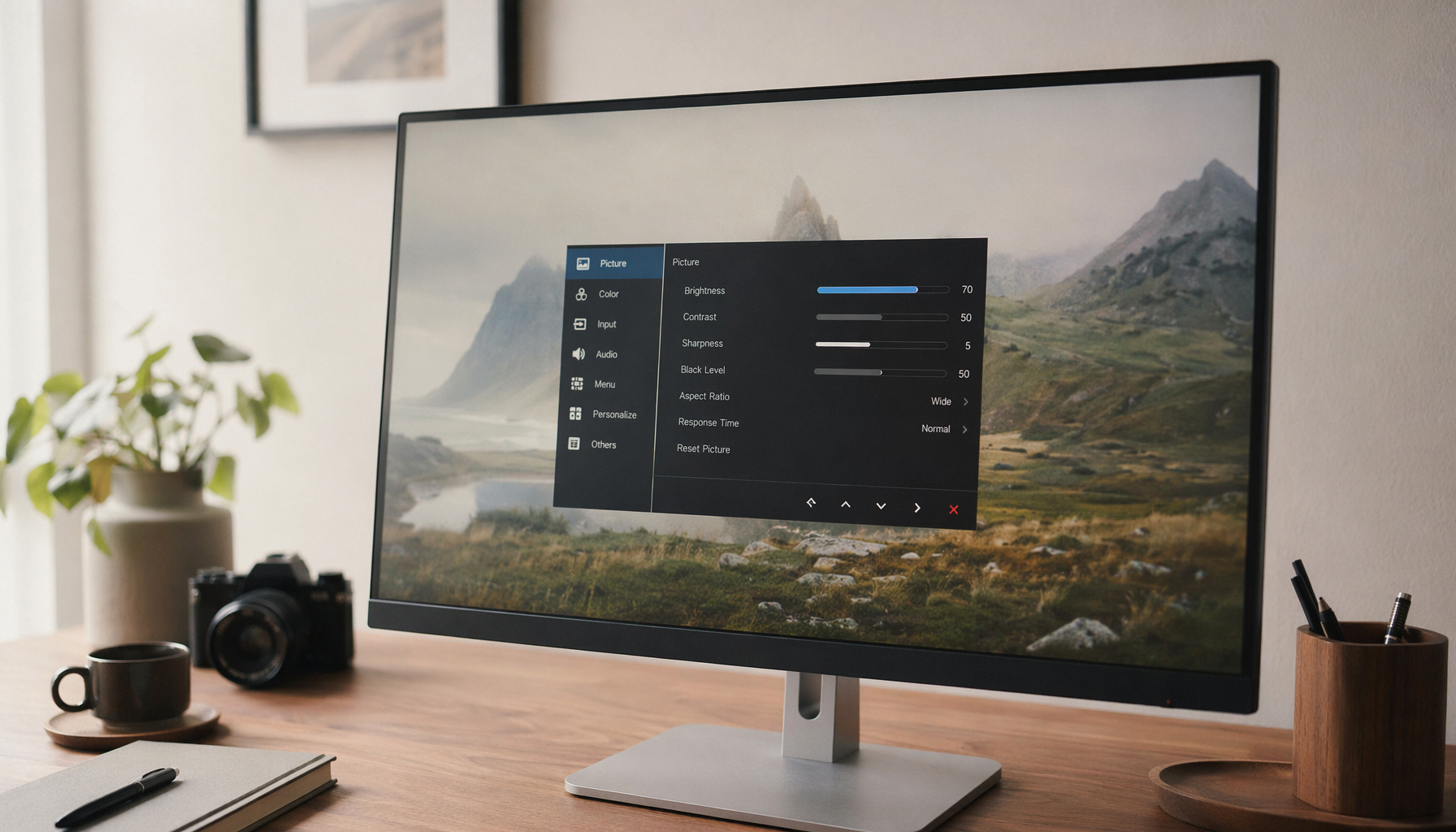
A larger monitor can strain your eyes when it fills too much of your visual field. The fix is usually a setup reset: more distance, better scaling, lower brightness, reduced glare, and a centered workflow.
Do your eyes feel sore, dry, or heavy after moving from a compact monitor to a big productivity or gaming display without moving your chair? A five-minute setup reset can usually show whether the problem is distance, brightness, scaling, glare, or monitor height. You can tune the screen so it feels immersive without punishing your eyes.
The Real Reason Bigger Can Feel Worse
A larger monitor is not automatically harder on your eyes. The problem starts when you keep the same viewing distance while increasing screen size. At 24 inches away, a 32-inch or ultrawide display occupies much more of your field of view than a 24-inch screen, so your eyes travel farther from left to right and your head may start making small repeated turns.
Long screen sessions can cause temporary discomfort known as digital eye strain, and the American Academy of Ophthalmology describes symptoms such as aching eyes, blurred vision, dryness, tearing, and stinging. The key word is temporary: the screen is usually not damaging your eyes, but the setup can make them work harder than necessary.
Field of View Changes

When you upgrade size but not distance, you change the geometry of the whole workstation. A 27-inch monitor at arm’s length can feel balanced because the corners stay easy to scan. A 34-inch ultrawide or 49-inch super ultrawide at that same distance can push chat, timelines, spreadsheets, or minimaps into the edges of your vision.
Large and dual-monitor setups can increase eye and neck strain when wider screens are not angled or positioned correctly, because users must move their eyes and head farther across the display area, as noted in large and dual-monitor setups. In real desk setups, the giveaway is simple: if you keep turning your head to read side panels, the monitor is too close, too flat, too wide for the task layout, or all three.
For a standard office or gaming monitor, start around 20 to 30 inches from your eyes. For very large ultrawides, many users need more depth, often closer to 31 to 39 inches when the desk allows it. The goal is not maximum distance; it is a distance where the full screen is visible without leaning, squinting, or sweeping your head all day.
Your Old Brightness Setting Is Probably Too High

Bigger screens emit more total light into your visual field. Even if the brightness percentage is unchanged, the experience can feel harsher because more bright area is hitting your eyes. This is especially noticeable when switching to a larger white spreadsheet, code editor, browser, or document window.
Harvard Health recommends making the workspace more eye-friendly by placing screens about 20 to 26 inches from the face, reducing glare, matching brightness to room lighting, and increasing contrast when needed; those workspace adjustments are more useful than chasing one magic monitor feature. A practical test is to open a white document and hold a sheet of white paper next to the screen. If the monitor looks like a light panel compared with the paper, lower brightness. If it looks dull gray and you are squinting, raise it slightly.
Contrast also matters. Several ergonomic notes point toward a comfortable contrast range around 60% to 70%, not because that number is universal, but because extremely low contrast makes text fuzzy while extreme contrast can feel harsh over long sessions.
Scaling and Sharpness Decide Whether Bigger Feels Relaxed
A larger monitor can help productivity when text is sharp and comfortably sized. It can hurt when the same tiny interface is spread across a bigger panel or when a low-resolution large screen makes letters look coarse.
Native resolution is usually the sharpest mode, but comfort depends on scaling. On a 32-inch 4K display, 100% scaling may make text too small for many users. On a 27-inch 1440p display, text often feels cleaner than 1080p without demanding aggressive scaling. On a large 1080p display, the pixels are spread farther apart, so text edges can look rough at close range.
If you moved to a larger monitor and immediately felt eye strain, increase operating-system scaling before lowering resolution. Scaling keeps the panel sharp while making menus, browser text, and controls easier to read. Lowering resolution can make everything larger, but it often softens the image, which can create a different kind of visual fatigue.
Height, Tilt, and Glare Can Turn Immersion Into Strain
Monitor height should let your eyes look straight ahead or slightly downward. If the screen is too high, your eyes open wider and may dry faster; if it is too low, your neck and shoulders start compensating. A larger display exaggerates both mistakes because the top and bottom edges sit farther apart.
A monitor should generally sit about one arm’s length away, with the screen near the fingertips when your arm is extended, and monitor placement also recommends positioning the eyeline around the top third of the screen for many users. If you wear bifocals or progressive lenses, the better position may be lower and slightly tilted back so you are not lifting your chin to see clearly.
Glare is the quiet performance killer. Turn the monitor off while sitting in your normal position. Reflections become obvious on the dark screen. If you see a window, lamp, or bright wall, move the display, angle it, close blinds, or add softer side lighting. A matte panel or anti-glare filter can help, but placement beats accessories.
Why Blinking Drops When the Screen Gets Bigger

Screen work reduces blinking, and bigger displays can make this worse during intense focus. Gaming, coding, editing, and spreadsheet work all encourage a fixed stare. The AAO notes that normal blinking may be around 15 times per minute, but during digital device use it can drop to about five to seven times per minute, which makes dryness and irritation more likely.
This is why your eyes may burn even when the monitor specs look excellent. A high-refresh, high-resolution, low-blue-light display still cannot blink for you. Use the 20-20-20 rule: every 20 minutes, look at something 20 ft away for 20 seconds. For long competitive sessions or deep work blocks, pair that with intentional blinking when you respawn, compile, save, or switch tabs.
Bigger Monitor Pros and Cons for Eye Comfort
Setup Choice |
Comfort Advantage |
Comfort Risk |
Larger 16:9 monitor |
More room for readable text and fewer window switches |
Too close can increase scanning distance and brightness load |
Ultrawide monitor |
Excellent for timelines, trading dashboards, editing, and multitasking |
Edges can sit outside the comfortable viewing zone if the desk is shallow |
Curved monitor |
Can bring edges into a more natural viewing arc |
Curve must match distance; sitting too close can feel distorted |
Higher resolution |
Cleaner text and smoother interface details |
Text can become too small without proper scaling |
Higher refresh rate |
Smoother scrolling, camera pans, and cursor motion |
Does little for static text if brightness, glare, and distance are wrong |
The Five-Minute Reset That Usually Fixes It

Start by moving the monitor back until you can see the whole screen without turning your head. For a normal desktop monitor, aim for roughly arm’s length. For a large ultrawide, use more desk depth if possible and bring your main app to the center instead of maximizing everything across the full width.
Next, set the top third of the screen near eye level, then tilt the display back slightly so your gaze falls downward rather than upward. Common ergonomic setup guidance recommends placing the top of the screen at or slightly below eye level, using about 20 to 28 inches of distance, and tilting the screen back 10 to 20 degrees.
Then adjust brightness to the room, not to the monitor’s default preset. Gaming and store-demo modes are often too vivid for daily work. Use standard, sRGB, reader, or custom modes as a starting point, then tune brightness down until white backgrounds feel like paper rather than a flashlight. Keep contrast crisp enough that text edges are easy to read.
Finally, fix scaling. If you lean forward to read browser tabs, menus, or spreadsheet cells, the display is not too big; the content is too small for the distance. Increase Windows or macOS scaling, raise app zoom, and keep the monitor at native resolution when possible.
When a Larger Monitor Is Still the Right Move
A larger display is worth keeping when it lets you increase text size, reduce window juggling, improve posture, and keep your primary task centered. For productivity, that might mean a 27-inch QHD or 32-inch 4K panel with comfortable scaling. For immersive gaming, it may mean a curved high-refresh display placed far enough back that the edges feel panoramic rather than demanding.
The wrong move is treating size as the only upgrade. Blue light reduction alone is not enough; real comfort depends on broader eye-care monitor features such as flicker control and adaptation to viewing conditions. For office work, text clarity, brightness control, matte finish, and stand adjustability often matter more than extreme refresh rate. For gaming, refresh rate and motion clarity matter more, but they still need ergonomic distance and glare control.
When to Get Your Eyes Checked
If your eyes remain red, painful, blurry, watery, or unusually light-sensitive after changing the setup, treat that as more than a monitor issue. The larger screen may have exposed an outdated prescription, dry-eye tendency, contact lens irritation, or focusing problem that was already there.
Computer glasses can help some heavy screen users because they are designed for intermediate viewing distances, while blue-light glasses are not the same thing. Harvard Health notes that the AAO does not recommend blue-light glasses for eye strain because strong evidence is lacking that blue light from digital devices causes the condition. That does not mean night modes are useless; it means they should not replace distance, brightness, glare control, blinking, and a proper eye exam.
Final Screen-Tuning Verdict
Your larger monitor is probably not the enemy. It is asking for a new setup: more distance, smarter scaling, lower brightness, cleaner glare control, and a centered workflow. Tune those first, and the bigger screen can become what it was supposed to be: more space, more control, and deeper immersion without the end-of-day eye ache.