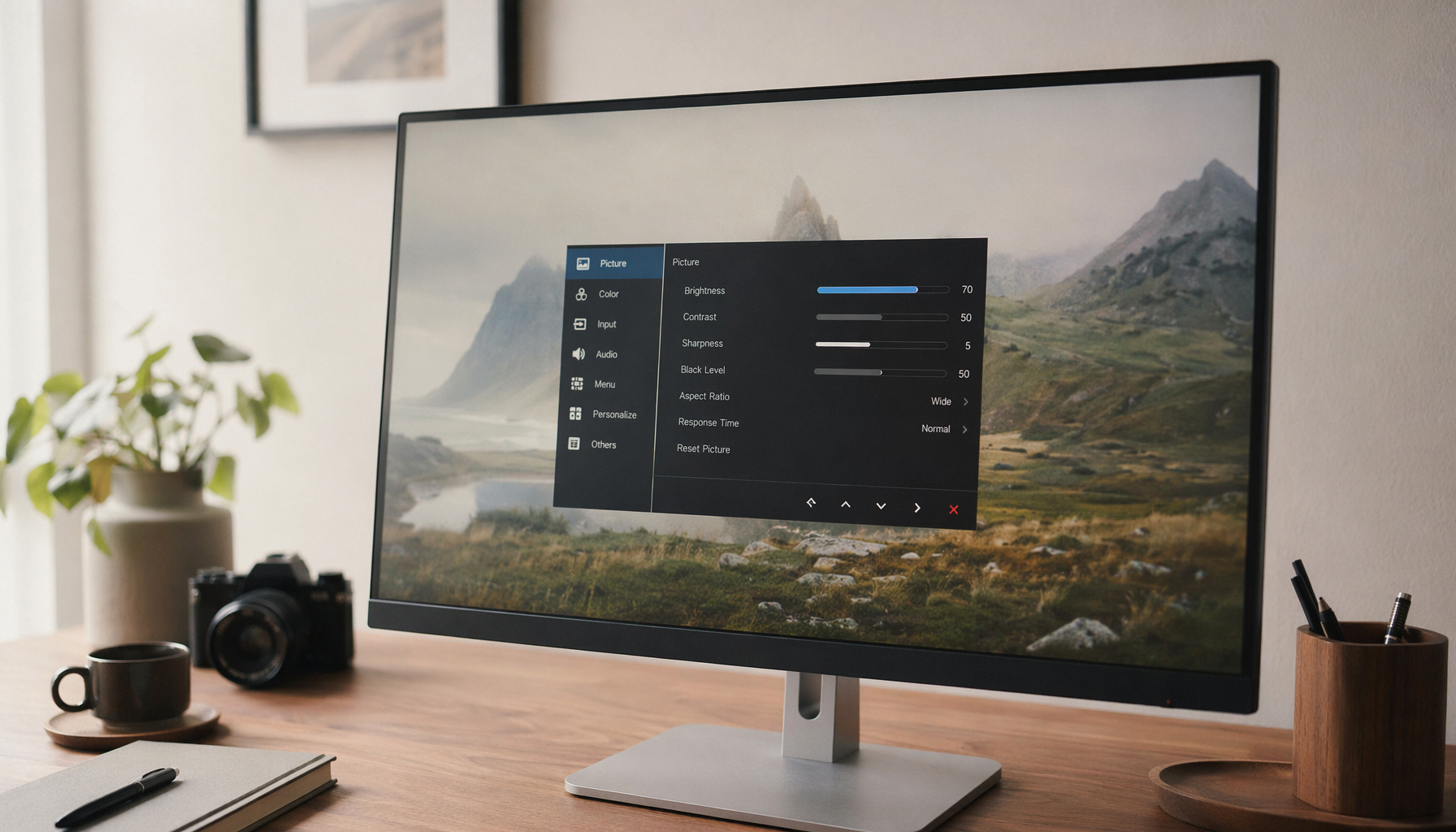
Portable monitors overheat outdoors because direct sun adds external heat while the screen’s backlight, power circuits, and connected device already generate heat inside a very thin chassis.
Does your portable monitor look washed out, flicker, dim itself, or suddenly go black after a short patio work session? Moving the display into shade, lowering brightness, and using stable external power can often turn an unstable outdoor setup into a usable one. Here is why sunlight pushes portable screens past their limits, and how to keep your mobile workspace cooler.
The Real Cause: Sunlight Adds Heat Faster Than Thin Monitors Can Shed It

A portable monitor is built for mobility first. That means a slim shell, compact electronics, minimal vents, and very little thermal mass. Indoors, that design works because ambient air helps carry heat away. Outdoors, especially under direct sun, the display is fighting heat from two directions: solar radiation on the panel and rear casing, plus internal heat from the LED backlight, driver circuits, and power system. Common heat sources in LED displays include LED backlighting, driver circuits, and the power supply.
The problem gets worse because outdoor visibility tempts users to raise brightness to maximum. Brightness is not free. A travel monitor commonly draws around 8W to 15W depending on brightness, and that energy becomes useful light plus waste heat. If you run a 15.6-inch USB-C display at full brightness from a laptop on a sunny deck, you are asking the laptop battery to feed both devices while the sun heats the monitor shell from the outside.
Direct Sunlight Creates Three Overheating Pressures at Once
The Panel Absorbs Solar Heat
Direct sun does not only make the image harder to see. It warms the glass, coating, bezel, and internal layers behind the screen. Outdoor digital signage operators plan carefully around this same issue because outdoor screens face heat, weather, and sun exposure that indoor screens never see. In outdoor placements, screens can reach internal temperatures higher than the surrounding air.
A simple example makes the risk clear. If the air feels hot on your forearm, the dark rear shell of a portable monitor can feel much hotter after sitting in direct sun. A black or dark-gray chassis absorbs more heat than a light surface, and many portable monitors use metal backs that spread heat quickly but also become warm to the touch.
Maximum Brightness Increases Internal Load
Outdoor glare often forces the user to push brightness to 100%. That improves visibility briefly, but it also increases backlight power draw. Portable monitor testing often finds that many portable monitors are dimmer than desktop displays, even when advertised brightness looks strong on paper. Newer premium models may reach higher brightness, but that does not make them immune to heat under sun.
For productivity, 250 to 400 nits may be workable indoors or in shade. In direct sunlight, even 400 nits can look weak, so users compensate with brightness, contrast, HDR modes, or high refresh settings. That raises power demand and heat generation at exactly the moment the chassis is least able to cool.
USB-C Power Can Add Heat and Instability
The cleanest portable setup is one USB-C cable carrying power and video. The tradeoff is that the laptop powers the monitor unless passthrough charging or a separate adapter is used. Direct USB-C use can drain laptop batteries faster because the secondary screen becomes an ongoing load on the host system.
Outdoors, that matters because unstable or undersized power can cause flicker, dimming, disconnects, and extra heat. A cheap phone cable, weak power bank, or underpowered laptop port may keep the display barely alive indoors, then fail when brightness rises in the sun.
What Overheating Looks Like on a Portable Monitor

Overheating rarely announces itself with one clean warning. It usually shows up as unstable behavior. LED displays under heat stress may flicker, show unstable images, temporarily black out, distort colors, reduce brightness, freeze, or shut down until they cool.
On a portable monitor, the first sign is often brightness sag. The screen looks usable at first, then slowly appears dimmer or washed out. Next, you may see brief flickers when the laptop wakes from sleep, when a game loads, or when a video call starts. In worse cases, the monitor disconnects and reconnects because the display, cable, or power source can no longer hold a stable operating state.
Color-sensitive users should be especially cautious. Heat can change how a panel behaves visually, and glare already compromises judgment. If you are editing a product photo or grading video outdoors, a sun-heated panel plus reflected light can make the image look more contrasty, flatter, or less accurate than it really is.
Why Portable Monitors Are More Vulnerable Than Outdoor Displays
Outdoor-rated signage is designed around thermal management from the beginning. It may use custom enclosures, fans, heat exchangers, air conditioning, filters, seals, and placement planning. Consumer portable monitors usually are not built that way. Outdoor systems need cooling choices matched to the installation because heat can damage circuits, reduce reliability, and shorten lifespan.
A portable monitor also has a conflicting design brief. It must be thin enough for a backpack, light enough for travel, and affordable enough for mainstream buyers. Portable monitors range widely in price and features, from budget 1080p models to high-refresh gaming and 4K OLED options, but usability, low weight, image quality, and connectivity remain core priorities.
That means the cooling system is usually passive. There may be vents, heat-spreading metal, and internal thermal pads, but not the kind of active cooling you would expect in rugged outdoor equipment. Put that passive design under full sun, raise the brightness, and feed it from marginal USB-C power, and overheating becomes predictable rather than surprising.
Practical Ways to Stop Outdoor Overheating
Start With Shade, Not Brightness

The highest-value fix is physical shade. A folding sun hood, umbrella, awning, vehicle shade, or simply rotating the table can reduce direct solar load without increasing power draw. Outdoor display guidance consistently favors shaded placement because even modest temperature reduction can improve long-term efficiency and reliability.
For a real-world setup, place the monitor so the screen faces away from the sun and the rear shell is also shaded. Many people shade only the front panel, but the rear casing can still bake. If the stand allows it, tilt the display slightly back while keeping vents exposed. Do not lay it flat on a towel, backpack, or seat cushion, because that traps heat against the rear surface.
Lower Brightness After Improving Visibility
Once the screen is shaded, lower brightness until text remains readable. A 100% brightness setting may be necessary for a few minutes of direct glare, but it is a poor all-day mode. LED overheating risk rises when displays operate at full brightness for long periods, especially with dynamic or high-definition content.
For office productivity, use dark text on a light background, enlarge document zoom slightly, and avoid glossy screen angles that reflect the sky. For gaming, reduce HDR intensity or peak brightness if the monitor provides those controls. The goal is not the brightest possible image; it is the clearest sustainable image.
Use External Power or USB-C PD Passthrough
For sessions longer than a short meeting, avoid relying entirely on laptop bus power. A monitor with USB-C Power Delivery passthrough can let one charger feed the monitor and continue charging the laptop, reducing battery strain and improving stability. For serious mobile productivity, use USB-C PD 3.0 with a 65W or 100W adapter, with 100W passthrough favored for all-day work.
A simple calculation helps. If your laptop has a 60Wh battery and the monitor draws 12W at high brightness, the display alone can consume a large share of your runtime before the laptop’s own CPU, Wi-Fi, and screen are counted. Add sunlight-driven brightness and video calls, and a setup that lasts several hours indoors may become unstable much sooner outdoors.
Keep Air Moving Around the Back
Portable monitors need open space behind them. Do not press the rear panel against a wall, backpack, pillow, dashboard, or car seat. LED display overheating is often linked to poor airflow, blocked ventilation, dirt buildup, or weak heat dissipation.
If you work outdoors often, a small USB fan aimed across the back of the monitor can help, especially when the air is warm but not extreme. Keep the airflow gentle and indirect. For color work, avoid fans with colored LEDs near the display because stray light can bias your perception of color and contrast.
Buying Advice for Outdoor-Use Portable Monitors

Outdoor use changes the buying priorities. A high refresh rate or 4K panel is attractive, but heat control, brightness, stand stability, and power design matter more. Portable monitor testing highlights models around 300 to 400 nits for work and travel, while gaming-focused models can add high refresh rates and batteries at higher cost.
A sunlight-readable monitor is a different category from a regular portable monitor. Marketplace searches for a sunlight readable monitor are useful for discovery, but you still need to verify brightness, anti-glare treatment, operating temperature range, power input, and warranty before trusting the device outdoors.
Outdoor Priority |
Why It Matters |
Practical Target |
Brightness |
Lets you reduce strain without maxing the backlight constantly |
Around 400 nits or higher for shade; more for frequent sun |
Matte or anti-glare finish |
Reduces reflections so brightness works harder for the image |
Prefer anti-glare over glossy for field work |
Rigid kickstand |
Keeps vents exposed and angle stable outdoors |
Built-in kickstand beats floppy covers |
USB-C PD passthrough |
Reduces laptop battery drain and power instability |
65W minimum, 100W better for long sessions |
Operating temperature rating |
Shows whether outdoor heat was considered |
Check the manufacturer spec before buying |
Pros and Cons of Using Portable Monitors Outdoors
Portable monitors are excellent for outdoor productivity when the environment is controlled. They give you more screen space for spreadsheets, coding, dashboards, research, and client review sessions without hauling a desktop monitor. Travel-focused advice frames portable monitors as lightweight external displays that restore multi-screen productivity away from a fixed desk.
The downside is that they are not magic outdoor displays. Direct sunlight reduces visibility, raises internal temperature, increases power draw, and can expose weak cables or underpowered USB-C ports. For a shaded porch, trade-show table, field report station, or RV workspace, a good portable monitor can be useful. For hours of noon sun, a true outdoor-rated or sunlight-readable display is the more reliable tool.
When to Stop Using It and Let It Cool
If the monitor flickers repeatedly, smells hot, shows color distortion, becomes uncomfortable to touch, or shuts down, stop using it. Unplug power and video, move it into shade, and let it cool naturally. Do not put it in a refrigerator, blast it with compressed air at close range, or wipe a hot screen with liquid. Once it cools, restart with lower brightness, better airflow, and stable external power.
If the same monitor overheats indoors or in shade, the issue may be more than sunlight. Possible causes include damaged cables, unstable voltage, blocked vents, worn thermal pads, or manufacturing defects. At that point, compare your setup against the manufacturer’s power requirements and contact support rather than continuing to stress the panel.
FAQ
Can a portable monitor be permanently damaged by sunlight?
Yes. Prolonged overheating can shorten component life or damage internal circuits. Outdoor display operators treat thermal management as routine maintenance because heat can damage screens, circuits, and electronic hardware.
Is a brighter monitor always better outdoors?
Not always. Higher brightness improves visibility, but it can also increase heat and power draw. A shaded 400-nit anti-glare screen may be more usable than a brighter glossy screen sitting in direct sun.
Should I buy OLED for outdoor portable use?
OLED can deliver excellent contrast, but outdoor work is not only about contrast. You still need enough brightness, glare control, stable power, and heat tolerance. For static productivity dashboards in bright sun, weigh OLED’s visual benefits against price, brightness behavior, and panel care.
Does a power bank reduce overheating?
A power bank can improve stability if it supplies enough wattage, but it does not remove solar heat. Use a quality USB-C PD power bank, keep it shaded too, and pair it with lower brightness and airflow.
The most reliable outdoor portable-monitor setup is not the brightest or most expensive one. It is the one that controls sunlight first, manages power cleanly, keeps heat moving away from the chassis, and uses the right screen for the environment.