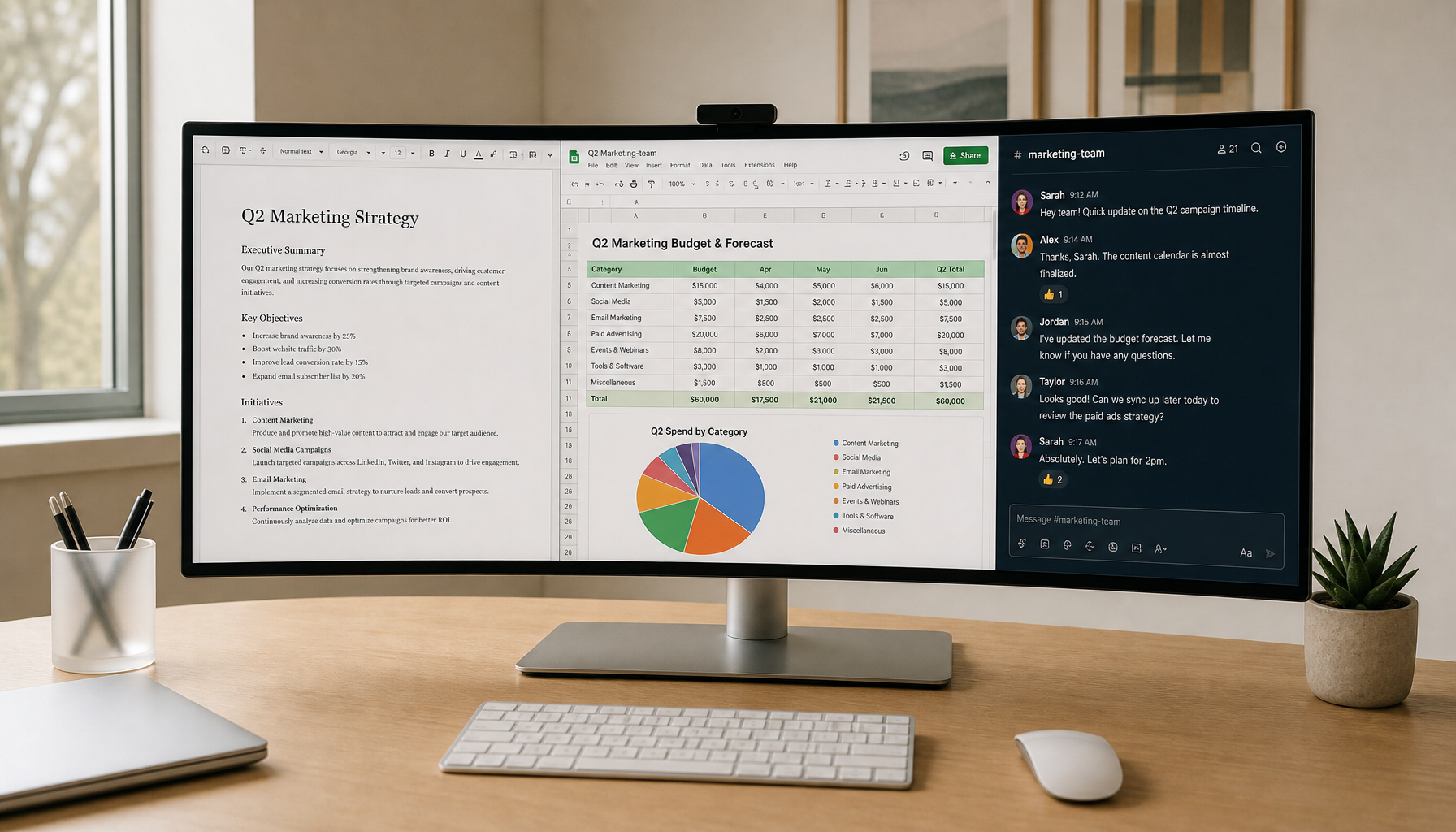
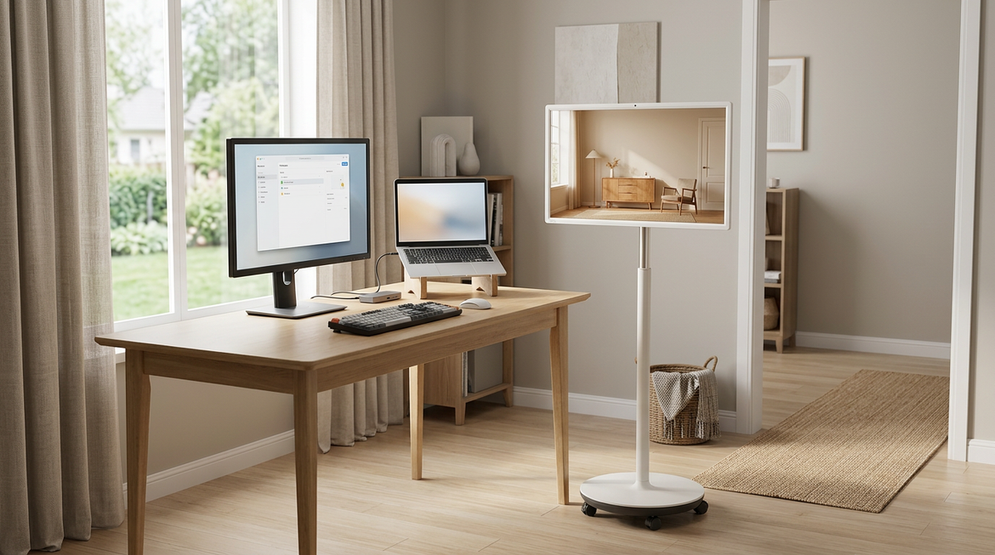
Rolling smart displays fit best when one screen has to travel between rooms, not when the setup stays fixed all day. For schools, clinics, and hybrid training spaces, the real question is whether mobility, app access, and touch use remove enough friction to justify the cart-and-charging routine. When they do, a rolling smart display can be easier to live with than a wall tablet or a traditional AV cart.

Why Institutions Are Adopting Rolling Smart Displays
A rolling smart display solves a simple problem: one screen, many rooms. That matters in schools that rotate equipment between classrooms, clinics that need a mobile patient-education screen, and shared spaces that reconfigure often. The category is less about novelty and more about reducing repeat setup time.
The best fit is usually a workflow with frequent handoffs. If the display spends most of its time in one room, a fixed screen may be simpler. If people keep moving the screen, then the built-in battery, wheels, and touch-first interface start to matter more than raw panel specs.
That is why it helps to think of the category as a workflow tool first and a display second. The Mobile Touch Screen collection is the cleanest place to compare the broader range when you are still deciding whether mobile touch is the right class of product.
In real use, the hidden cost is not just purchase price. It is the repeated charging, repositioning, and room-to-room handling that comes with shared equipment. If your team does not want that routine, a fixed wall tablet may be the better fit.
Classroom and Clinic Use Cases
Shared Classroom Teaching and Small-Group Rotation
Rolling displays work well in classrooms that change layouts during the day. A teacher can move the screen from a main lesson space to a smaller group area without waiting on a wall mount or a separate cart. That is useful when the same display needs to support whole-class instruction, quick demos, and student-facing activities.
For education buyers, the key question is whether the display will be moved often enough to justify the stand and battery. If the answer is yes, the workflow benefit is usually clearer than it is on paper. If the screen will stay in one room, the mobility features are less valuable.
For readers comparing classroom-focused guidance, MegPad for Hybrid Classroom Workflows is a natural follow-up because it stays close to the shared-use question.
Bedside Education and Patient-Room Mobility
In clinics, the advantage is similar but the stakes are different. A rolling smart display can support bedside education, room-to-room presentations, or telehealth check-ins without requiring a separate fixed install in each space. That can reduce duplicated hardware in facilities where rooms are reused constantly.
The boundary is important: mobility does not replace privacy planning. In patient-adjacent areas, HHS says mobile device use should be reviewed for privacy, access control, and data handling before deployment, and NIST's mobile health record guidance adds the usual physical, administrative, and technical safeguards lens. That makes the setup process more operational, not less.
If your clinic wants a workflow example tied to this use case, MegPad for Remote Patient Monitoring: A 2026 Healthcare Use Case is the closest related resource in the library.
Hybrid Training Rooms and Weekly Reconfiguration
Hybrid teams often land in the middle. They need a screen that can be wheeled into a workshop one day, a consultation room the next, and a conference setup later in the week. In those spaces, the display is less about constant travel and more about predictable reconfiguration.
That is where a rolling smart display can beat a wall-mounted option without forcing the team into a full AV cart stack. The gain is not just mobility. It is the ability to keep the same app environment, touch behavior, and sign-in pattern across multiple rooms.
If the space is truly fixed, the recommendation flips. A wall tablet is easier to justify when the room rarely changes and the screen does not need to move. A rolling screen is only the better choice when the travel pattern is real, not hypothetical.
Mobility, Battery, and Stand Controls
Battery Runtime and Charging Expectations
Battery runtime is the first spec buyers tend to overread. The useful question is not "How long does it last?" but "Will it last through our actual school day or clinical shift under our brightness and app load?" KTC's 27-inch MEGAPAD lists a 9500mAh battery and up to 6 hours of runtime, while the 32-inch MEGAPAD options list 8550mAh or 9500mAh batteries with manual notes that put one model at about 5 hours maximum. Those are useful planning numbers, not universal guarantees.
The difference matters because brightness, content type, wireless casting, and speaker use all change runtime. A display that lasts through a short block of instruction may not cover a full day of rotating use. In practice, buyers should plan charging windows the same way they plan room handoffs.
For most institutions, that means the battery is a deployment tool, not a reason to skip power planning. If you need all-day unplugged operation, verify your workload first instead of assuming the headline number will hold.
Wheel Stability and Room-To-Room Movement
Wheel stability sounds minor until the display has to cross a threshold, turn into a tight hallway, or move over different floor types. That is where friction shows up. If the stand feels unstable or awkward under load, staff will avoid moving it, which defeats the whole point of the setup.
The 27-inch model is listed with built-in wheels for rolling between rooms, and the 32-inch models include a stand designed for mobile use. That supports the workflow, but it does not remove the need to check the path. Door widths, elevator access, and floor transitions still matter before purchase.
The practical rule is simple: if staff cannot move it comfortably, the device will stop being shared equipment and start acting like fixed equipment. That is a sign to revisit either the size or the placement plan.
Height, Tilt, and Viewing Comfort
Height and tilt matter because the screen is often used by different people in different postures. A classroom teacher standing beside the screen, a student seated nearby, and a clinician at a bedside all need different sight lines. Adjustable stands reduce the chance that a mobility feature creates a comfort problem.
The 32-inch MEGAPAD models list height and tilt adjustment, and the 32-inch 4K model also adds rotation support in the manual. That helps when the same screen shifts between presentation, document review, and touch-driven tasks. It is a comfort feature, but also a workflow feature, because awkward viewing angles slow people down.
If a screen cannot be positioned quickly, people stop using it for short tasks. That is one of the most common regret triggers in shared spaces.

Smart Display vs Wall Tablet
The easiest way to compare the options is by deployment pattern, not by feature count.
| Setup | Best When | Main Trade-Off | Not A Fit If |
|---|---|---|---|
| Rolling smart display | One screen must move between rooms, users, or work modes | Requires charging, handling, and more setup discipline | The screen stays in one room most of the day |
| Wall tablet | The use case stays fixed in one location | Less flexible for shared or moving workflows | Staff need to move the display often |
| Standard AV cart | You need bulk transport for a separate display or device stack | Can add weight and clutter without an app-first experience | You want a simpler, built-in touch workflow |
The decision usually flips on mobility. A wall tablet is easier when permanence wins. A rolling smart display is easier when room-to-room reuse wins. AV carts still make sense when you need to carry more hardware, but they are often a better transport solution than a shared app platform.
For readers who want a narrower comparison, the Rolling Smart Display vs Tablet Comparison Guide is useful because it stays centered on the mobility question.
A good decision sentence here is this: if the screen will live in one room, buy for permanence; if it must travel daily, buy for mobility. Anything in between needs a closer look at charging, network access, and staff habits.
Deployment Checks Before You Buy
- Map the travel path first. Measure doorways, elevator access, corners, and floor transitions before you compare screen sizes. If the display cannot move cleanly, the rest of the feature list matters less.
- Confirm power and charging habits. A rolling smart display only works as a shared tool if someone has a routine for charging it. Plan for overnight charging, shift handoffs, or other predictable windows instead of hoping the battery will always be enough.
- Check the wireless and app path. Make sure Wi-Fi, casting, and login requirements match the apps you expect staff to use. A mobile display is most useful when content sharing is easy enough that people actually do it.
- Review privacy before clinic deployment. For patient areas, separate the convenience question from the policy question. HHS and NIST both point buyers toward access control, privacy, and device safeguards before mobile hardware enters clinical workflows.
- Match size to room and viewer count. A 27-inch model is easier to move and may suit tighter spaces better, while a 32-inch model gives more shared viewing area. The right choice depends on room size, distance, and whether the screen is for a few people or a larger group.
The 27-inch KTC MEGAPAD and the 32-inch models both fit the same broad category, but they serve different deployment priorities. The KTC MEGAPAD 27" FHD Android 14 Google EDLA Smart Touch Monitor with 9500mAh Battery is the more compact option, while the KTC MEGAPAD 32" 4K Android 14 Google EDLA Smart Touch Monitor with 8550mAh Battery and the KTC MEGAPAD 32" 4K Android 13 Google EDLA Smart Touch Monitor with 9500mAh Battery lean more toward larger shared viewing needs.
For institutions, the cleanest way to narrow the shortlist is to start with workflow, then size, then battery, then policy. If any of those four fail the test, the display is probably not the right fit yet.
What Institutional Buyers Should Do Next
Start with the room that creates the most friction. If that room needs mobility, compare the mobile touch range first. If it is mostly fixed, rule out unnecessary mobility and simplify the install. For shared classroom or clinic use, the right choice is usually the one that makes setup easiest for staff, not the one with the longest spec sheet.
Before placing an order, check the Mobile Touch Screen collection, confirm warranty and return terms, and make sure the rollout plan matches how people will actually move, charge, and share the screen.