Mini-LED monitor vs OLED for office use comes down to three things first: text clarity, sustained brightness, and how much static UI you leave on screen all day. If your desk faces windows, runs spreadsheets or code for hours, or needs low-friction long-term use, Mini-LED is usually the safer default. OLED still makes sense if your room is controlled and you care most about contrast and evening viewing.

What Matters Most at a Desk
For office work, the panel that looks most impressive in a store is not always the one that feels easiest to live with. Mixed lighting, long documents, static windows, and daily posture changes usually matter more than gaming headline specs.
Think in this order: can you read text comfortably, can the screen stay usable through a full workday, and does the stand let you sit correctly? That is the real office filter before you compare panel type.
Burn-in is the main reason OLED gets a closer look for productivity desks. RTINGS' Mini-LED vs. OLED comparison notes that OLED can face image-retention concerns with static elements, which is exactly the kind of thing that shows up in taskbars, IDEs, calendars, and spreadsheet tabs.
Decision sentence: If your desk is mostly white backgrounds, static taskbars, and long work sessions, Mini-LED is usually the more forgiving choice; OLED becomes more attractive when the room is controlled and you value picture quality over caution.
Text Clarity and White-Space Comfort
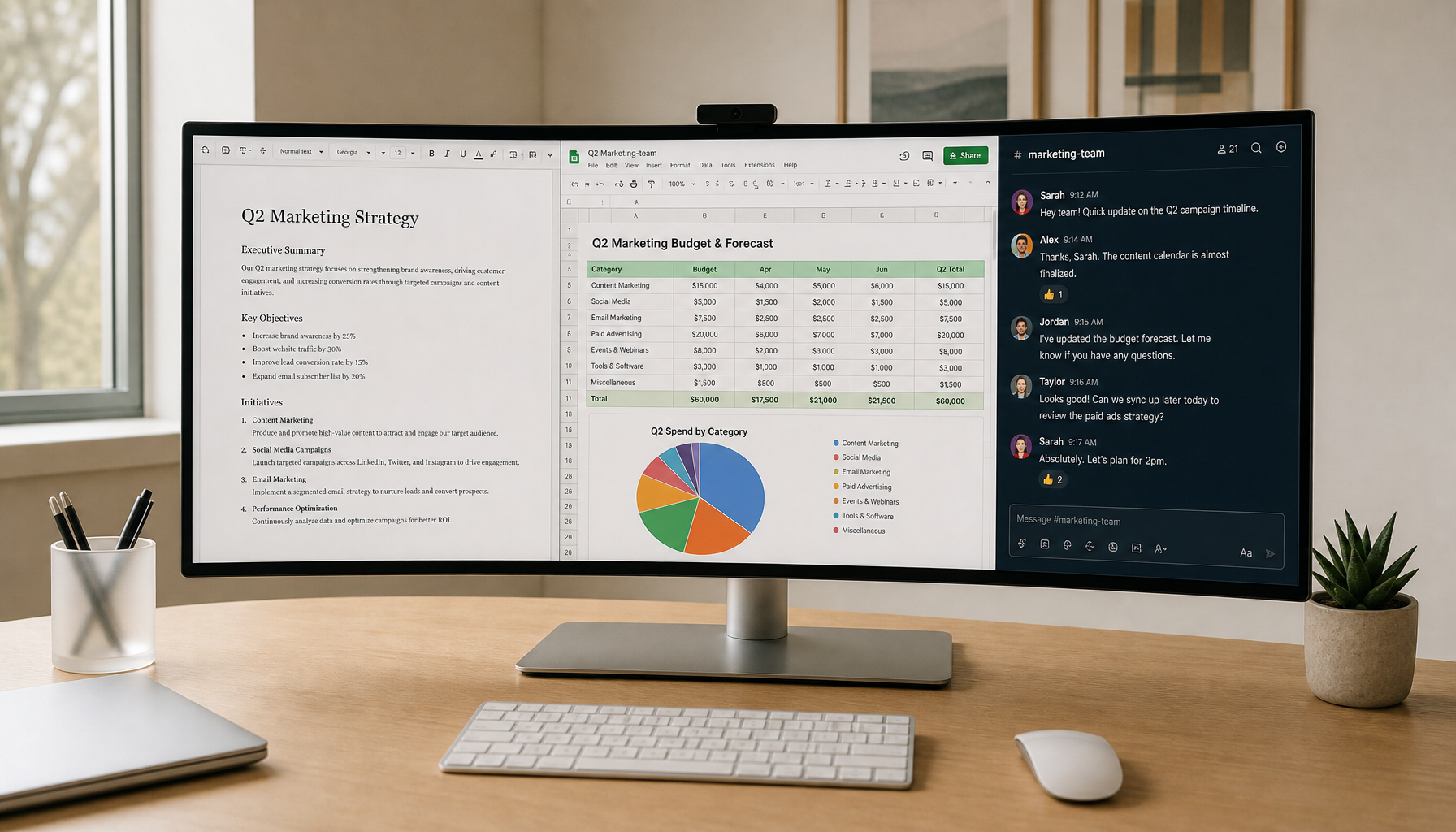
Mini-LED monitor vs OLED for office use usually favors Mini-LED for text clarity because Mini-LED is still an LCD-style panel with a conventional subpixel structure. In plain terms, that often means spreadsheets, menus, and code look predictable at normal desk distance.
OLED can look stunning, but some buyers notice text fringing or a slightly different edge feel, especially if they sit fairly close or use smaller fonts. That is why OLED is not just a "better" version of LCD for office work; the rendering experience can change the way text feels over a long day.
MacBook users should pay attention to scaling, font size, and viewing distance at 27 inches or 32 inches. A sharp panel can still feel awkward if the OS scaling is off or if you are forcing tiny UI elements for too many hours.
For a deeper follow-up on the text side, see this text clarity test for OLED and Mini-LED, which focuses on coding, reading, and office work rather than gaming hype. Additional detail appears in the pixel density guide.
Decision sentence: If you spend more time reading documents than watching movies, the safer office pick is the panel that looks most ordinary but stays readable; if you want richer contrast and can tolerate more attention to font scaling, OLED can still be a strong fit.

Why Text Edges Feel Different
At a desk, text sharpness is not just about resolution. It is also about how the panel renders subpixels, which is why two 27-inch screens with similar specs can still feel different when you scroll code or stare at thin spreadsheet lines.
A practical check is simple: look at small gray text, thin black text on white, and colored icons against a bright background. If those edges feel clean enough after 20 to 30 minutes, the panel is probably close to your comfort zone. If not, the inconvenience tends to show up every single workday.
Why Bright UI Themes Matter
Light-themed apps expose text rendering issues more clearly than dark mode. That is useful for buyers because office desks often live in light themes by default, especially with email, browsers, and document tools.
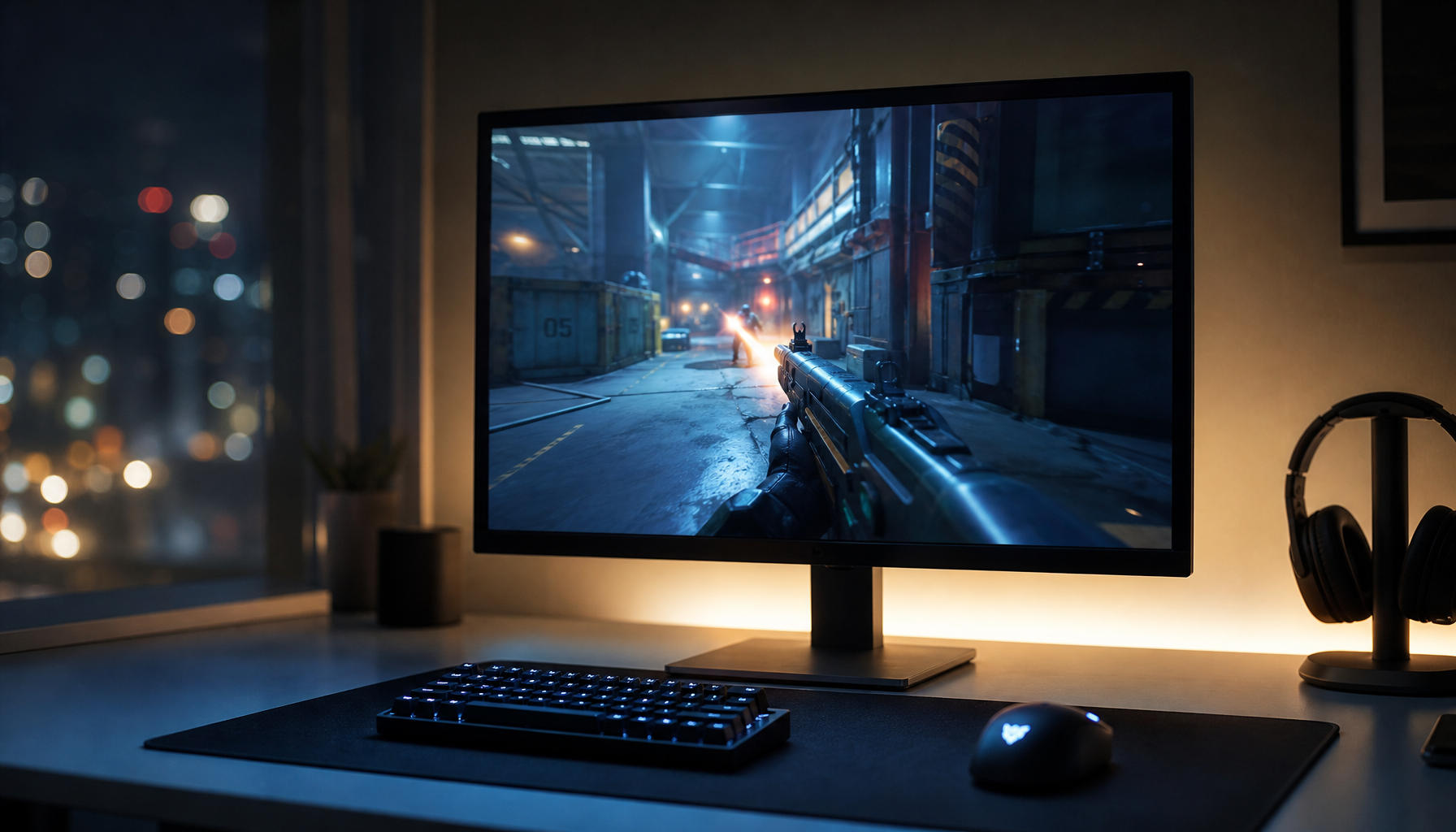
If you mostly use dark mode, OLED's contrast can feel especially appealing. If you use bright pages, dashboards, and sheets all day, Mini-LED often feels more predictable and less distracting.
Brightness in Real Office Light
Mini-LED is usually the safer choice when the desk faces a window or sits under bright overhead lighting. The practical advantage is not a perfect number on a spec sheet, but the way the display holds up when ambient light changes during the day.
OLED can still look excellent in controlled lighting, and it may be the more satisfying option in a dim home office or evening setup. The trade-off is that office brightness expectations are different from living-room expectations: you need consistent usefulness, not just a strong first impression.
As RTINGS' Mini-LED vs. OLED guide explains, Mini-LED tends to sustain higher brightness in brighter or mixed-light spaces. That matters most when your desk location is not under your control.
The comparison also shows why Mini-LED and OLED trade different strengths: OLED gives you perfect blacks, while Mini-LED is often the easier match for bright offices. User reports on real-world OLED vs Mini-LED text rendering align with these brightness and clarity patterns.
| Office Condition | Mini-LED | OLED |
|---|---|---|
| Bright daylight desk | Better fit | Can work, but usually less forgiving |
| Mixed window and overhead light | Better fit | More dependent on room control |
| Dim evening desk | Good fit | Strong fit |
| Long white-document sessions | Better fit | Good only if text feel works for you |
Decision sentence: If your desk brightness changes through the day, Mini-LED is the more stable choice; if your room is already controlled and you want deeper blacks, OLED can be the more satisfying screen.
Burn-In Risk and Long Workdays
OLED deserves more caution on office desks because static UI is part of office life. Taskbars, pinned windows, spreadsheets, and dashboards can sit in the same place for hours, and that is the ownership pattern that raises the most concern.
Mini-LED is the lower-concern option for that style of use because it does not carry the same permanent burn-in risk. That does not make OLED a bad purchase, but it does mean OLED buyers should think about how they actually work, not how they hope to work.
If you leave email, Slack, browser tabs, and an IDE open all day, long-term value matters as much as picture quality. A small picture-quality gain is easy to enjoy on day one, but an avoidable burn-in worry is hard to ignore later.
For a Mini-LED path that fits a more durable office-first mindset, the All-Mini-LED Monitors collection is the cleaner browse path. If you want the opposite direction, the All-OLED Monitor collection is the more direct match, but it makes more sense when you are comfortable managing static UI habits.
Midway through the comparison, the KTC Mini LED 27" 4K 160Hz HDR1400 Gaming Monitor | M27P6 is a practical example of the Mini-LED side: 27-inch 4K, 160Hz, USB-C, and a fully adjustable stand. It is not the cheapest office monitor, but it shows the kind of feature bundle that makes Mini-LED attractive for work-plus-light-gaming desks. The KTC Mini LED 27" 200Hz 2K HDR1000 Gaming Monitor | M27T6S offers a similar durable profile for mixed workloads.
Decision sentence: If you want the least mental overhead over several years, Mini-LED is the safer office pick; if you are comfortable treating burn-in prevention as part of ownership, OLED can still be worth it.
Desk Setup Features That Change the Choice
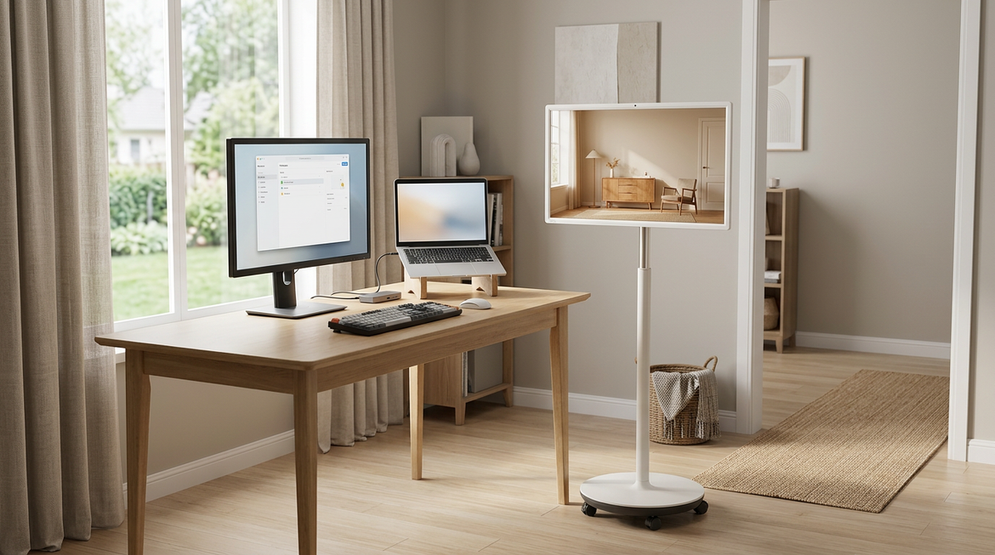
For hybrid MacBook and Windows workflows, USB-C KVM, ergonomic stands, and cable simplicity can matter more than panel type. A monitor that switches devices easily and lets you sit correctly often feels better than a more exotic panel with a worse stand.
USB-C Docking and Charging
USB-C is not just a convenience feature. It can turn the monitor into a simple docking point for video, charging, and source switching, which reduces the friction of coming back to the same desk every day.
That matters most if you move between laptop-only and docked use. If you already have a separate dock, USB-C becomes less critical; if you want one cable and a clean desk, it matters a lot more.
KVM for MacBook and Windows Switching
KVM only matters if you actually switch peripherals between devices. If you use one laptop most of the time, KVM is nice to have; if you regularly swap between a work laptop and a desktop, it becomes a real time-saver.
Before buying, check that the exact monitor includes KVM and that the port layout matches your devices. Do not assume every Mini-LED or OLED model includes the same USB behavior.
Stand Adjustments and Monitor Arm Compatibility
A full ergonomic stand is a quiet office feature that pays off every day. Height, tilt, swivel, and pivot can change whether a screen feels fine for an hour or comfortable for six.
If you use a monitor arm, check VESA support and desk depth first. A stand that looks basic on a product page can still be perfectly fine if the monitor arm will do the real posture work.
For buyers thinking in browse-first terms, the Office Monitor collection is the right starting point for comfort, clarity, and productivity-focused models.
How to Match a Panel to Your Desk
-
Start with your brightest daily lighting condition. If the desk is often bright, Mini-LED is usually the easier fit.
-
Judge your text workload honestly. If you read documents, sheets, and code for most of the day, prioritize the panel that feels clearest after a full hour, not the one that looks flashiest for five minutes.
-
Count how much static UI stays on-screen. If you leave taskbars, toolbars, and dashboards open all day, Mini-LED is the more comfortable long-term default.
-
Decide whether dark-room contrast is a real benefit or just a nice extra. OLED becomes more appealing when you work in controlled lighting and care about blacks as much as text comfort.
-
Check whether USB-C, KVM, and stand flexibility change your daily routine. For hybrid desks, those features can outweigh the panel debate.
-
Compare the full desk cost, not only the panel premium. A better stand, stronger ports, or a more usable office mode can matter more than chasing the most dramatic image quality.
A useful way to read the Mini-LED monitor vs OLED for office use decision is this: Mini-LED wins when your desk is bright, static, and work-heavy; OLED wins when the room is controlled and picture quality matters more than caution.
A Practical Shortlist Before You Buy
- Confirm whether your desk is bright enough that Mini-LED's stronger daylight behavior matters more than OLED's contrast.
- Confirm that the stand, VESA support, and desk depth match how you actually sit.
- Confirm whether USB-C charging, KVM, or a simple video input is the cleaner match for your laptop routine.
- Confirm the warranty, return window, and shipping timing if you are choosing between two close options.
- If you want a broader office starting point, browse the Office Monitor collection. If your desk is clearly Mini-LED-friendly, the All-Mini-LED Monitors collection is the more focused path.
Mini-LED vs OLED for Office Buyers
Mini-LED usually makes the better office-first choice because it is easier to live with under bright light, long static sessions, and mixed laptop use. OLED can still be the right buy if your room is controlled and you value contrast enough to accept more care around text rendering and static UI. The safest choice is the one that matches your desk, not the one that looks best in a spec comparison.
Related Resources
- Best Monitor for Coding: Text Clarity, Vertical Mode, and Eye Comfort
- Why USB-C Power Delivery is Crucial for Developer Hot-Desking
FAQs
Q1. Which panel type handles static office UI better over years of use?
Mini-LED generally carries lower long-term risk with taskbars and spreadsheets.
Q2. Does OLED text clarity work for long coding or document sessions?
Many users find it acceptable after scaling adjustments, though Mini-LED often feels more predictable at desk distance.
Q3. How important is room lighting when choosing between these panels?
Bright or mixed daylight favors Mini-LED; controlled dim lighting lets OLED's contrast shine.
Q4. Do USB-C and KVM features outweigh panel differences?
For hybrid laptop desks they frequently do, since daily workflow friction matters more than peak specs.
Q5. What single check helps most before buying?
Test text rendering on your typical apps for at least thirty minutes under your actual desk lighting.