Choose 2560×1080 when you need affordable ultrawide space and smoother performance on modest hardware; choose 3440×1440 when sharpness, productivity, and long-term gaming immersion matter more.
Is your ultrawide game world filling your peripheral vision, but text still looks a little soft when you lean in? Moving from 2560×1080 to 3440×1440 adds roughly 79% more pixels, which is a visible upgrade for spreadsheets, timelines, browser tabs, and detailed game environments. This guide will help you match the resolution to your desk, GPU, workload, and comfort instead of buying by hype.
What These Ultrawide Resolutions Actually Mean

Display resolution is the number of pixels shown on the screen, and your operating system generally recommends using the monitor’s native resolution because lower settings can make text look less sharp, stretched, centered, or surrounded by black borders. In practical terms, 2560×1080 is often called WFHD, while 3440×1440 is commonly called UWQHD or ultrawide 1440p.
Both are ultrawide formats, usually around the 21:9 class. The difference is density and usable space. A 2560×1080 panel gives you 2,764,800 pixels. A 3440×1440 panel gives you 4,953,600 pixels. That extra pixel budget makes 3440×1440 feel less like “a wider 1080p screen” and more like a serious single-monitor workspace.
Resolution |
Pixel Count |
Typical Size |
Practical Feel |
2560×1080 |
2.76 million |
29-inch to 34-inch ultrawide |
Easier to run, larger-looking UI, less sharp |
3440×1440 |
4.95 million |
34-inch ultrawide |
Sharper, roomier, more demanding |
The Sharpness Question: Text, PPI, and Desk Distance
A 34-inch 2560×1080 monitor can look expansive at first, but the lower pixel density is the catch. Text, icons, and fine interface lines have fewer pixels to work with, so the image can look soft compared with 3440×1440 at the same screen size. In user discussions around 3440x1440 vs 2560x1080, the recurring tension is not whether more pixels are sharper; it is whether the user prefers larger on-screen elements or denser detail.
For office productivity, this matters more than many spec sheets admit. If you spend six hours in spreadsheet grids, dashboards, code editors, or trading-style layouts, 3440×1440 gives columns and text more definition. If you sit farther back or prefer large UI elements without scaling, 2560×1080 can feel comfortable, especially on a smaller 29-inch panel.
The best practical test is simple: if you currently find 1080p text acceptable on a 24-inch monitor, 2560×1080 on a 29-inch ultrawide may feel familiar. If you are used to a 27-inch 1440p monitor, 3440×1440 on a 34-inch ultrawide will feel much closer to that crispness.
Gaming Performance: Smooth Frames vs. Richer Detail

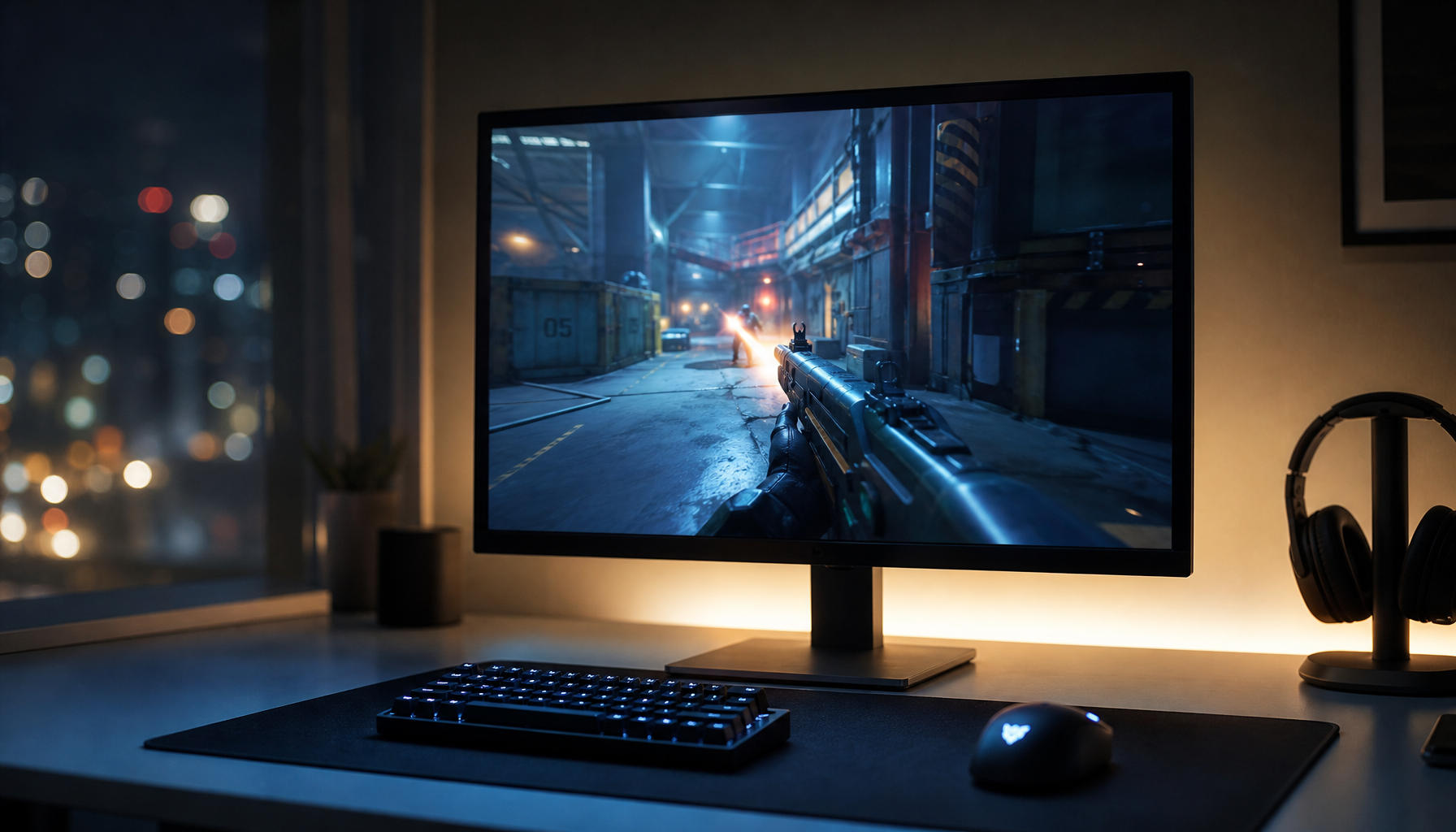
For gaming, 2560×1080 is the easier performance play. It asks the GPU to render far fewer pixels, which can help midrange systems hold higher frame rates, especially in fast shooters, racing games, and competitive titles. If your graphics card already struggles at standard 2560×1440, a 3440×1440 ultrawide will not make life easier.
3440×1440 requires about 35% more rendering work than standard 1440p, but it is still far lighter than 4K. That makes it one of the strongest high-refresh sweet spots for PC gaming: wider than 16:9, sharper than 1080p ultrawide, and less punishing than 3840×2160.
The decision gets clearer when you factor in game type. A 2560×1080 monitor can make sense for esports-style play where frame rate and response matter more than image density. A 3440×1440 monitor is the better fit for racing, simulation, RPG, open-world, atmospheric, and single-player games where peripheral scenery and crisp environmental detail increase immersion.
Productivity: Why 3440×1440 Gives You More Usable Space

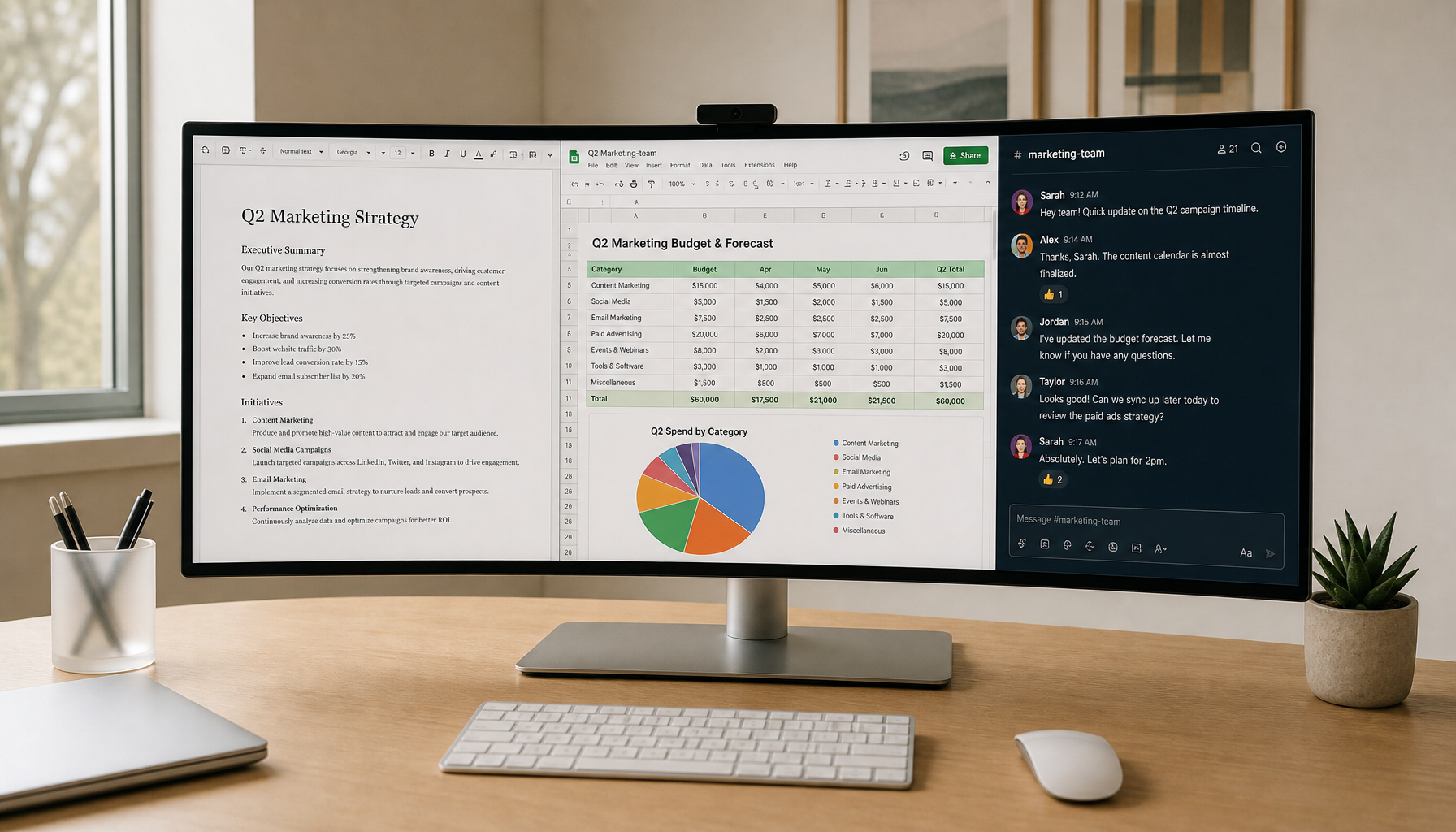
An ultrawide monitor earns its keep when it reduces switching. A writer can keep research on the left and a draft on the right. A developer can keep code, terminal, and documentation visible. A finance user can keep more spreadsheet columns open without constant horizontal scrolling.
A year-long productivity account using a 34-inch 3,440 x 1,440 display found the biggest benefit in spreadsheet-heavy work, large datasets, dashboards, and apps with many columns. That matches hands-on display testing patterns: 3440×1440 does not just make the screen wider; it makes the extra width usable because text and gridlines stay clearer.
However, the same account highlights a practical limitation that buyers often miss: the laptop and cable must support the monitor’s full resolution at the desired refresh rate. A 3440×1440 monitor running at 30 Hz because of an older laptop output will feel sluggish for cursor movement, window dragging, and general office work. For a modern productivity setup, USB-C, DisplayPort, Thunderbolt, or a capable HDMI connection can matter as much as the panel itself.
Compatibility and Setup: Check the Signal Path

A monitor is only as good as the signal you feed it. If your operating system does not show the native ultrawide option, the issue is often the graphics driver, dock, cable, adapter, or port bandwidth. Using the recommended resolution is not just a convenience setting; it is the cleanest path to native sharpness.
Ultrawide monitor setup also brings physical considerations: desk width, viewing distance, curvature, mount strength, and cable routing. A 34-inch 3440×1440 display can replace a dual-monitor layout elegantly, but it still needs enough desk depth so the edges do not feel too close. A heavy-duty monitor arm can improve ergonomics and reclaim desk space, especially if the stock stand is deep.
Media and console compatibility also tilt the decision. Many movies, streaming apps, and consoles are still built around 16:9. A 21:9 monitor may show black bars or scaling quirks. For a PC-first user, that is manageable. For a console-first setup, ultrawide is usually not the cleanest choice.
2560×1080 Pros and Cons
Strength |
Tradeoff |
Easier to drive at high frame rates |
Softer text and lower detail, especially at 34 inches |
Usually more budget-friendly |
Less useful for dense productivity layouts |
Comfortable larger-looking UI without scaling |
Can feel like stretched 1080p rather than a premium display |
Good for modest GPUs and casual ultrawide gaming |
Weaker long-term value for creative and office-heavy work |
3440×1440 Pros and Cons
Strength |
Tradeoff |
Sharper text and more usable workspace |
Requires a stronger GPU than 2560×1080 |
Excellent balance for 34-inch ultrawide monitors |
Costs more upfront |
Strong for multitasking, coding, spreadsheets, editing, and immersive PC gaming |
Some games and media may show black bars or imperfect scaling |
Lower hardware burden than 4K while still feeling premium |
Older laptops, docks, or cables may limit refresh rate |
Which One Should You Buy?
Choose 2560×1080 if your priority is value, smooth gaming on a modest GPU, or a compact ultrawide desk setup. It is also the safer pick if you dislike small text and do not want to use scaling. On a 29-inch ultrawide, it can feel balanced; on a 34-inch ultrawide, inspect it in person if possible because softness becomes easier to notice.
Choose 3440×1440 if you want the ultrawide experience to feel like an upgrade, not just a wider canvas. It is the stronger pick for 34-inch monitors, mixed work-and-play setups, spreadsheet-heavy jobs, video timelines, coding, and immersive PC gaming. If the GPU, cable, and laptop output are ready for it, 3440×1440 is the resolution that best matches the promise of a premium ultrawide.
FAQ
Is 3440×1440 the Same as 4K?
No. 3440x1440 is not 4K; it has about 4.95 million pixels, while 4K UHD has about 8.3 million pixels. The advantage of 3440×1440 is width and immersion, not maximum pixel count.
Is 2560×1080 Bad for Gaming?
No, especially if your PC is built for high frame rates rather than maximum detail. It can be a smart performance-first ultrawide choice, but it gives up sharpness compared with 3440×1440.
Is 3440×1440 Worth It for Office Work?
Yes, if your work benefits from seeing more information at once. For spreadsheets, dashboards, timelines, research, and coding, 3440×1440 provides a much stronger balance of width and clarity than 2560×1080.
For a performance-driven ultrawide setup, the clean recommendation is this: buy 2560×1080 for budget speed, and buy 3440×1440 for a display that keeps its value after the first week. The best ultrawide is not the widest one you can afford; it is the one your eyes, desk, workflow, and GPU can all support.