A KVM monitor setup can transform a cluttered dual-computer desk into a clean, ergonomic command center. By routing video, data, and power through a single high-quality USB-C cable to your work laptop while keeping your gaming rig or personal desktop on a secondary upstream connection, you eliminate extra keyboards, mice, and docks. The result is faster context switching between productivity and play with far less physical friction and visual distraction.

Beyond the Cable Nest: Why Your Home Office Needs a KVM Anchor
Most hybrid workers running a work laptop alongside a gaming or personal desktop quickly accumulate two sets of peripherals, multiple video cables, and a growing nest of power bricks. Traditional fixes such as external KVM switches or Thunderbolt docks often add more hardware and visible wiring rather than reducing it. An integrated KVM monitor acts as the single anchor point, centralizing all connections so one keyboard and mouse serve both machines while the desk surface stays clear.
This approach directly addresses the “clutter tax” that slows daily workflow and undermines the minimalist aesthetic many professionals want. Instead of swapping cables or reaching under the desk, you keep everything routed through the display itself. The setup suits anyone who alternates between focused office tasks and after-hours gaming or content creation on the same physical desk.
The Technical Foundation: How a KVM Monitor Simplifies Your Hardware
A KVM monitor simplifies dual-computer operation through USB-C Alt Mode, which allows a single cable to transmit 4K video, data, and power simultaneously. For a typical work laptop this means one USB-C connection handles display output, peripheral data, and up to 90 W charging. Your second machine—commonly a desktop or gaming rig—connects via a USB-B upstream port plus a DisplayPort or HDMI cable so the monitor can switch its internal switch between the two sources.
Keyboard and mouse plug once into the monitor’s built-in USB-A hub and become available to whichever computer is active. This architecture removes the need for a separate docking station in many cases, although port variety on the monitor itself remains more limited than a full-featured Thunderbolt dock. Users should verify that their laptop supports USB-C Alt Mode and that cable quality meets 10 Gbps data and 100 W power specifications to maintain stable handshakes.
Integrated KVM Monitor vs. Standalone Docking Station
Integrated KVM Monitor vs. Standalone Docking Station: Typical Trade-off
Helps visualize the typical reduction in cables, added cost, and switching friction in common dual-PC home office setups.
View chart data
| Category | Integrated KVM monitor | Standalone docking station |
|---|---|---|
| Total added cost (USD) | 0.0 | 250.0 |
| Visible cables | 2.0 | 4.0 |
| Switching speed | 1.0 | 2.0 |
The chart above illustrates the typical pattern: an integrated KVM monitor reduces both added cost and cable count while making daily switching feel faster. Still, a standalone dock may remain preferable when you need extra ports such as SD card readers or multiple high-power downstream connections.
Ergonomic Alignment: Setting Up Your KVM Monitor for Long-Term Health
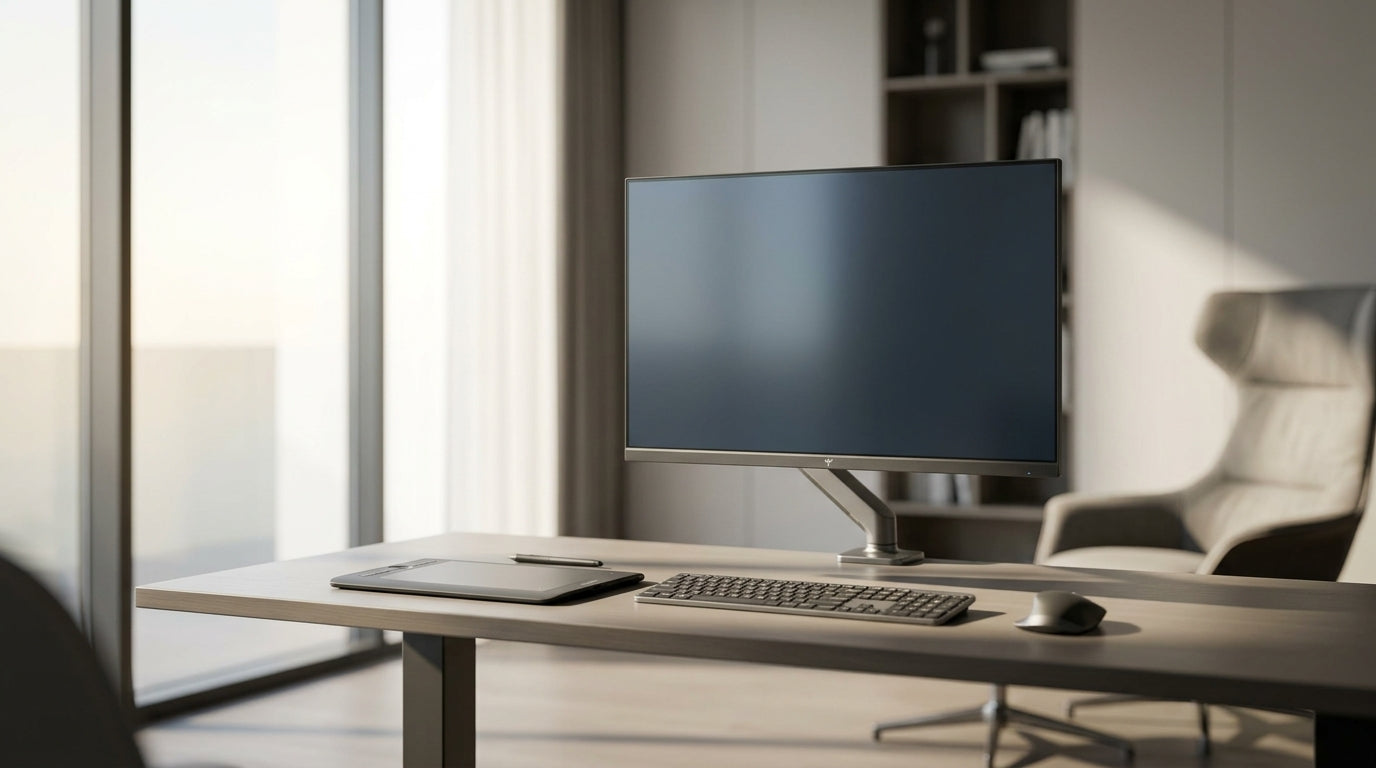
Position the KVM monitor directly in front of you so the top of the screen sits at or slightly below eye level, following OSHA guidance on computer workstation setup. This centered placement prevents the repetitive neck rotation often called “tennis neck” that appears when users glance back and forth between a laptop screen and a secondary display all day.
Adopt the 20-20-20 rule from the American Optometric Association: every 20 minutes, look at an object 20 feet away for 20 seconds. A monitor arm helps achieve proper height while freeing desk space and routing cables cleanly through the arm itself. For ultrawide models, consider a “lead-follow” layout where the primary KVM monitor stays centered and the laptop sits on a low side riser or in clamshell mode to keep your gaze mostly forward.

The Zero-Clutter Blueprint: Cable Management Secrets for KVM Users
Achieve the one-cable dream by routing the full-featured USB-C cable (10 Gbps data, 100 W power) through the monitor arm or a desk grommet so only a single clean line reaches the laptop. For the secondary PC connection, sleeve the USB-B upstream and DisplayPort cables together and run them behind the desk or inside cable trays to keep them out of sight.
Leave a small service loop—roughly three inches of slack—behind the monitor so it can tilt or rotate without stressing the ports. Keep high-power peripherals such as external hard drives plugged directly into the computers rather than the monitor’s USB hub; this avoids bandwidth or power limits that can cause peripheral ghosting or unstable switching. Cable quality matters: cheap or long USB-C cables frequently trigger “no signal” errors because they fail to maintain the full USB-C Alt Mode handshake.
Maximizing Productivity: Switching Between Work and Play Without the Friction
Most KTC monitors let you trigger the KVM switch with a simple joystick movement—typically pushing the joystick rightward—giving near-instant transitions between machines without reaching for buttons or menus. This shortcut reduces the daily “toggle tax” that disrupts flow when moving from spreadsheets to gaming.
EDID emulation, when available, keeps desktop icons and window positions stable across switches, avoiding the frustration of rearranged workspaces. On high-brightness or Mini-LED panels, you may still need to toggle HDR manually for optimal color in productivity apps versus vivid gaming; test your specific workflow to decide whether the extra step is worth the visual pop. For users sensitive to these adjustments, a model with strong factory calibration and easy OSD access minimizes the interruption.
Common Pitfalls: Troubleshooting Your Dual-Device KVM Setup
The most frequent “no signal” issue stems from either an incompatible laptop lacking full USB-C Alt Mode support or a cable that cannot sustain the required bandwidth. Re-seat connections, try a shorter certified cable, and confirm your laptop’s port specifications before assuming the monitor is at fault.
Power delivery can sag when the monitor runs at maximum brightness or HDR while charging a high-performance laptop; expect that 90 W may not cover peak loads, so keep the power brick nearby for demanding sessions. Peripheral lag or ghosting during switches usually disappears when you reserve the monitor’s USB hub for low-draw devices such as keyboard and mouse only. Firmware updates occasionally resolve stubborn handshake problems, so check the manufacturer support page for your exact model if issues persist after basic cable and port checks.
Ready to Streamline? Build Your High-Efficiency Workspace Today
Choose your KVM anchor based on primary use. The KTC OLED 27" 2K 240Hz/0.03ms USB-C Gaming Monitor | G27P6 suits gaming-first users who want vivid colors and fast refresh rates with seamless KVM switching. For spreadsheet-heavy or multitasking workflows, the KTC 49" DQHD 180Hz 1000R Curved Gaming monitor | H49S66 offers massive screen real estate and the same integrated KVM convenience.
Run a quick zero-clutter audit before buying: confirm your laptop supports USB-C Alt Mode, measure available desk depth for the chosen monitor size, and verify that the monitor’s port layout matches your peripheral needs. Once those conditions are met, the transition from cable nest to streamlined workstation usually takes under an hour.
Explore more options in the Office Monitor or Gaming Monitor collections, or read our Home Office Setup Guide: How to Choose the Right Ergonomic Monitor for additional placement tips.
Frequently Asked Questions
Do all KVM monitors eliminate the need for a docking station?
Not always. Integrated KVM handles video, power, and basic peripherals for many laptops, but users needing extra ports such as SD card slots, multiple Ethernet connections, or higher combined power delivery may still benefit from a dock. Test your specific device combination to confirm the monitor’s hub meets daily requirements.
How do I hide cables completely with a KVM monitor?
Route the primary USB-C cable inside a monitor arm or through a desk grommet, sleeve secondary PC cables together behind the desk, and use cable clips or raceways along the legs. Leave a small service loop to prevent strain during adjustments. Quality full-featured USB-C cables are essential to avoid signal dropouts that would force visible troubleshooting.
Is a KVM monitor ergonomic for long workdays?
Yes, when positioned correctly. Center the monitor at eye level per OSHA guidelines, follow the 20-20-20 rule for eye breaks, and use a monitor arm to maintain proper distance and tilt. A “lead-follow” layout with the laptop off to the side or closed prevents constant neck twisting between screens.
How fast is switching between computers on a KTC KVM monitor?
The built-in joystick shortcut typically changes the active computer in under two seconds. This speed feels noticeably smoother than reaching for a separate dock button or swapping cables manually. EDID emulation further reduces disruption by keeping desktop layouts stable.
Is a KVM monitor worth it for both work and gaming?
For most hybrid users sharing one desk, the reduction in peripherals, cables, and switching time delivers clear productivity gains. The setup is especially valuable when desk space is limited and aesthetics matter. Confirm USB-C compatibility and power needs first; if those align, the convenience usually outweighs the modest premium over a basic monitor.
What should I check if the monitor does not detect one of my computers?
Verify that the laptop supports DisplayPort Alt Mode over USB-C, that the cable is a certified full-featured version no longer than necessary, and that all connections are firmly seated. Updating the monitor firmware and ensuring the secondary PC’s graphics output matches the monitor’s supported resolutions often resolves remaining detection issues.