A safe masonry monitor install depends on sound material, conservative mount choice, and precise drilling. Most cracks come from weak hole placement, poor dust cleanup, or using a mount that pulls too far away from the wall.
Use a low-profile mount, drill only into sound masonry, keep holes away from edges, clear dust from every pilot hole, and match the fastener to the wall type and the real load. Most cracked installs happen when brick or concrete is treated like drywall, or when a long arm adds far more force than the monitor’s weight suggests.
If your desk is packed, your speakers are fighting for space, and a clean floating-screen setup is the goal, the last thing you want is a chipped brick face or a cracked concrete wall. In real monitor installs, the result usually comes down to three controllable details: where the hole lands, how far the screen projects, and whether the fastener is made for masonry. Get those right, and you can build a sharper, more immersive setup without turning the wall into a repair job.
Start With the Wall, Not the Mount
A monitor mount is only as reliable as the surface behind it. On cinder block walls, standard nails and generic tape are poor choices because the material is both hard and porous, which means the right attachment method changes depending on whether you have solid poured concrete, full brick, or a hollow block wall. A basement office with painted block, for example, needs a different plan than an exposed brick loft wall, even if the same 27-inch monitor is going up.
Brick, Mortar, and Concrete Mean Different Things
Brick is the fired masonry unit itself, while mortar is the joint material between bricks. For heavy TV-class loads, drilling into the brick rather than the mortar is usually the stronger approach, and that logic carries over to heavy monitor arms and large ultrawides. In practice, that matters most when the mount sticks out from the wall: a 34-inch ultrawide on an articulating arm can stress the fasteners much more than a flat 24-inch office monitor.

There is a real nuance here. Some sources strongly favor drilling into brick, while others note that sound mortar can sometimes work when bracket geometry lands there and the joint quality is good. The disagreement is mostly about load class and leverage, not basic safety. If the screen is light, fixed, and close to the wall, a sound mortar joint may be serviceable. If the mount swings, tilts far forward, or carries a heavier display, solid brick or solid concrete is the more reliable choice.
Veneer Is Not Structural Masonry
Some thin brick facades and faux-stone finishes are not meant to take direct mounting loads, so they may need reinforcement, adapters, or a different strategy. That is a common trap in apartments and renovated offices: the wall looks like brick, but the visible layer is only decorative. If you cannot confirm that the masonry is thick and structurally sound, treat the wall as uncertain and avoid committing to a heavy arm mount.
Match the Mount to the Real Load
The key number is not just monitor weight. VESA refers to the standard hole pattern on the back of the display, usually about 3 x 3 in or 4 x 4 in on typical monitors, but VESA compatibility alone does not make a wall safe. What matters is the combined weight of the monitor and bracket, plus the force created when the screen sits away from the wall.
Why a Swing Arm Feels Heavier Than It Is
That screen projection force matters on masonry just as much as it does on drywall: the farther the screen projects, the more the fasteners try to pry outward instead of simply hanging down. A 17 lb monitor on a 6 lb articulating arm gives you 23 lb of static weight, but when the arm extends out for sim racing, editing, or a standing-desk position, the wall sees noticeably more rotational stress than a flat mount would create. That is why low-profile fixed mounts are the safest choice when your goal is a clean, stable wall setup.
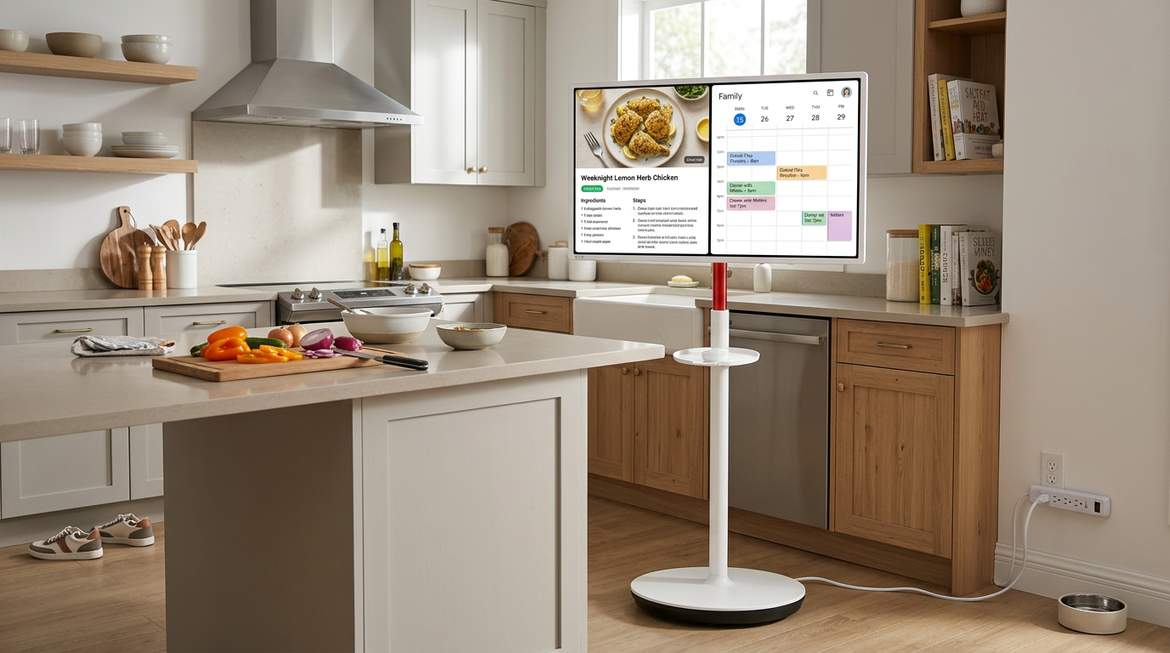
For no-drill wall-mount options, adhesive strips, hooks, brick clips, and no-stud products can make sense when wall damage must stay minimal, but they come with tighter weight limits, stricter surface requirements, and less forgiveness on textured masonry. In plain terms, they are better for a very light portable smart screen, a cable accessory, or a temporary display than for a primary gaming monitor that needs to stay level under daily use.
If you want the visual separation from the desk but not the risk of drilling, a freestanding floor mount is often the smartest compromise. That approach is the lowest-risk option because it avoids wall attachment entirely, and the tradeoff is easy to justify when you are in a rental or dealing with older masonry that feels brittle or crumbly.
Drill Without Cracking the Masonry
Cracks usually start before the fastener ever goes in. On concrete walls, the prep work is not optional: inspect the area for existing cracks, loose paint, or weak surface material, check for hidden wires or pipes, clean the surface, and mark the position carefully with a level. On a dual-monitor office wall, a half-inch layout error can become a constant annoyance because the top edge of the display will advertise that mistake every day.
Hole Placement and Edge Distance
For brick wall installs, keeping the hole away from weak edges is one of the clearest ways to avoid damage. One mounting guide advises placing the screw at least about 1/2 inch from the edge of the brick, with an example drilling depth of roughly 2 1/4 to 2 1/2 inches for masonry anchors and screws. Another example used a hammer drill with a sharp 1/4-inch masonry bit on an interior brick install, and that detail matters: a fresh carbide bit cuts cleaner, runs cooler, and reduces the temptation to force the drill and chip the surface.
The drill should stay perpendicular to the wall, and the first few seconds should feel controlled rather than aggressive. One concrete-install guide recommends starting at low speed so you can stop if the bit wanders or the surface behaves unexpectedly. If the bit skates across a glazed brick face or painted concrete patch, reset the mark before you create an oversized opening.
Dust Removal Is Not a Small Detail
With concrete screw installation, the basic sequence is drill, clean the hole, and drive the screw, and skipping the cleaning step is one of the fastest ways to get a weak hold. Dust left in the hole keeps the fastener from biting the masonry properly, which can encourage overtightening, spinout, or surface cracking around the opening. A small shop vacuum is enough for most monitor jobs, and it does more for reliability than many people expect.

Wall type changes the hardware choice too. On hollow cinder block, toggle or expansion-style anchors may make more sense because they can open inside the cavity, while concrete screws are better suited to solid material after correct predrilling. If your office wall sounds hollow in some spots and solid in others, pause and identify the substrate before you commit to a fastener.
When Not to Drill
A no-drill strategy is justified when the wall is decorative, rented, historically sensitive, or simply not confidence-inspiring. Brick clips and adhesive methods are attractive because they preserve the wall and keep installation reversible, but the downside is clear: they depend heavily on compatible brick shape, clean surfaces, and modest loads. A textured old brick wall in a loft may reject adhesives even if the monitor itself is not especially heavy.
For very light-duty applications, self-adhesive hooks and hardwall hangers can work on masonry, but they belong in the light-object category, not the primary-monitor-on-a-movable-arm category. That distinction is easy to miss because a modern display can look slim and harmless while still creating significant stress once you add a bracket and daily adjustment.
The Mistakes That Usually Cause Trouble
Most failed installs come from five habits: drilling into weak edges, using a dull or incorrect bit, leaving dust in the hole, overtightening the fastener, and choosing a mount with too much extension for the wall and hardware. The cleanest, strongest result usually comes from a modestly sized fixed mount on sound masonry, not from the most flexible arm available.
A second common mistake is forgetting that cables pull too. Cable management is not just cosmetic; a stiff HDMI cable or power cord can twist a smaller display off level over time, especially on lighter mounts. After installation, check the mount again after a few days of normal use, then recheck it periodically. A stable picture is part safety and part setup discipline.
A brick or concrete wall can deliver an excellent monitor setup when you treat it like masonry instead of glorified drywall. Keep the mount close to the wall, put the fastener into sound material, and make every drilled hole deliberate; that is how you get a clean, immersive screen position without sacrificing the wall behind it.