A USB-C KVM monitor can clean up a dual-PC desk fast, but only if your laptop and desktop actually support the right video path, USB path, and charging behavior. The label on the monitor matters less than whether each source device can send display signal over USB-C, HDMI, or DisplayPort without extra guesswork.

What a USB-C KVM Monitor Solves
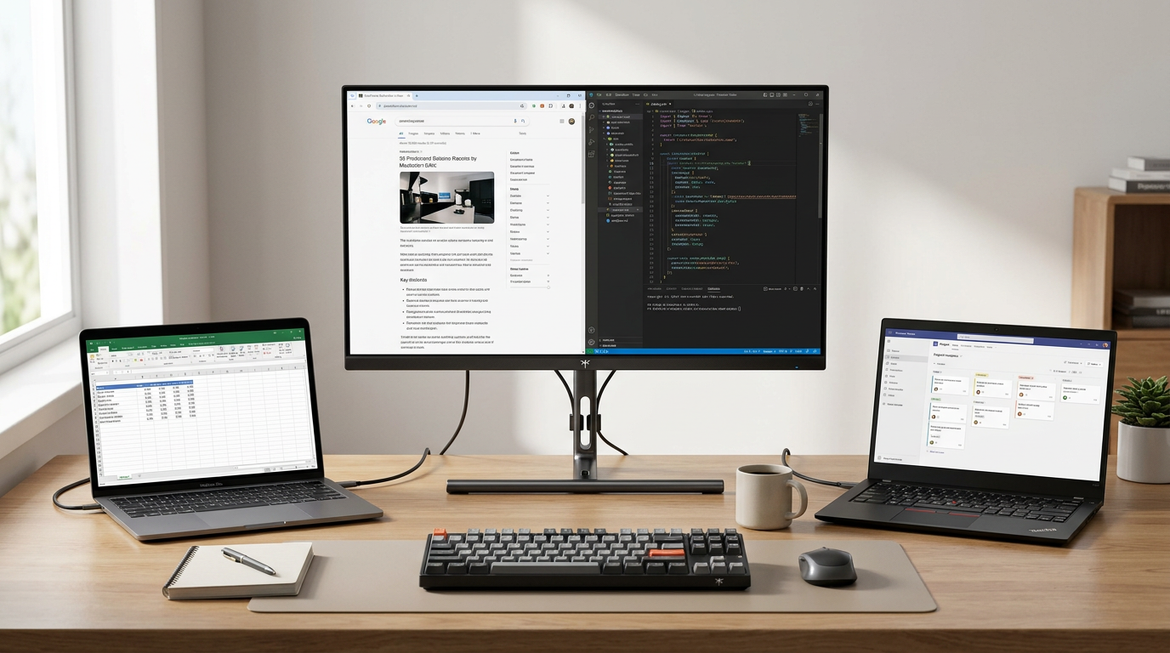
For dual-PC users, the main benefit is simple: one screen, one keyboard, one mouse, fewer cable swaps. A USB-C KVM monitor can also reduce dock clutter if your laptop supports video over USB-C and the monitor can negotiate enough power for your normal workday.
The catch is that convenience only shows up when the source devices are compatible. As USB Type-C system behavior explains, USB-C video is not guaranteed on every port, so the safer buying move is to verify the laptop and desktop paths first and the monitor label second.
A good first decision sentence is this: if your desk changes between a work laptop and a gaming PC several times a day, a USB-C KVM monitor is worth considering; if you only switch once in a while, simple input switching may be enough.
Port Support Matters More Than the Label
Check the source devices before you shop. A USB-C port can charge a laptop without sending video, and a monitor can offer power delivery without keeping up with a high-performance laptop under load. Power Delivery negotiates between devices, so wattage is a starting point, not a promise.
That matters most for MacBook-and-PC desks, where the laptop may use USB-C differently from the desktop. If the desktop cannot use USB-C cleanly, you usually want HDMI or DisplayPort as the fallback path, then let the KVM handle peripherals separately.
Why Some USB-C Cables Charge Your Laptop but Do Not Transmit Video to the Display is a useful follow-up when the cable looks fine but the screen stays dark. The practical rule is: use a full-function USB-C cable for video, not a charge-only cable that happens to fit.

Decision sentence: If your laptop USB-C port does not support video output, do not buy a USB-C KVM monitor expecting one-cable simplicity; use it only if you are comfortable routing the laptop through HDMI or DisplayPort instead.
Decision sentence: If your laptop charges but still drains during heavy work, the monitor's PD number may be useful but not decisive, because real workload can exceed what the monitor can continuously supply.
The Features That Actually Change Daily Use
Here is the useful filter: don't buy for features that sound impressive but do not change your daily switching pattern. Buy for the parts of the desk you touch all day.
| Feature | Why It Matters | What To Check Before Buying | What Goes Wrong If You Ignore It |
|---|---|---|---|
| USB-C video input | Lets a laptop send display over one cable | Confirm the laptop port supports video | You get power but no picture |
| USB-C power delivery | Can reduce charger clutter | Compare PD to your typical laptop load | The laptop charges slowly or loses charge under load |
| KVM switching | Moves keyboard and mouse with the active source | Confirm the monitor supports the upstream path you need | You still end up swapping peripherals manually |
| HDMI and DisplayPort fallback | Helps when USB-C is finicky | Make sure both source devices have a clean fallback | One device becomes hard to connect reliably |
| OSD input control | Speeds up source switching | Check whether the menu is quick to reach | Small delays become annoying on a desk you switch often |
| Ergonomic stand or VESA support | Makes frequent switching more comfortable | Check height, tilt, and swivel, or arm compatibility | The setup feels awkward even when it works technically |
For most buyers, the hidden trade-off is this: faster gaming features matter less if the monitor is annoying to switch, while a simpler office-style monitor can be the better choice if reliability matters more than motion performance.
If you want to browse a wider set of gaming-focused options while you compare those trade-offs, the Gaming Monitor collection is a useful starting point rather than a commitment to any one spec tier.
How to Set Up the Desk Without Guesswork
Use a direct path first. Connect one computer to the monitor with one cable before you add a dock, hub, adapter, or KVM shortcut. That makes it much easier to tell whether the problem is the cable, the port, the input selection, or the monitor itself.
- Connect the laptop or desktop directly to the monitor with the cleanest supported path.
- Confirm that the monitor shows a picture before adding anything else.
- Add keyboard, mouse, and USB downstream devices only after video works.
- Test the KVM switch path and confirm peripherals follow the selected source.
- Put the system to sleep and wake it once, because that is where many USB-C desks feel unreliable.
For sleep issues and source changes that do not wake cleanly, Why Won't My USB-C Monitor Wake from Sleep with My Laptop? is the kind of troubleshooting follow-up that saves return headaches.
Decision sentence: If your setup only works when every adapter is in a very specific order, it may still be usable, but it is not the best fit for a desk you want to switch quickly.
Which Monitor Fits Which Dual-PC Desk
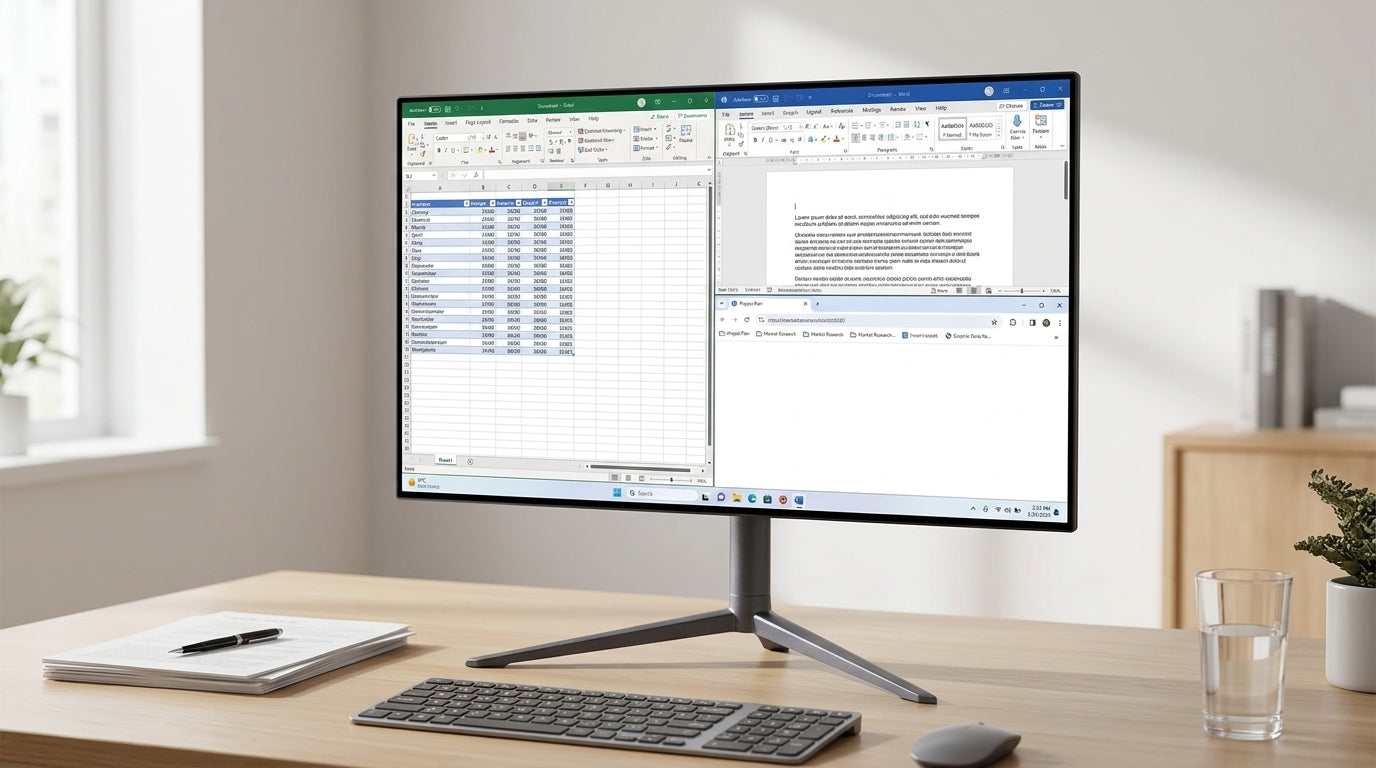
The best monitor choice changes with the job, not just the desk size. For mixed work and gaming, 1440p is often the easiest balance. For text-heavy productivity, 4K is usually the cleaner fit. For app separation and timeline width, ultrawide or super-ultrawide can be more useful than a second screen.
| Desk Type | Best Fit | Main Trade-Off | Example From The Catalog |
|---|---|---|---|
| Text-heavy work with occasional gaming | 4K | Stronger sharpness, less emphasis on extreme refresh | [KTC 27" 4K 160Hz/320Hz 90W Gaming Monitor |
| Balanced work-plus-gaming | 1440p or dual-mode 4K/1080p | Easier performance balance, less absolute detail than 4K-only focus | [KTC 27" 4K 160Hz/320Hz 90W Gaming Monitor |
| Ultradwide multitasking | 34-inch or 49-inch ultrawide | Great horizontal workspace, bigger desk footprint | KTC 49" DQHD 180Hz 1000R Curved Gaming monitor丨H49S66 |
| Reliability-first office desk | Simple 4K or QHD office-style monitor | Fewer premium motion extras, usually easier day-to-day switching | 4K Monitor collection |
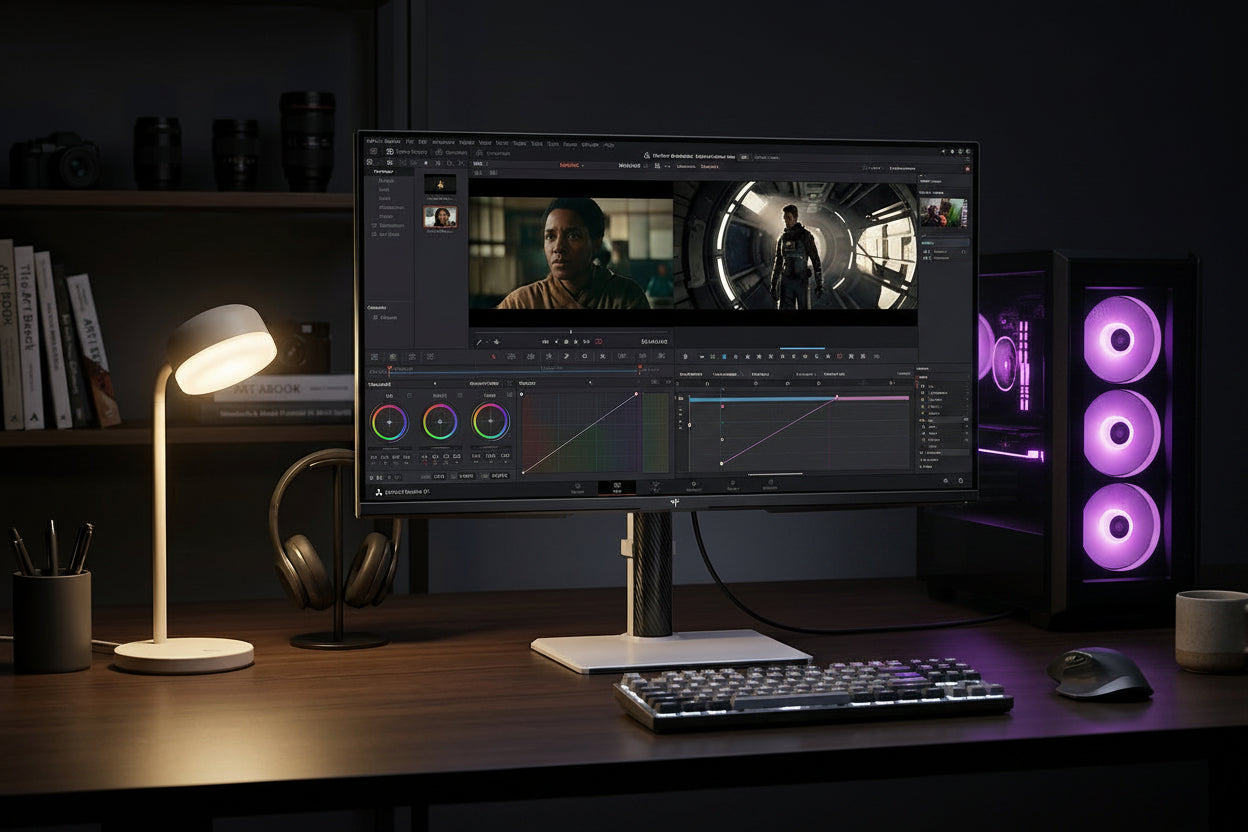
| Gaming-first desk with periodic work | High-refresh gaming monitor | Better motion, sometimes more setup sensitivity | Gaming Monitor collection |
If the gaming PC is the main performance source and the laptop is secondary, a gaming-first monitor can make sense. If the desk is mostly spreadsheets, docs, and messaging with occasional play, simpler and sharper is usually the smarter buy.
For a 27-inch dual-purpose option, the KTC 27" 4K 160Hz/320Hz 90W Gaming Monitor | H27P6 is the kind of model that fits a mixed desk better than a pure speed panel, because it keeps both the work side and the gaming side in view without forcing a second monitor class.
For wider layouts, the KTC 49" DQHD 180Hz 1000R Curved Gaming monitor丨H49S66 is a different category entirely: it is useful when you want one huge workspace, not when you want the most compact dual-PC desk.
Final Checks Before You Buy
Before you add a USB-C KVM monitor to cart, verify the laptop's USB-C video support, confirm the monitor's power delivery is reasonable for your workload, and make sure both computers have a fallback path such as HDMI or DisplayPort. Then check whether the KVM controls feel fast enough for your day. If the setup feels awkward on paper, it usually feels worse in use.
FAQs
Q1. Can a USB-C KVM Monitor Charge My Laptop and Handle Video at the Same Time?
Often, yes, but only when the laptop, cable, and monitor all support both functions. Charging support does not guarantee uninterrupted charging at full workload, so high-performance laptops may still need their own charger during demanding sessions.
Q2. What Is the Difference Between KVM Switching and Simple Input Switching?
KVM switching moves the keyboard and mouse with the active computer, while input switching only changes what appears on the screen. If you still have to move peripherals manually, you are not getting the full convenience benefit of a KVM setup.
Q3. Why Does My Laptop Charge but Not Show a Picture Over USB-C?
That usually points to a port, cable, or input-setting mismatch rather than a bad monitor. The laptop's USB-C port may not support video, the cable may be charge-only, or the monitor may be set to the wrong input.
Q4. Can Mac and Windows Use the Same Monitor Setup?
Yes, in many mixed-desk setups, but each device has to be checked on its own. Make sure the MacBook or laptop port supports video, the desktop has a clean upstream path, and the cable set matches the monitor's required inputs.
Q5. Do I Need a Special Cable for Reliable USB-C Video?
Use a full-function USB-C cable rated for display output. That is the safest option because charge-only or limited cables can still power a device while failing to carry video, which is one of the most common setup mistakes.
A Clean Desk Starts With the Source Devices
The best USB-C KVM monitor is the one that matches your laptop, desktop, cable, and work pattern without constant troubleshooting. If your source devices are verified and your fallback paths are clear, the setup can feel much cleaner than a manual input routine. If not, choose the simpler route and save yourself the hassle.