Adaptive Sync performance changes from game to game because the monitor can only match the frames your system actually delivers. Uneven frame pacing, CPU spikes, menu FPS swings, and dips outside the display’s VRR range can make the same monitor feel smooth in one title and inconsistent in another.
Adaptive Sync Solves Timing, Not Game Performance
Adaptive Sync, also called VRR, lets the display adjust its refresh rate to the GPU’s frame output, which helps reduce tearing and stutter during motion. In a simple case, if your GPU outputs 97 FPS, the monitor refreshes near 97 Hz; if the game rises to 135 FPS, the panel follows.
That works well when frames arrive consistently. But Adaptive Sync does not create extra frames, fix game-engine hitches, or smooth over a CPU stall. If a game suddenly drops from 140 FPS to 72 FPS during an explosion, the monitor can track the change, but you may still feel the late frame.

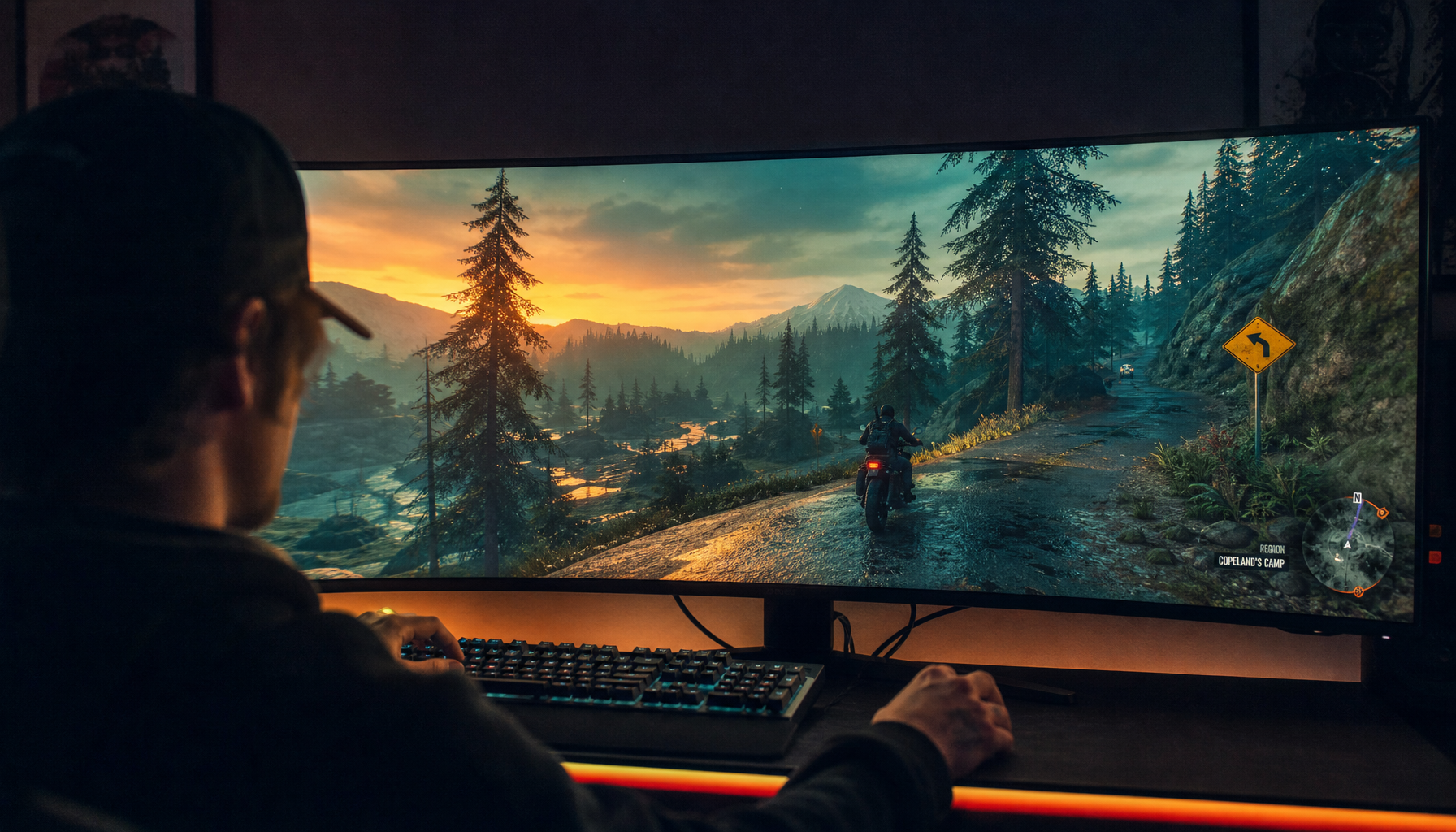
This is why a fast esports shooter may feel locked in while an open-world RPG on the same display feels uneven. The difference is usually frame-time stability, not the Adaptive Sync label itself.
Each Game Stresses Different Hardware
Different games hit your PC in different ways. A competitive shooter may lean on GPU speed and simple scenes, while a strategy game, MMO, or simulation can stress CPU logic, memory, add-ons, background streaming, or asset loading.

A gaming PC should be tuned for frame-rate stability, not just peak FPS; modern gaming optimization often means managing drivers, background processes, power modes, thermals, and in-game settings together.
Average FPS can also mislead. A game averaging 120 FPS may feel worse than one capped at 100 FPS if the faster title has sharp 1% low dips. Adaptive Sync handles refresh matching, but the player still sees the delay when a frame arrives late.
VRR Range Matters More Than the Label
Every Adaptive Sync monitor has an operating range. A 144 Hz monitor might support VRR from 48 Hz to 144 Hz, while higher-end implementations may cover a wider span. If your game drops below the lower limit, the display may repeat frames or use compensation. If it exceeds the ceiling, VRR can no longer track one-to-one.
For example, on a 144 Hz monitor, a game bouncing between 90 and 141 FPS usually stays inside the sweet spot. A game jumping from 160 FPS in menus to 42 FPS in heavy scenes can trigger tearing, stutter, flicker, or sync handoffs.

For best results, keep game FPS inside the monitor’s supported range by capping FPS when it runs too high and lowering settings when it drops too low.
Settings Can Make One Game Feel Worse
Sync settings stack up fast. In-game V-Sync, driver-level V-Sync, low-latency modes, frame caps, borderless window mode, and game-specific limiters can all affect latency and smoothness.
A practical setup usually looks like this:
- Enable VRR in the monitor and driver.
- Cap FPS slightly below max refresh, such as 141 FPS on 144 Hz.
- Lower heavy settings that cause deep FPS drops.
- Use one frame limiter path, not several competing caps.
- Test fullscreen and borderless modes per game.
Some games behave better with driver-level sync control, while others respond better to their own in-game limiter, so testing per title is still worth it.
How to Judge the Real Cause
If Adaptive Sync feels inconsistent, do not judge by the badge alone. Watch frame-time graphs, 1% lows, and whether the game leaves the VRR range. A display can be excellent and still expose a game with poor pacing.

For buyers, the value move is clear: choose a monitor with a wide VRR range, good overdrive tuning, and the right GPU compatibility. Then tune each game so the system feeds the screen stable frames. That is where Adaptive Sync turns from a spec-sheet feature into real immersion.