Pastels usually look washed out on high DCI-P3 displays when the content, app, operating system, or monitor mode is not mapping color correctly. The issue is usually profile handling, calibration, gamma, or viewing conditions, not “too much DCI-P3” by itself.
Do your soft pink UI mockups, pale mint product shots, or gentle lavender game menus suddenly look thin and chalky on a premium wide-gamut monitor? A practical display check can separate a poor panel choice from a color-management mismatch, saving you from chasing the wrong monitor setting. This article explains why it happens, how to diagnose it, and how to make pastels look intentional again.
Key Takeaway: DCI-P3 Coverage Is Capability, Not Accuracy
A monitor with high DCI-P3 coverage can reproduce more color than a standard sRGB display, especially in richer reds, oranges, yellows, and some greens. That wider range is valuable for HDR games, cinematic grading, product visuals, and immersive content, but it does not guarantee that every pale tone will look correct.
A wide-gamut display is like a performance engine: powerful, but it needs the right steering. If an app assumes sRGB while the monitor is running in a wide-gamut mode, or if a Display P3 image is interpreted incorrectly, color values can be mapped to the wrong visual result. That is why one pastel wallpaper can look elegant in a color-managed editor, faded in a browser, and oddly bright in another design app.
The key distinction is simple. DCI-P3 coverage tells you how much color the display can show. Calibration and color management determine whether it shows the right color.
What “Washed Out” Usually Means With Pastels
Pastel colors are low-saturation, high-lightness colors. They live close to white, so small errors in tone response, white point, or profile conversion are easier to notice. A saturated red can still look bold even if it is slightly wrong; a pale rose can turn grayish, flat, or overly bright with a much smaller error.
A recent audiovisual study found that pastel color schemes did not reliably change emotional perception compared with saturated schemes, with significant differences in only 4 of 36 comparisons among 310 participants. That matters for display work because pastel color depends heavily on surrounding contrast, brightness, lighting, and context rather than sheer color intensity alone.
In real screen work, a pastel that looks “washed out” may be suffering from several different issues. It may be too bright because gamma is off. It may be too neutral because the color profile is missing or misread. It may look weak because the surrounding interface is oversaturated. Or it may be accurate, while your previous sRGB display made it look denser than intended.
Why High DCI-P3 Displays Expose the Problem
Wider Gamut Changes the Stakes
DCI-P3 was built for digital cinema and now appears in laptops, phones, gaming monitors, HDR displays, and creator panels. Compared with sRGB and Rec. 709, DCI-P3 gives more room for vivid color, especially in warm hues that make games, films, and product visuals feel more dimensional.
The catch is that most office documents, web graphics, UI assets, legacy games, and standard SDR video are still built around sRGB or Rec. 709 expectations. A display that covers 95% or more of DCI-P3 is not wrong for that content, but the content must be interpreted through the correct profile. Without that translation, the monitor’s extra capability can distort the intended balance.
For example, a pale coral button designed in sRGB may be viewed in a non-color-managed tool on a wide-gamut screen. The saturated parts of the interface may pop harder, while the pale coral still sits close to white. The result feels inconsistent: bright colors look aggressive, while soft colors feel drained by comparison.
Display P3 Is Not Exactly the Same as “Any P3 Mode”
DCI-P3 and Display P3 are related, but workflow matters. Display P3 is common in modern creative pipelines, while DCI-P3 originated in cinema. A file tagged as Display P3 should be handled as tagged wide-gamut RGB content, not guessed as sRGB or forced through a generic monitor mode.
That is why imported images can appear brighter or washed out when profile handling breaks. In one user forum case, Display P3 color profile behavior was directly tied to imported images showing incorrect color. The practical lesson is not that Display P3 is bad; it is that tagged images, app interpretation, and export targets must agree.
Color Management: The Real Control Layer
Color-managed apps use the file profile and the monitor profile to translate colors into the display’s actual behavior. Professional photo, layout, and vector editing tools are typical examples of apps built for that kind of workflow. In unmanaged or partially managed software, the same RGB numbers may be sent to the screen without the right conversion.
A workflow discussion makes the central risk clear: non-color-managed applications may assume an sRGB display and show incorrect color on P3 or other wide-gamut monitors. In many cases, the visible failure is oversaturation. With pastels, the failure can feel like washout because the light tones lose believable separation while surrounding colors become too forceful.
A simple office example shows the issue. You create a pale blue slide background in an sRGB presentation app, then preview it on a P3 laptop, an external wide-gamut monitor, and a conference-room display. If the app and OS do not consistently manage color, that same background may look cool and clean on one screen, nearly white on another, and slightly cyan on a third.
Rec. 709, sRGB, and DCI-P3: Which Should You Use?
For gaming immersion and HDR entertainment, high DCI-P3 coverage is a real advantage. For office work, web graphics, SDR video, and broadcast-style deliverables, sRGB or Rec. 709 accuracy often matters more than maximum gamut.
A motion graphics user choosing between monitors raised exactly this problem: HDTV broadcast work is tied to Rec. 709, while one candidate display emphasized 95% DCI-P3 coverage. That is the right buying question. The best display is not always the widest one; it is the one that can accurately emulate the target space you deliver to.
Workload |
Best Practical Target |
Why It Matters |
Office documents, web dashboards, UI reviews |
Most shared screens and web assets still assume sRGB behavior. |
|
SDR video and broadcast graphics |
Rec. 709 mode |
It matches the standard HDTV delivery expectation more closely. |
HDR gaming and cinematic content |
DCI-P3 or HDR mode |
Wider gamut improves color volume and visual impact when content supports it. |
P3-focused device design |
Display P3 with managed exports |
It preserves wider color while staying predictable in compatible apps. |
For a pro display setup, the ideal monitor gives you both reach and restraint. You want strong DCI-P3 coverage for immersive content, plus a reliable sRGB or Rec. 709 clamp for standard work.

Why Browser and App Differences Make Pastels Look Unstable
A high-end screen cannot fix inconsistent software behavior. A display forum test showed that a wide-gamut test square appeared differently depending on browser behavior. The important takeaway is that browser behavior can change what you think your monitor is doing.
This matters for pastel-heavy product pages, portfolio images, and design systems. A pale beige card background may look balanced in a design app, too faint in a browser preview, and warmer on a cell phone. Before blaming the monitor, test the same image in a color-managed app, a second browser, and the monitor’s sRGB mode.
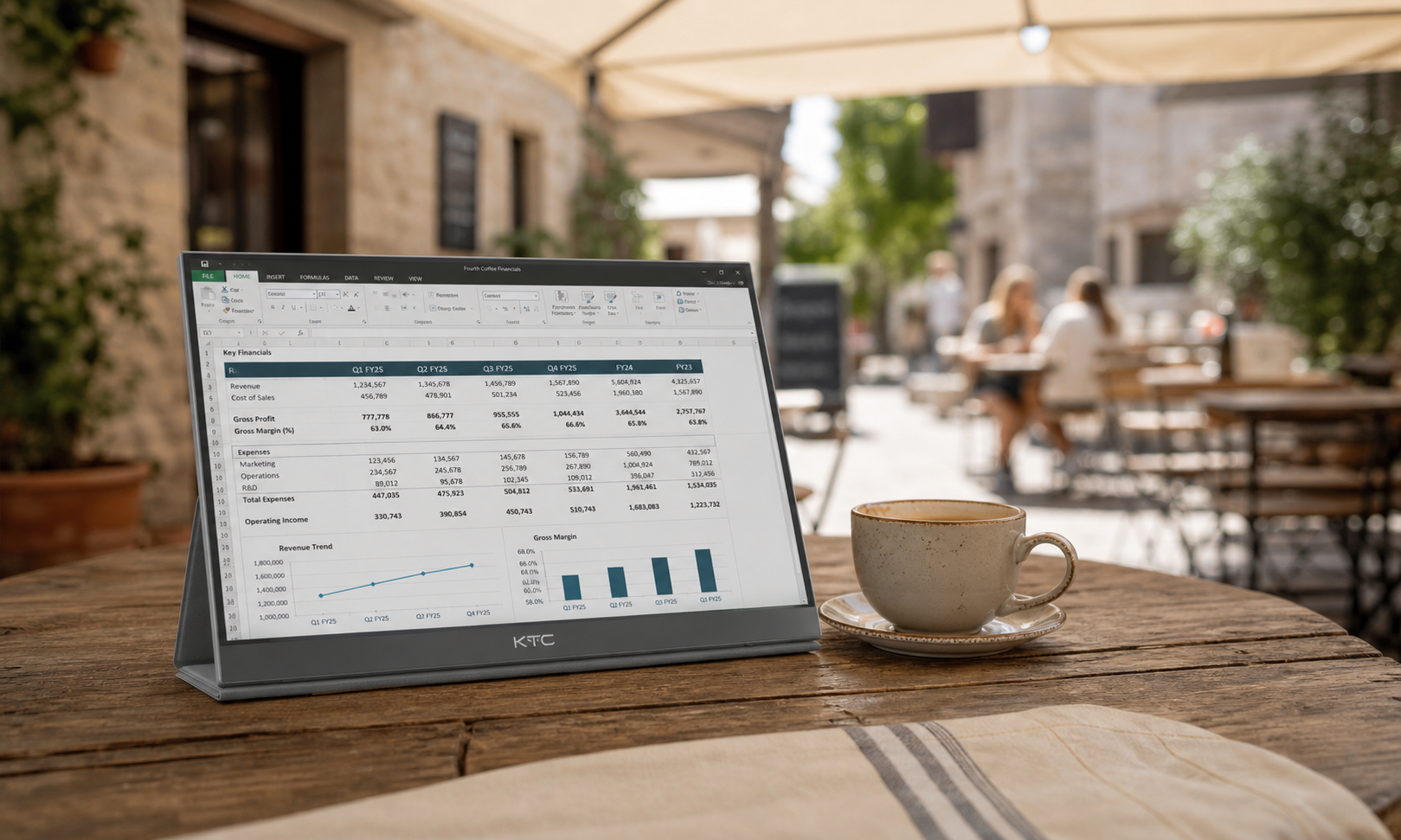
For portable smart screens, the problem can be more visible because ambient light changes constantly. A pastel UI that looks polished indoors can look low-contrast near a bright window. The display may still be accurate, but your eyes are adapting to a brighter environment, making near-white colors harder to separate.
Calibration, Gamma, and White Point: The Hidden Pastel Killers
Pastels are especially sensitive to gamma. If the display tone curve is too light, pale colors lift toward white and lose body. If gamma is too dark, the same colors can look muddy instead of airy. A common SDR target is around gamma 2.2 with a white point near D65, though your exact target should match the production standard.
Factory calibration helps, but it is not the same as verifying your own unit. A monitor can advertise high DCI-P3 coverage and still miss ideal gamma, white point, or grayscale tracking. For display buyers, the stronger spec sheet is the one that includes actual gamut coverage, Delta E claims, factory calibration reporting, and usable emulation modes.
When evaluating a monitor in person, pull up a pastel test image with soft pink, mint, sky blue, beige, and lavender patches. View it in native wide-gamut mode, then in sRGB mode. If the sRGB mode makes standard web pastels look more controlled while native mode makes the interface look uneven, the display is probably fine; your workflow needs the right mode.

Practical Fixes That Work
Use the Right Mode for the Job
For normal web, productivity, and SDR office content, use the monitor’s sRGB mode if it is accurate and not overly restrictive. For video delivery, use Rec. 709 mode when available. For HDR games, wide-gamut photos, and P3-tagged creative work, use the appropriate P3 or HDR mode with color-managed software.
Do not judge pastel accuracy while mixing modes casually. If you edit a web banner in native P3 mode, export it as sRGB, then preview it in an unmanaged browser, you have created several opportunities for mismatch. Keep the chain consistent from file profile to app preview to display mode.
Check Embedded Profiles Before Export
A pastel image without an embedded profile is a guess. A pastel image with the wrong profile is worse because it looks authoritative while rendering incorrectly. Before final delivery, confirm whether the asset is sRGB, Display P3, or another color space, then convert rather than blindly assigning a profile.
This distinction is critical. Assigning a profile changes how existing numbers are interpreted. Converting changes the numbers to preserve appearance in the target space. If a soft peach background becomes pale and weak after export, profile assignment versus conversion is one of the first places to inspect.
Calibrate, Then Verify With Real Content
Hardware calibration is the performance route for serious display work because it measures the actual screen instead of trusting a generic profile. After calibration, verify with the kind of content you actually use: pale UI panels, skin tones, low-saturation product photos, game menus, and SDR video.
For office productivity, do not over-optimize for cinematic punch. A reliable display should make spreadsheets, PDFs, browser dashboards, and presentation decks look stable across the day. For gaming, keep a separate profile or preset that lets HDR and P3 content breathe without corrupting your work profile.
Pros and Cons of High DCI-P3 Displays
High DCI-P3 coverage is a net positive when the monitor gives you control. It improves HDR impact, makes modern games feel richer, supports cinema-oriented workflows, and gives creators more headroom for wide-gamut assets. It also helps portable and smart screens feel more premium when the operating system and apps manage color properly.
The downside is workflow friction. Standard content can look wrong without proper color management, pastel-heavy designs can appear inconsistent, and cheaper wide-gamut monitors may ship with weak sRGB emulation. A high-coverage number alone does not tell you whether the display is trustworthy for office decks, web assets, or broadcast graphics.
FAQ
Does DCI-P3 Make All Pastel Colors Look Faded?
No. A properly managed P3 display can show pastels beautifully. Fading usually comes from incorrect profiles, poor gamma, high brightness, weak calibration, or viewing standard-gamut content in the wrong mode.
Should I Avoid DCI-P3 for Office Work?
No, but you should use an accurate sRGB mode for typical office and web tasks. A wide-gamut monitor with a good sRGB clamp is more flexible than a standard-gamut display, especially if you also game, edit photos, or watch HDR content.
Is Lowering Saturation the Same as Using sRGB Mode?
No. A saturation slider reduces color intensity broadly, but it does not correctly remap one color space into another. For reliable pastel rendering, use a proper sRGB, Rec. 709, or calibrated profile rather than guessing with saturation controls.
Final Word
Pastels look washed out on high DCI-P3 displays when the color pipeline loses control of lightness, profile interpretation, or gamut mapping. Choose a monitor with strong coverage and accurate emulation modes, then match the mode to the job: sRGB or Rec. 709 for standard work, P3 for managed wide-gamut content, and calibrated HDR for the immersive moments that deserve the extra color headroom.