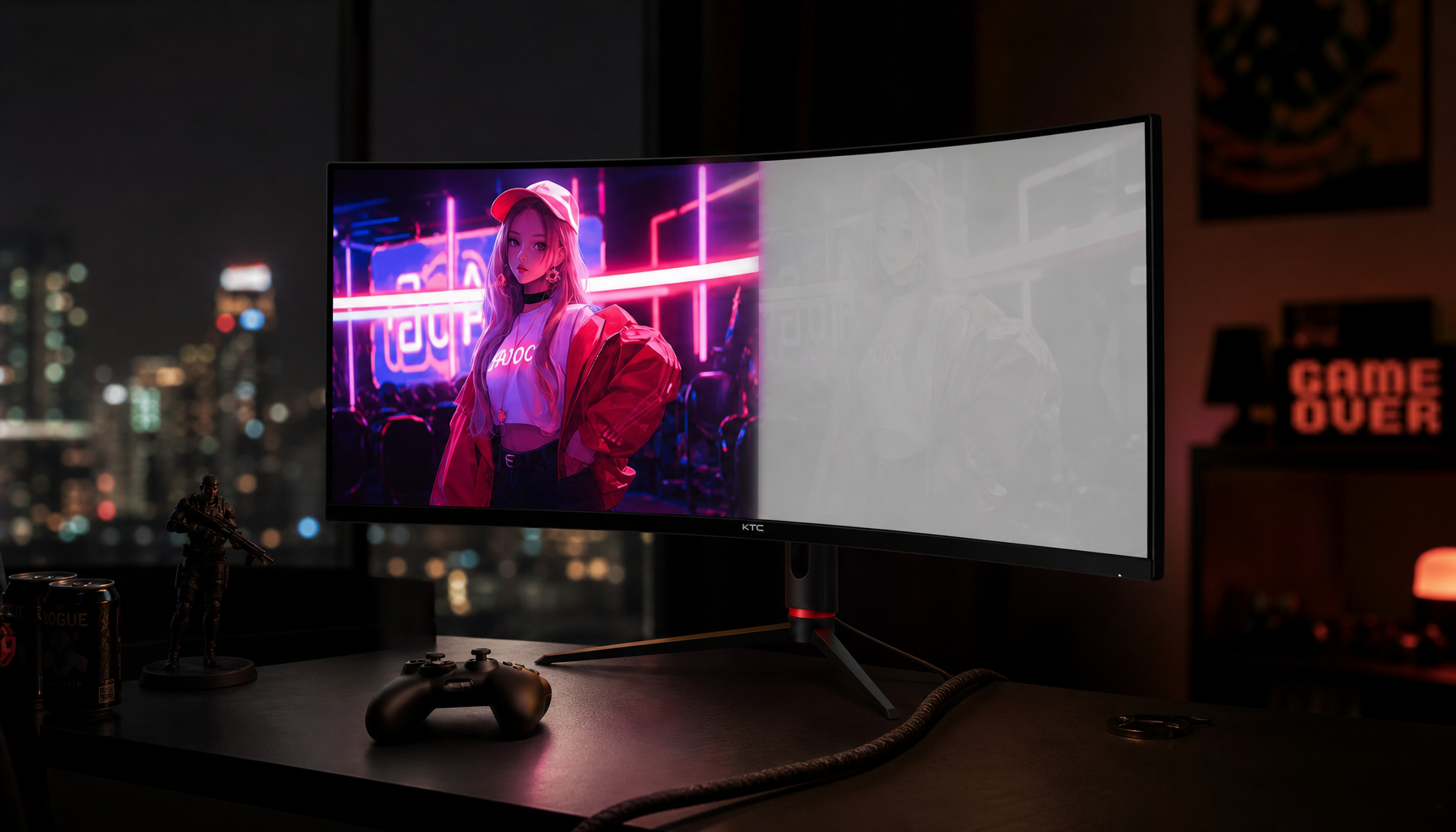
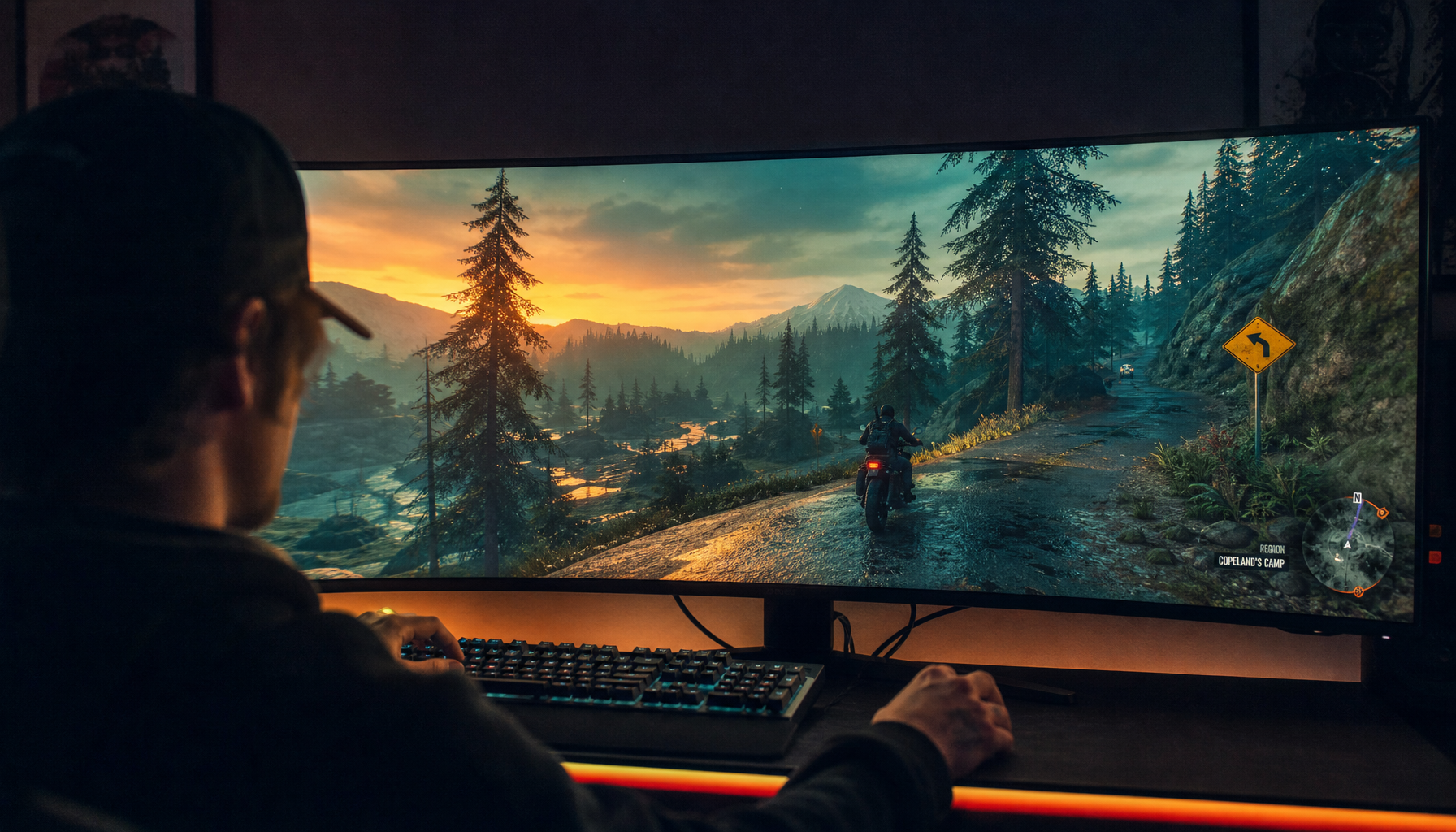
Display response time affects how clearly a 3D viewport updates while you orbit, pan, and zoom. Cleaner pixel transitions make camera movement feel more precise because edges, grids, shadows, and silhouettes smear less between frames.
Why Response Time Matters in a 3D Viewport
In 3D software, navigation is constant visual feedback: orbiting around a model, panning across geometry, and zooming into small surface details, which are core viewport actions in workflows such as orbit, pan, and zoom.
When response time is slow, pixels may not finish changing before the next frame arrives. The result is ghosting, dark smearing, or soft trails behind moving edges. That can make a bevel look mushy, a rig control harder to grab, or a dense CAD floor plan feel less stable while you move through it.

For real-time 3D work, the practical goal is not chasing the smallest advertised number. It is keeping motion clean enough that your eyes can track form, depth, and alignment without extra effort.
The Frame-Time Math Behind Smooth Navigation
Refresh rate sets the time window. A 144 Hz display updates about every 6.94 ms, while a 360 Hz display updates about every 2.78 ms. Pixel transitions need to fit inside that window to preserve motion clarity, as explained in response-time testing.
That matters when you rotate around a product model or fly through an architectural scene. If the panel is too slow, a high refresh rate can still feel unclear because the old frame visually lingers into the new one.

For serious viewport work, 60-75 Hz is workable for mostly static modeling but weaker for rapid navigation. A 120-165 Hz display is a strong value for most 3D creators, while 240 Hz and higher can help if you also game or navigate complex scenes quickly. Low overshoot often matters more than a flashy “1 ms” label because the best monitor feels fast and clean, not just fast on a spec sheet.
Response Time Is Not Input Lag
Response time is pixel-change speed. Input lag is the delay between your mouse movement, pen input, or keyboard command and the image update you see. A display feels responsive when input lag, refresh rate, and response time work together, not when one number wins alone; input lag and response time affect different parts of that chain.
In viewport navigation, this distinction is critical. Low input lag helps the camera start moving when you move your hand. Low response time helps the moving image stay readable after it starts.
A monitor with aggressive overdrive may post a fast response number but create inverse ghosting, where bright or dark halos follow edges. For 3D work, that artifact can be worse than mild blur because it adds false outlines to geometry.

Advertised response-time specs often reflect best-case transitions, so independent testing and real motion behavior matter more than the box label.
What to Prioritize for Real-Time 3D Work
Choose a display the way you choose a viewport preset: match it to the task. Large animated scenes, character posing, walkthroughs, and game-engine previews benefit from faster panels because the scene remains easier to read during motion.

Immersive visualization research shows navigation performance depends on task, viewpoint control, and scale changes, not one universal method. Studies of immersive 3D scatterplots found that zooming and overview tools can improve performance depending on the analysis task. Your monitor should support that same principle: keeping visual feedback clean as your workflow changes.
For a reliable 3D viewport display, look for average gray-to-gray response around 3-5 ms, a high refresh rate with stable frame delivery, balanced overdrive with low overshoot, strong contrast without dark-level smearing, and enough resolution for UI panels and fine geometry.
A fast display will not fix a slow GPU or overloaded scene, but it removes a major visual bottleneck. When the screen keeps up, viewport navigation feels more connected and readable.