Content frame rate changes how often a monitor’s local dimming algorithm recalculates backlight zones. Lower frame rates can make halos and brightness jumps easier to notice, while higher frame rates often hide transitions better but may expose lag, trails, or disabled dimming in some gaming modes.
Why Frame Rate Changes What You See
Local dimming works by dividing an LCD backlight into zones, then raising or lowering each zone based on the image. That zone-based control can deepen blacks and boost HDR highlights, but it can also create blooming when one lit zone covers more area than the bright object needs, especially on dark backgrounds.

Frame rate affects artifact visibility because each frame gives the dimming engine a new brightness map. At 24 FPS, each frame stays on screen longer, so a halo around subtitles, stars, or a bright cursor has more time to register. At 120 FPS or 240 FPS, the same movement may feel smoother, but the backlight must react faster.
The key is not simply that more FPS is better. What matters is whether the monitor’s processor, zone count, and firmware can keep backlight changes synchronized with the image.
Low-FPS Movies: Blooming and Pulsing Stand Out
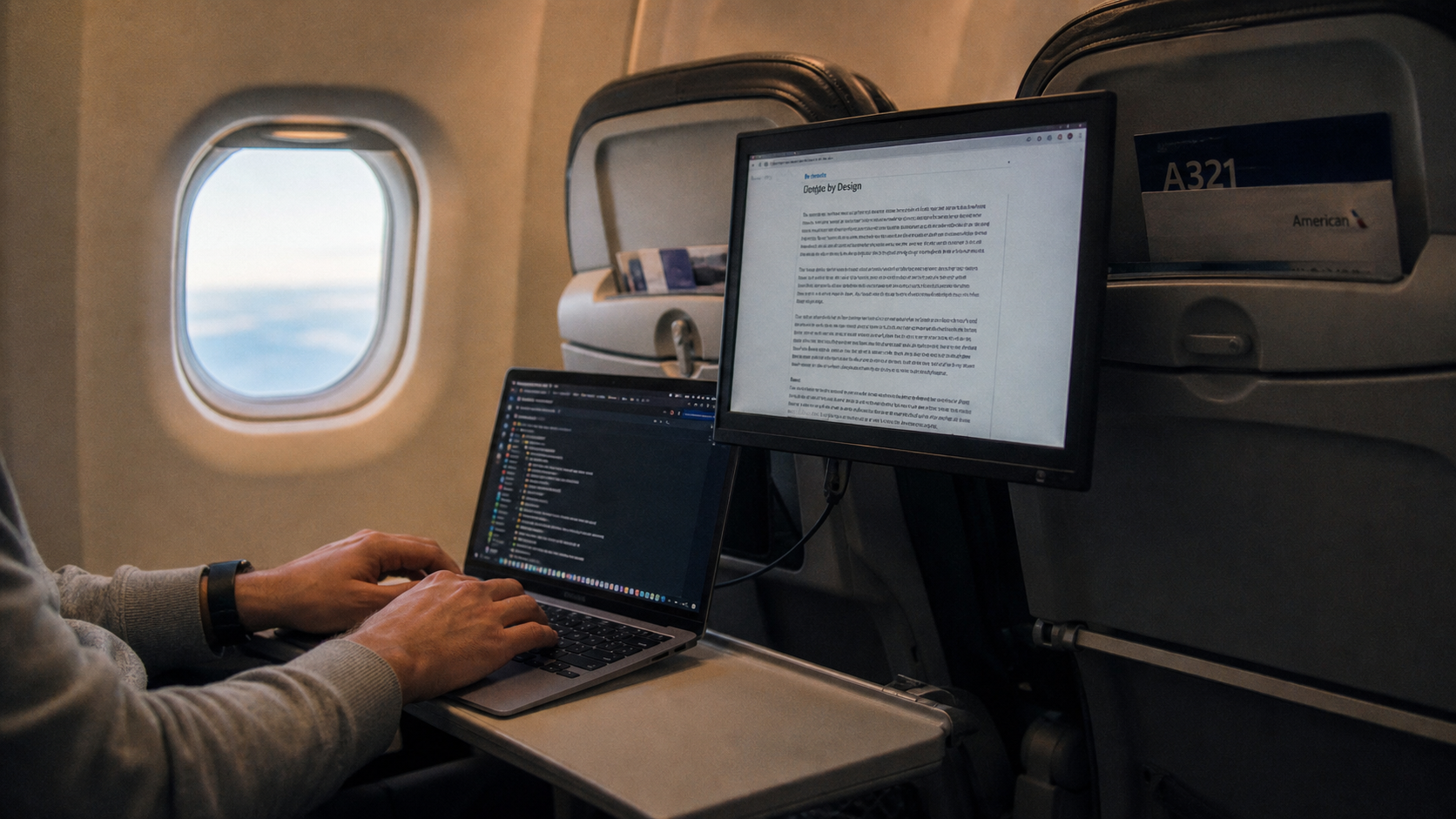
Movies and streaming video often run at 24 FPS, 30 FPS, or 60 FPS. With slower frame updates, local dimming artifacts can look more obvious during dark scenes because the viewer has time to notice zone edges, subtitle glow, and brightness pumping.
A 24 FPS movie on a 120 Hz display can be repeated evenly, which helps motion cadence, but the local dimming system still has to decide how aggressively to brighten zones around each highlight. If the monitor favors deep blacks, small bright objects can produce visible halos.
For cinematic HDR, try a moderate local dimming mode first. Many displays offer Low, Medium, and High-style controls, and higher settings usually deepen blacks while making side effects more visible; some TV controls describe these as progressively larger dimming ranges.
High-FPS Gaming: Faster Motion Can Hide or Reveal Problems
At 120 FPS or 240 FPS, each frame is visible for less time. A 240 Hz display refreshes every 4.17 milliseconds, which is why high-FPS gaming feels clearer and more responsive in fast shooters.
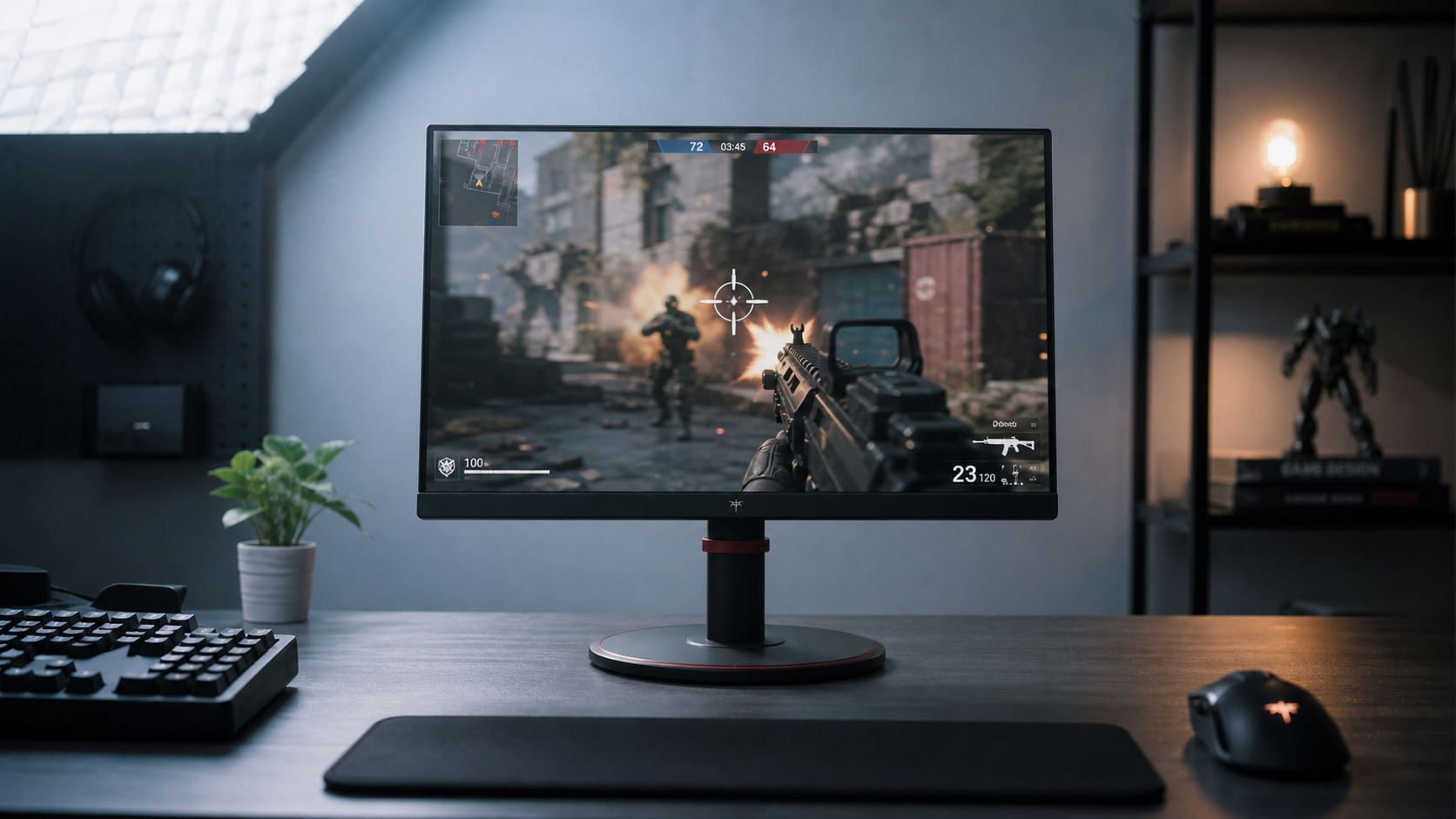
That shorter frame time can make static halos less distracting during motion. It can also reveal local dimming weaknesses as light trails behind moving highlights, delayed zone transitions, or flickering around HUD elements. Competitive games often combine bright crosshairs, dark maps, and rapid camera movement, which is a demanding test for Mini-LED firmware.

There is also a mode tradeoff. Some monitors reduce or disable local dimming when adaptive sync or special gaming HDR modes are active, causing weaker contrast or different HDR behavior. If HDR looks flatter with VRR on, test whether local dimming behavior changes in that mode.
Quick Setup Rules for Cleaner Dimming
For gaming monitors, the best setting is content-specific, not universal.
- Use local dimming High for HDR movies if halos are controlled.
- Use Medium or Normal for HDR games with bright HUDs.
- Turn local dimming off or low for SDR desktop work.
- Test VRR, HDR, and max refresh together before judging quality.
- Lower peak brightness in dark rooms if halos become distracting.
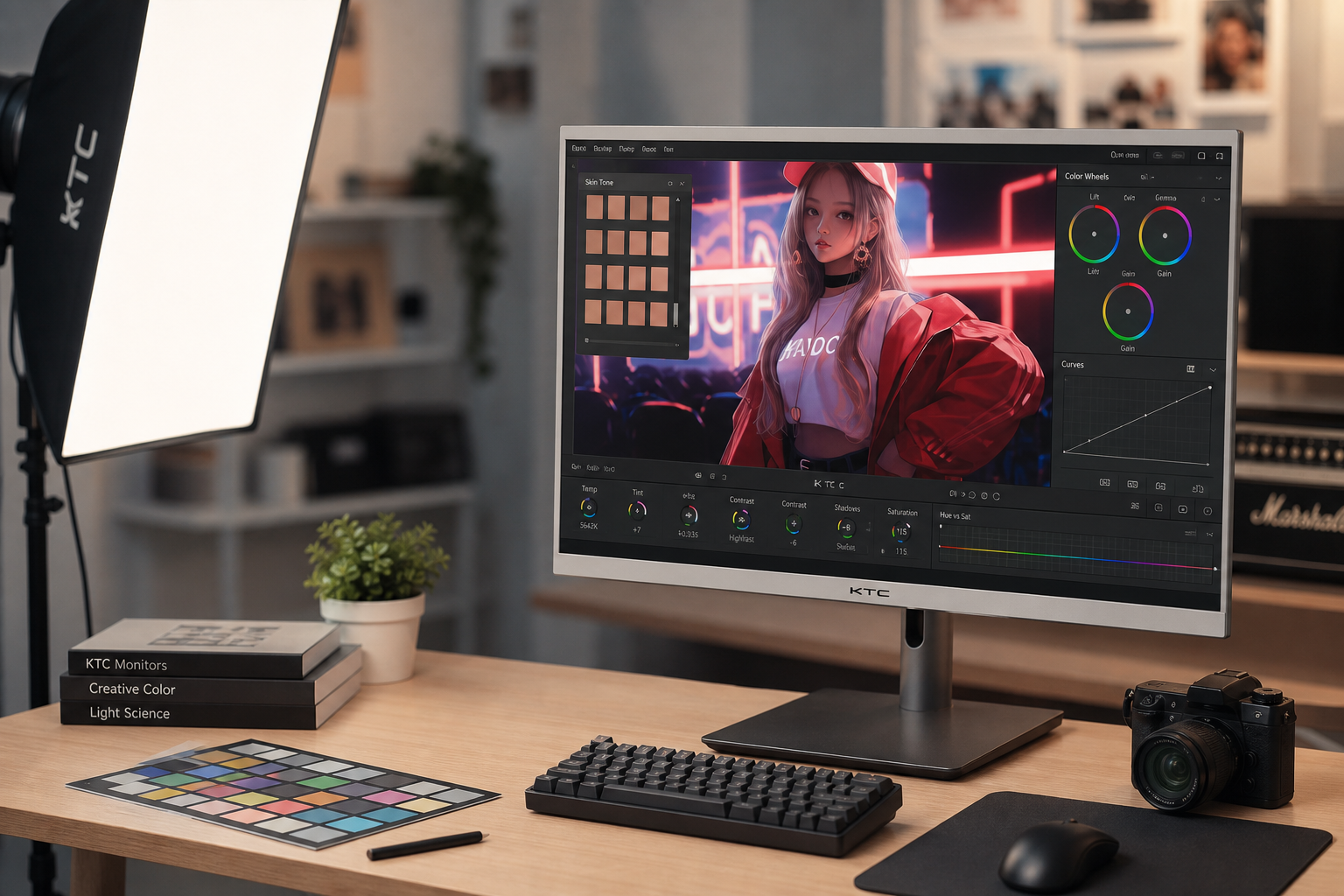
The same practical distinction applies across many Mini-LED monitors: for SDR office and desktop use, local dimming is often best left off, while HDR content benefits from turning local dimming on.

A high zone count helps, but firmware speed and dimming logic often decide whether fast-frame-rate content looks premium or distracting.
What to Look For Before You Buy
If you want one screen for esports, HDR games, and productivity, prioritize full-array Mini-LED with user-adjustable local dimming. Zone count matters because more zones usually reduce blooming, but it is not a guarantee.
Test real scenes: a white cursor on black, subtitles in a dark movie, a night game with HUD elements, and a fast pan across bright streetlights. Run those checks at 60 Hz, 120 Hz, and your maximum refresh rate.

The value play is simple: buy the display that lets you tune local dimming per use case. That gives you deep HDR contrast when immersion matters and a stable, artifact-light image when precision work or competitive play matters more.