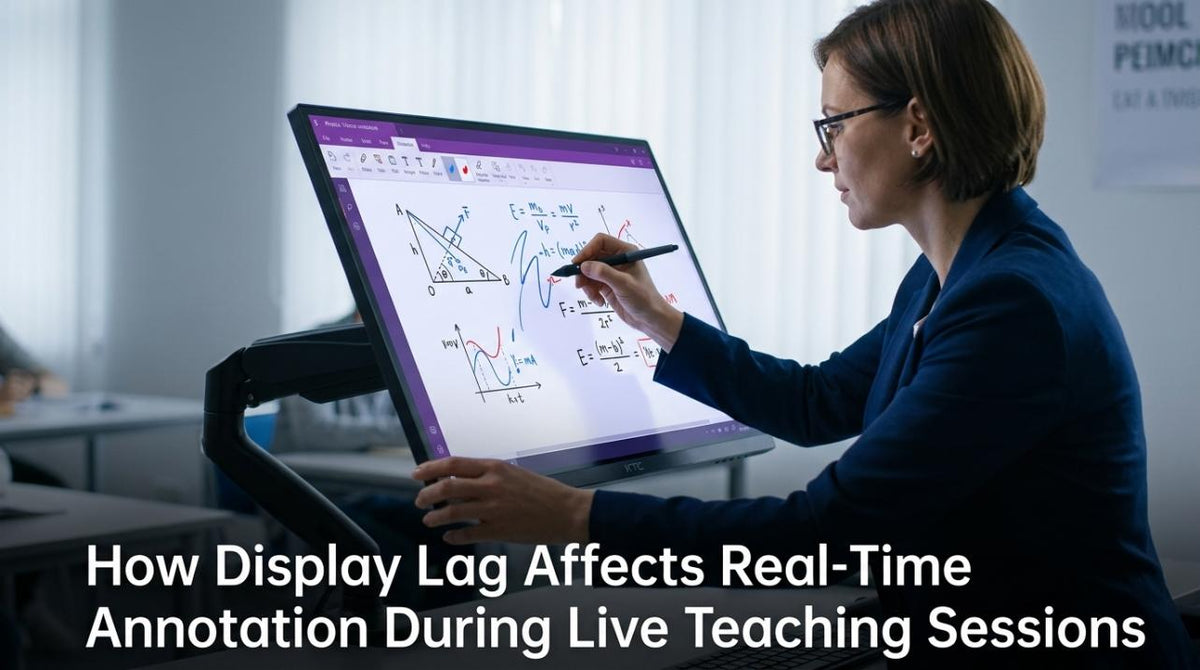
Featured storyHow Display Lag Affects Real-Time Annotation During Live Teaching SessionsDisplay lag during live annotation makes lessons feel disconnected. Get smoother on-screen ink and tighter cursor control with a low-lag, high-refresh-rate monitor.May 17, 2026/8 min read
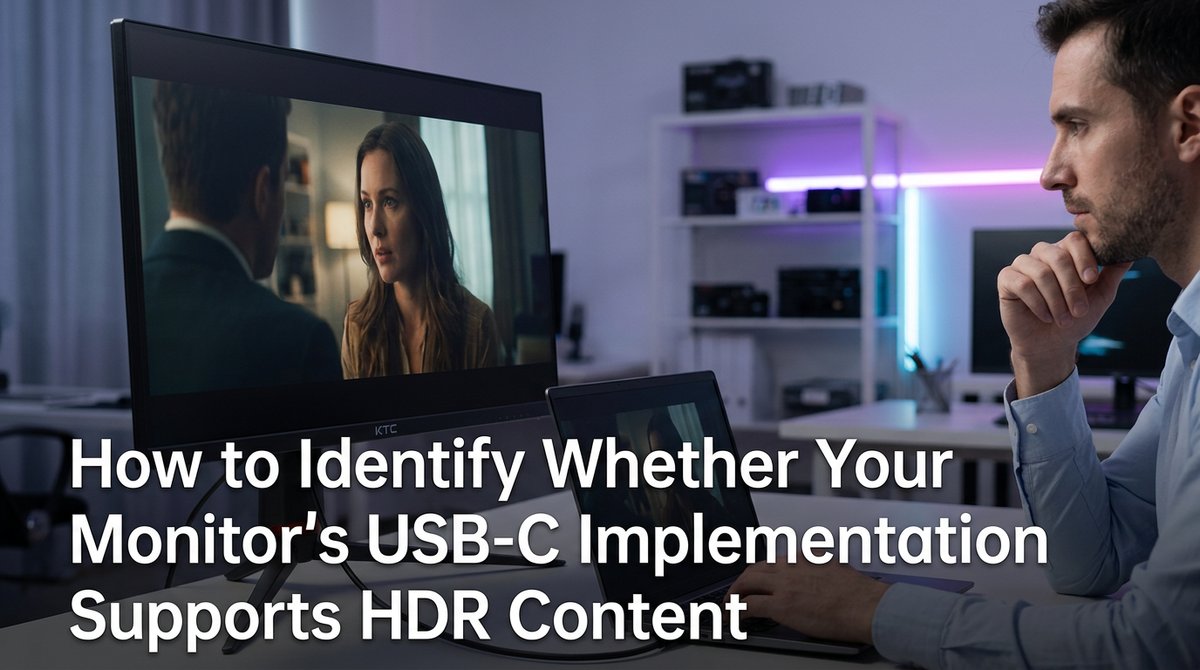
How to Identify Whether Your Monitor’s USB-C Implementation Supports HDR ContentHDR over USB-C requires the right setup. This guide provides a practical checklist for your laptop port, cable, and monitor to ensure your connection supports true HDR.May 14, 2026/10 min read
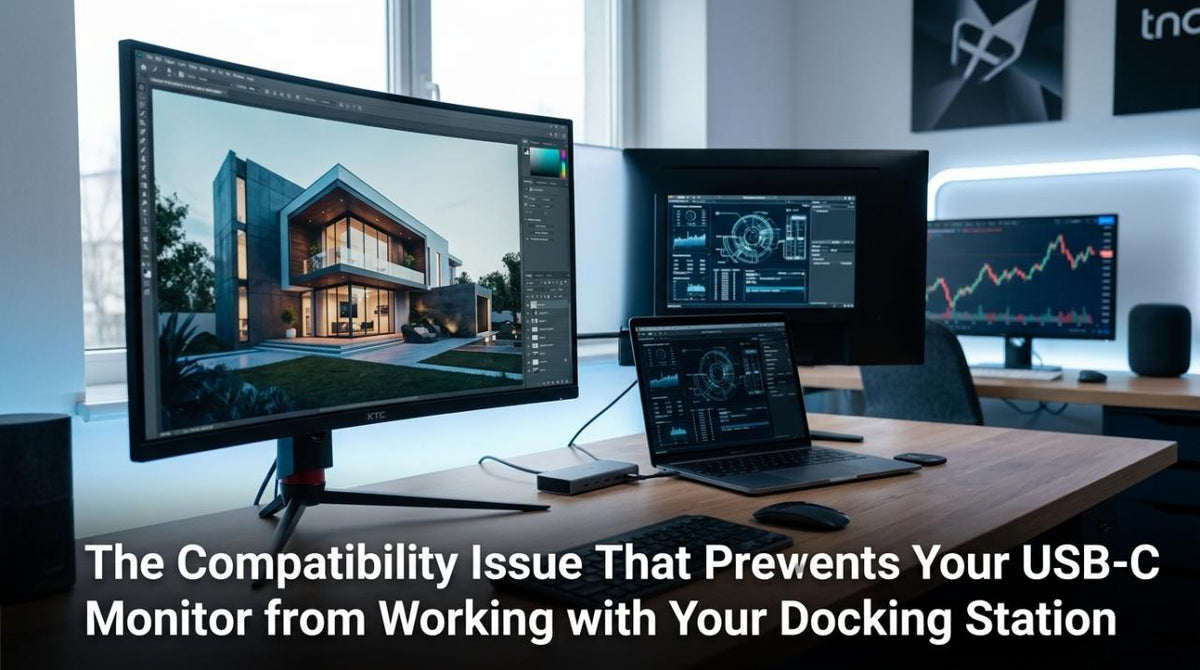
The Compatibility Issue That Prevents Your USB-C Monitor from Working with Your Docking StationA USB-C monitor not working with a dock is a common video compatibility issue. This guide shows how to check for DisplayPort Alt Mode to get your display working again.May 14, 2026/10 min read
Why Your USB-C Monitor Connection Requires Unplugging and Replugging After Your Laptop SleepsUSB-C monitor connection problems after your laptop sleeps often stem from a failed digital handshake. Get reliable fixes, from cable choice to power settings.May 14, 2026/4 min read
How to Determine If Your Monitor’s USB-C Port Can Handle Your External Storage Speed RequirementsA monitor's USB-C port for external storage isn't guaranteed to be fast. The slowest link—cable, hub, or drive—sets the real transfer speed for your SSD or hard drive.May 14, 2026/9 min read
How to Identify If Your USB-C Monitor’s Power Delivery Is Sufficient for Your WorkflowUSB-C monitor power delivery is sufficient when its wattage meets your laptop's real demand. See how to check wattage, verify port specs, and test your setup to prevent battery drain.May 14, 2026/9 min read
The Reason Your USB-C Monitor Requires Driver Installation Despite Being Plug-and-PlayA USB-C monitor driver is often required to fix issues like wrong resolution, low refresh rates, or non-working hubs. Get your display's full feature set working correctly.May 14, 2026/10 min read