Yes, you can make two different monitors look much closer, but a perfect match is not always realistic. The best results come from matching brightness, white point, gamma, and color profiles, ideally with a hardware colorimeter.
Does your left screen make white documents look clean while the right one turns the same page yellow, blue, or washed out? With a 30-minute warm-up, matching picture modes, and separate color profiles for each display, most desk setups can become consistent enough for work, gaming, and everyday content review.
Why Two Monitors Look Different Side by Side
Two monitors can show different color even when they are connected to the same PC, use the same wallpaper, and sit inches apart. The cause is usually not one bad setting. It is the combined effect of panel type, backlight behavior, factory tuning, age, viewing angle, brightness, and color profile handling.
Even monitors from the same product line can vary because display hardware is not identical from unit to unit. Research on color appearance across displays shows that perceived color depends on both device behavior and human vision, which is why two screens can measure “close” yet still look different to your eyes.
The problem gets more obvious in mixed setups. A 27-inch IPS productivity monitor beside a fast VA gaming monitor may differ in black depth, off-axis color shift, and native contrast. A portable USB-C screen beside a factory-calibrated desktop display may look cooler because many budget and mid-range portable panels ship with aggressive blue-leaning presets to appear brighter.

For office productivity, the goal is usually visual comfort: a white spreadsheet should not change tone dramatically as you drag it from one display to the other. For gaming and creator work, the goal is more demanding: shadow detail, skin tones, UI colors, and preview windows should remain dependable.
What “Matching” Really Means
Matching two monitors does not mean forcing them to become the same display. It means aligning the visible behavior that affects your work most: brightness, white point, gamma, contrast, RGB balance, and color profile.
Calibration is the process of adjusting a monitor to a known target such as sRGB, D65 white point, and gamma 2.2. The basic calibration settings that matter most are brightness, contrast, gamma, and color balance because they determine whether dark scenes, gray ramps, white documents, and everyday photos look stable.
An ICC profile is the software description of how a specific monitor reproduces color. Each monitor should have its own profile. That matters because the profile for your main display should not be blindly applied to your second screen. If one panel is naturally warm and the other is cool, a shared profile can make the mismatch worse.
Target |
Practical Meaning |
Common Starting Point |
White point |
How warm or cool white appears |
D65 |
Gamma |
Midtone brightness behavior |
2.2 |
Brightness |
Screen luminance and perceived intensity |
Match by eye or meter |
Color space |
Range and standard for content |
sRGB for general use |
ICC profile |
Per-monitor correction file |
One profile per display |
The Fast Manual Method for Everyday Desk Setups
Start with the physical monitor controls, not the operating system. Hardware settings give you the cleanest baseline because software correction can reduce contrast or create banding if it has to compensate too aggressively.
Let both monitors warm up for at least 30 minutes before adjusting them. LED backlights can shift slightly as they stabilize, and a cold panel may not represent how the monitor looks during real work.
Next, reset both monitors to factory defaults, then choose a neutral preset such as Standard, Custom, or User. Avoid vivid, movie, scenery, dynamic contrast, eco, and game-enhancement modes while matching color. Gaming presets can be useful later, but they often alter gamma, saturation, contrast, or shadow handling in ways that make matching harder. A dual-monitor matching workflow also points out a common trap: sRGB modes may lock brightness and RGB controls, which can prevent useful manual adjustment.
Put the same white document, gray test image, and familiar photo across both screens. Match brightness first, because brightness changes how color is perceived. Then adjust contrast so near-white details are still visible and dark areas do not collapse into black. After that, tune the RGB gain controls until white and gray look neutral on both displays.

Small changes matter. If one display looks yellow, reduce red and green slightly or raise blue if the monitor allows it. If the screen looks too blue, reduce blue rather than pushing the other channels too high. In practice, adjusting only one or two channels often preserves more contrast than moving all three too far.
When Software Calibration Helps
Built-in calibration tools are useful when you want a better match without buying hardware. They can walk you through gamma, brightness, contrast, and color balance, then save a display profile.
The important step is assigning the correct profile to the correct monitor. The multiple monitor calibration process works best when hardware controls are already close, because the operating system is then fine-tuning instead of fighting a bad preset.
Software calibration has limits. It depends heavily on your eyes, room lighting, and judgment. It can improve comfort and consistency, especially for documents, browsing, code, and general productivity. It is less reliable for print design, video grading, photography, or product color decisions.
When You Need a Hardware Colorimeter
If color accuracy affects money, client approval, publishing quality, or brand consistency, use a hardware colorimeter. A colorimeter measures the screen directly while calibration software displays known color patches. The result is a more objective ICC profile for each monitor.
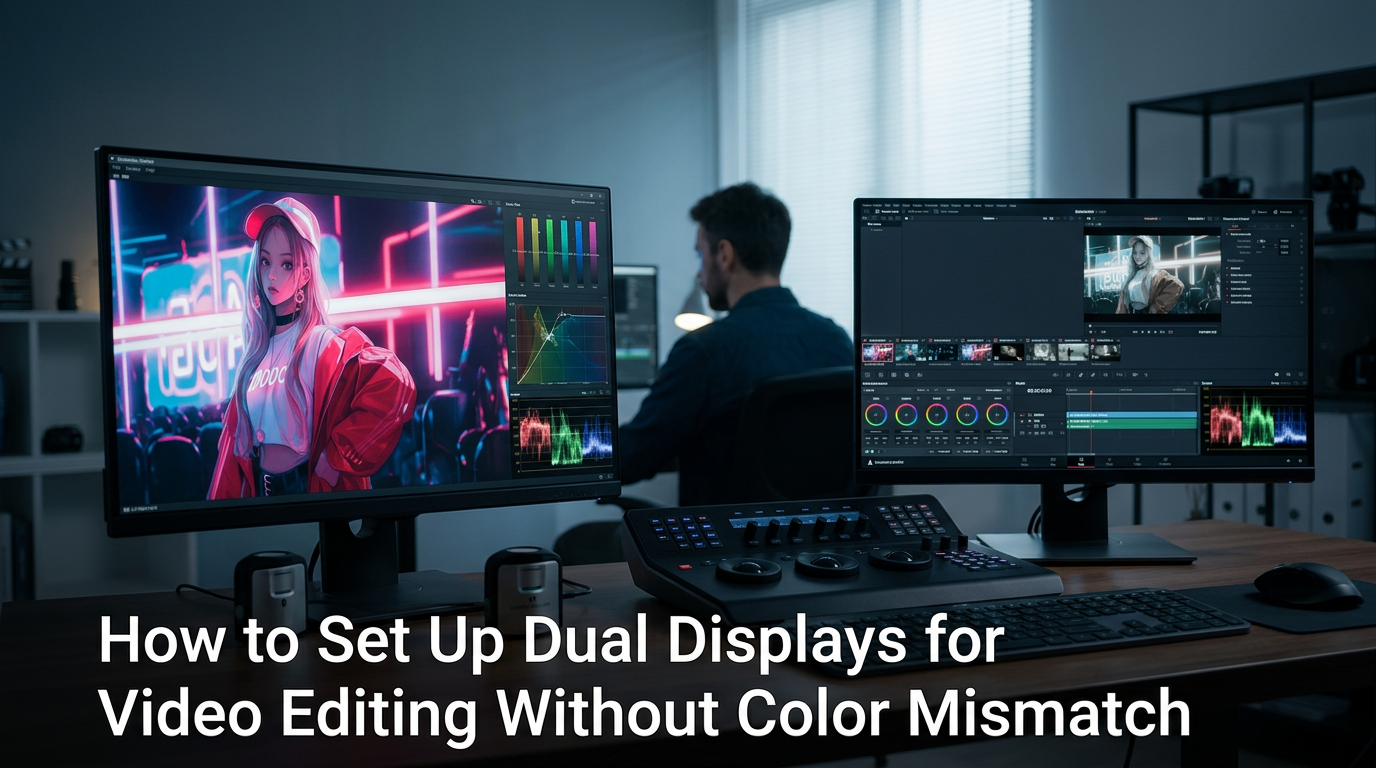
Hardware calibration is especially valuable when one monitor is your color-critical reference display and the second is used for tools, timelines, chats, logs, or preview support. A video editor might keep the timeline and controls on the secondary screen while using the most accurate monitor for the preview. A designer might keep brand artwork on the calibrated main display and reserve the second screen for references, browser windows, or asset folders.

The practical advantage is repeatability. Instead of guessing whether gray is neutral, the colorimeter measures it. Instead of relying on memory, you can recalibrate on a schedule. For professional consistency, recalibration every four to six weeks is a sensible working rhythm; for office use, checking every few months is usually enough.
Why Perfect Matching May Still Be Impossible
There are cases where two screens will never fully match. Different panel technologies can have different native contrast, color gamut, viewing-angle behavior, and backlight spectra. A VA gaming monitor may produce deeper blacks than an IPS office display. A portable monitor with a limited color gamut cannot reproduce the same saturated colors as a wide-gamut desktop screen.
Viewing angle is another underrated issue. If the second monitor sits off to the side, your eyes hit it at a different angle, and color can shift even after calibration. This is common with vertical side monitors, stacked displays, and curved-plus-flat combinations. The dual monitor setup advice to match size, resolution, panel type, and brightness is not just about neatness; it directly reduces visual friction when windows move between screens.

There is also human perception. Two people may not agree on whether a matched white point looks neutral. That does not make calibration pointless. It means the final step often needs a visual check in your actual room, at your actual desk, under your normal lighting.
Best Setup Strategy for Gaming, Productivity, and Creative Work
For productivity, match comfort first. Set both monitors to a similar brightness, use the same resolution scaling where possible, and avoid a cool-blue secondary screen that makes documents tiring to read. Developers, analysts, and office users benefit when the second display feels like an extension of the same workspace rather than a separate visual environment.
For gaming, protect shadow detail and response behavior. A calibration pass can help reveal dark objects and reduce washed-out highlights, but do not sacrifice refresh rate, VRR, or response settings just to make a second monitor look identical. If your main display is a high-refresh gaming panel and your second screen is for chat, streaming tools, walkthroughs, or system monitoring, visual closeness is enough.
For creators, choose a primary reference monitor and use the second display in a supporting role. The best screen should handle final color decisions. The second screen can be matched for comfort, but it should not override the calibrated reference display. If both displays must be used for color-critical work, buying matched models from the same series is the more reliable long-term move.
A Practical Calibration Order That Works
Begin with room lighting. Calibrate under the lighting you actually use, not direct sunlight at noon if you usually work at night. Then warm up both monitors, reset their picture settings, and choose User or Custom mode. Match brightness first, then contrast, then gamma, then RGB balance. Create or assign separate ICC profiles only after the hardware controls are close.
After saving settings, drag a white document, a gray image, a colorful photo, and a dark game screenshot across both screens. If the mismatch is subtle during real work, stop. Over-adjusting can make the result worse, especially when you start chasing one test image at the expense of everything else.
FAQ
Should I Use sRGB Mode on Both Monitors?
Use sRGB mode if it looks close and still lets you adjust brightness. If sRGB locks the controls and one display remains too bright, too dim, or visibly tinted, User or Custom mode may give you a better practical match.
Do Both Monitors Need the Same Refresh Rate?
Not for color matching. Matching refresh rate can make cursor movement and window dragging feel smoother, but color consistency depends more on brightness, white point, gamma, RGB balance, and profiles.
Can a Laptop Screen Match an External Monitor?
It can get close, especially for office work, but laptop panels and external monitors often differ in brightness range, coating, gamut, and viewing angle. Treat the better display as your reference and tune the other screen toward it.
Final Word
You can make two different monitors on the same desk look more consistent, and the biggest gains usually come before you spend a dollar: warm them up, use neutral presets, match brightness, tune RGB, and assign the right profile to each screen. For serious color work, a hardware colorimeter turns that process from guesswork into a repeatable standard. For gaming and productivity, a close visual match is often the smartest win.