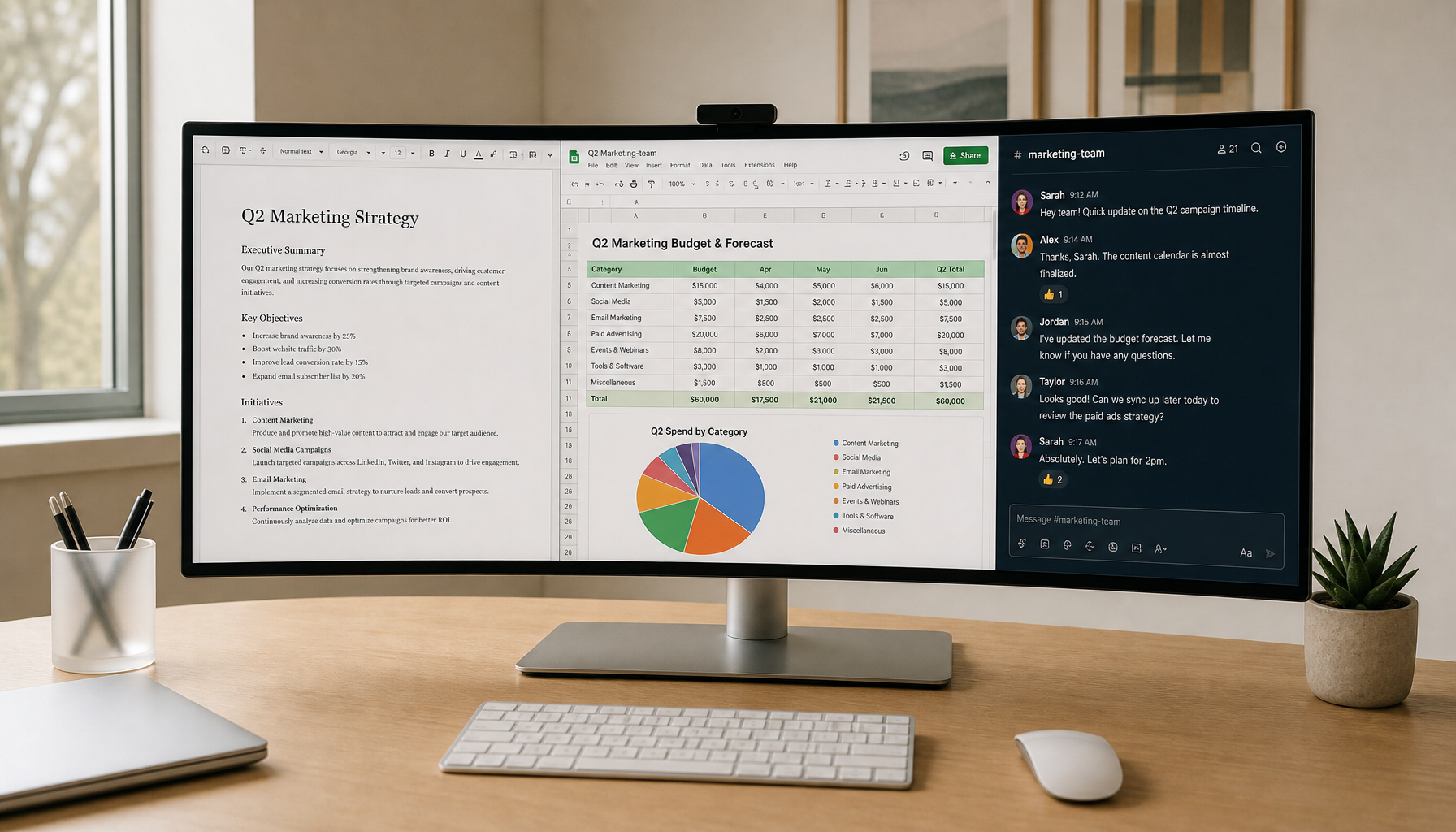
For hardcore coding, the choice between a super ultrawide monitor and a vertical dual monitor setup comes down to your primary workflow and physical fatigue profile rather than raw screen real estate. Full-stack developers who constantly triage IDEs, browsers, terminals, and documentation side-by-side often thrive with the seamless canvas of a 49-inch ultrawide like the KTC H49S66, while backend and DevOps engineers who need maximum vertical line-of-code density and strict task separation tend to prefer a dual setup with one monitor rotated vertically.
The 'IDE Battlefield' pits continuous horizontal flexibility against structured physical compartments, with ergonomics, window management overhead, and operating system quirks acting as the real decision filters. Neither setup is universally superior; the right one minimizes your specific cognitive and physical costs during long sessions.

The IDE Battlefield: Continuous Canvas vs. Physical Compartments
Many developers assume more pixels always equal more productivity, yet the real differentiator is how easily you can maintain focus across tasks. A super ultrawide delivers a continuous canvas that lets full-stack developers keep their IDE, browser dev tools, and reference docs visible without bezel interruptions, supporting the horizontal triage typical of frontend or multi-service work.
In contrast, a dual monitor setup with one screen in portrait mode creates physical compartments that help mentally separate concerns, such as keeping logs, terminals, or documentation permanently on the vertical monitor while the main IDE stays centered. This hardware boundary can reduce the mental effort spent managing windows.
The bezel in dual setups is not merely a gap; it functions as a cognitive anchor that many coders report helps them switch contexts more cleanly. As one analysis of switching from dual monitors to ultrawide notes, some users miss that physical separation for structured multitasking (Ultrawide vs dual monitors: What I miss and regret).
Vertical orientation shines for backend developers navigating large code files or logs, where a 27-inch portrait monitor can display over 1000 lines of code with minimal scrolling. This vertical code density directly reduces navigation friction in legacy codebases or documentation-heavy workflows.
Ergonomics and Physical Comfort: Neck Rotation vs. Focal Fatigue
Long coding sessions turn minor ergonomic differences into major fatigue sources. A 1000R curved super ultrawide, such as the KTC H49S66, keeps the entire screen at a nearly constant distance from your eyes, matching the natural curvature of the human eye and reducing the work required by ciliary muscles to refocus across the display.
This focal consistency can lower eye strain during extended horizontal scanning. However, the wide 49-inch span creates a potential neck sweep penalty if your workflow frequently requires glancing at content on the far left or right edges.
OSHA guidelines emphasize keeping the primary monitor directly in front to minimize neck rotation. For dual-monitor users, this means angling the screens in a gentle V-shape so both stay within a comfortable viewing arc (Computer Workstations eTool: Components - Monitors).
Vertical monitors leverage natural up-and-down eye movement, which many users find less taxing than repeated lateral neck turns. Yet jumping the bezel between monitors can introduce minor refocusing that accumulates over 10-hour days for some developers.
The best choice depends on your dominant fatigue: prioritize the 1000R curve if eye refocusing is your main issue, and favor a centered dual setup if neck stiffness appears first. Always center your primary coding window and take regular breaks regardless of configuration.

The 'Management Tax': Solving the Ultrawide 'Giant Messy Desk' Problem
A 49-inch ultrawide without strong window management quickly becomes a disorganized workspace that undermines productivity gains. Tools like Microsoft PowerToys FancyZones become essential, letting Windows users create custom zones that replicate the structured layout of multiple monitors (PowerToys FancyZones utility for Windows).
Linux users relying on tiling window managers such as i3 or Sway face a similar orchestration requirement, though the tax may feel lighter once configured. The key insight is that ultrawide setups shift management effort from physical placement to software discipline.
MacBook Pro users encounter an additional Retina gap on 1440p (DQHD) ultrawides, where native macOS scaling often produces blurry text. Third-party utilities such as BetterDisplay are commonly required to unlock crisp HiDPI modes and custom resolutions (BetterDisplay: Unlock HiDPI and Smooth Scaling on macOS).
Mini-LED models add a toggle tax: in dark-mode IDEs, local dimming can cause blooming around bright code syntax, requiring users to disable the feature and sacrifice some contrast. These hidden costs mean the seamless canvas only delivers full value after setup investment.
MacBook Pro Connectivity: The One-Cable Dream vs. Reality
Many developers chase a single USB-C cable solution for power, video, and peripherals. Monitors with 90W Power Delivery make this possible in theory, delivering a clean desk for MacBook Pro users.
In practice, Apple Silicon Macs (M1/M2/M3) can experience wake-from-sleep issues with certain USB-C display controllers. Testing your specific combination is advisable before committing to a fully cable-minimal workflow.
For pure text clarity on macOS, a 5K or high-density 4K monitor often outperforms a 1440p ultrawide even if it offers less width. The KTC H27P3, for example, delivers excellent pixel density that aligns naturally with macOS Retina expectations without extra scaling tools.
Which Setup Fits Your Coding Workflow?
Match the configuration to your daily tasks and physical constraints rather than chasing maximum screen size. Full-stack and frontend developers who live in horizontal triage across multiple tools usually benefit most from a 49-inch super ultrawide paired with strong window management software.
Backend, DevOps, and engineers working with large single files or logs often see greater gains from a dual setup featuring one vertical 27-inch monitor for deep code navigation. This provides the line-of-code density and task separation that reduces scrolling and context switching.
Mac purists prioritizing crisp text should evaluate 5K or 4K flat monitors first, accepting narrower real estate in exchange for out-of-the-box clarity. Check desk depth for curved models, cable management tolerance, and whether you prefer software or hardware boundaries before purchasing.
Test your current workflow for a week using window snapping tools on your existing display to simulate each approach. The setup that feels least taxing after several days typically proves the better long-term choice.
Frequently Asked Questions
Does a vertical monitor really improve coding productivity?
Yes for many backend workflows, where displaying 1000+ lines of code at once cuts scrolling and improves context awareness in large files or documentation. The benefit is most pronounced when reading vertically formatted code or logs rather than managing many side-by-side applications.
Is a super ultrawide better than dual monitors for MacBook Pro users?
It depends on your tolerance for configuration. Ultrawides often require BetterDisplay for crisp scaling on 1440p panels, while a 5K monitor like the KTC H27P3 usually delivers native Retina-quality text with less setup. One-cable USB-C connectivity works well but test wake-from-sleep behavior with your specific Mac model.
How much desk space does a 49-inch ultrawide actually need?
Expect to need deeper desk real estate than dual 27-inch monitors due to the 1000R curve. Measure your available depth and plan for monitor arm usage to pull the screen closer while maintaining proper viewing distance.
Do bezels in dual setups really provide a cognitive benefit?
Many developers report that physical screen edges act as natural task dividers, reducing the mental overhead of keeping windows organized compared to a single large canvas. This advantage is workflow-dependent and less relevant if you heavily rely on virtual desktops or advanced snapping tools.
Should I worry about blooming on Mini-LED monitors for coding?
In dark-mode IDEs, local dimming can create a hazy effect around bright text. Many users disable the feature for SDR desktop work, trading peak contrast for cleaner code readability. This is a common practical adjustment rather than a deal-breaker.
What window management tools work best with ultrawide monitors for developers?
On Windows, FancyZones within PowerToys is highly recommended. macOS users turn to BetterDisplay or Magnet, while Linux tiling managers like i3 or Sway offer powerful native alternatives. The goal is creating consistent zones that mimic dual-monitor behavior without constant manual resizing.