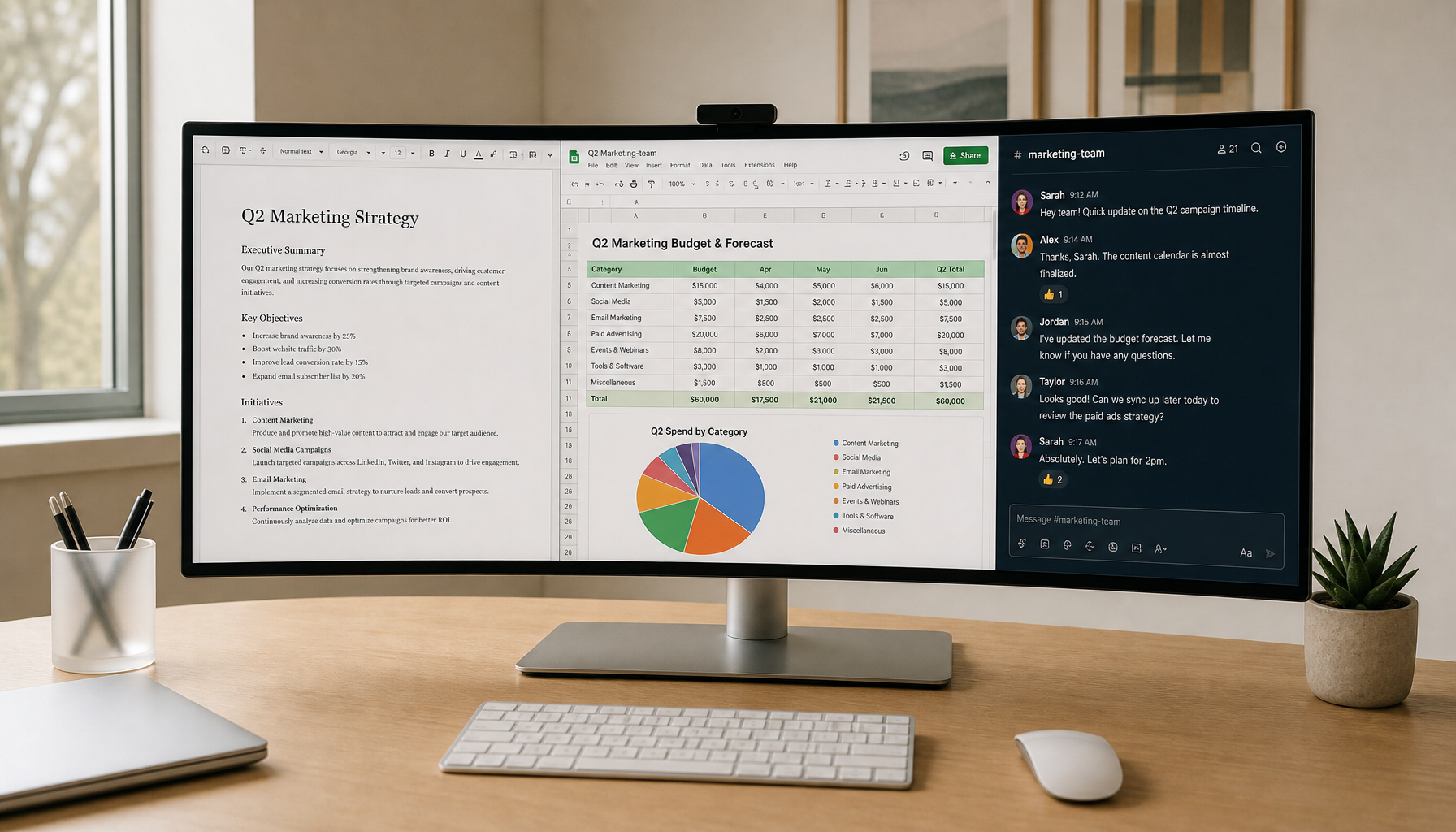
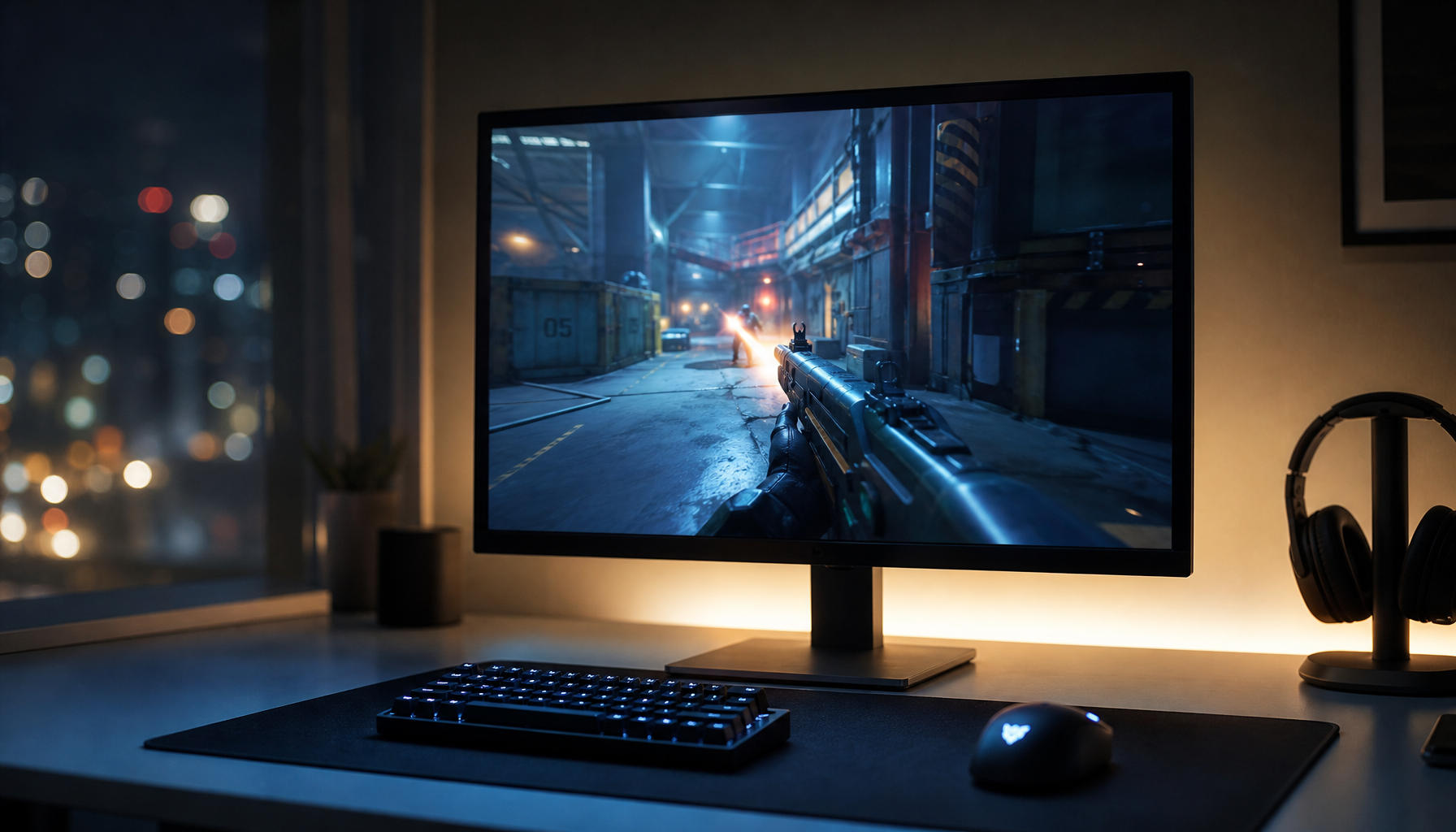
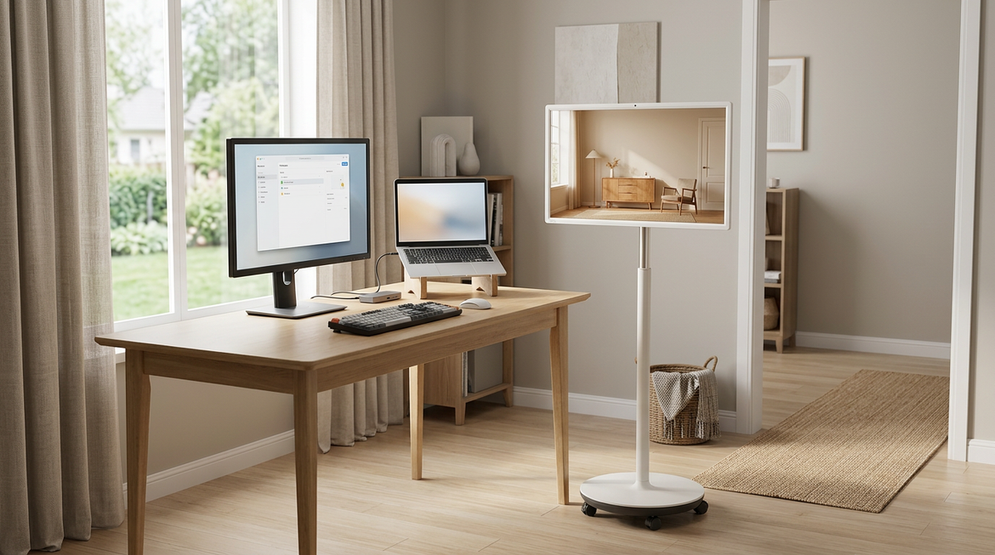
Software KVM works best for fast keyboard-and-mouse movement across visible computers. Hardware KVM is stronger when video, USB accessories, gaming refresh rates, locked-down work devices, or recovery access matter.
Ever lose your flow because your work laptop, gaming PC, and side machine all need their own keyboard, mouse, and monitor inputs? A well-matched KVM setup can remove duplicate peripherals, reduce desk clutter, and make switching between systems repeatable instead of turning it into a cable shuffle. This guide shows how to choose the right control method without sacrificing display performance, security, or your desk setup.

What “KVM” Really Means
A KVM switch is a keyboard, video, and mouse control system that lets one console manage multiple computers. In the classic sense, a KVM switch is hardware: your keyboard, monitor, mouse, and sometimes USB accessories plug into a box or monitor-integrated hub, while each computer connects to that switch.
Software KVM is different. It usually shares the keyboard and mouse over a local network, often letting your cursor slide from one computer’s screen to another. That feels fluid when both displays are already visible on your desk, but it is not always a complete “video” switch. If your goal is to make two computers take turns using the same monitor, software alone usually does not solve that physical display-routing problem.
That distinction matters. A dual-monitor productivity desk, a high-refresh gaming station, and a server recovery workflow all use the word “KVM,” but they stress the system in very different ways.
The Core Difference: Control Sharing vs. Signal Switching
Software KVM treats each computer as its own active display environment. Your keyboard and mouse move between machines through software, usually across a LAN. That makes it attractive for a laptop beside a desktop, a home-office machine beside a personal PC, or a lab bench where every system has its own screen.

Hardware KVM physically routes video and USB signals. A hardware hub can let one monitor, keyboard, and mouse serve two to four computers in mainstream desktop setups, with more specialized models supporting multiple displays, more USB devices, and higher-end video modes.
Decision Point |
Software KVM |
Hardware KVM |
Best fit |
Multiple visible screens, fast cursor movement |
Shared monitors, shared USB, stable switching |
Video switching |
Usually no |
Yes |
Network dependency |
Usually required |
Not required for local switching |
App installation |
Required on controlled systems |
Usually not required |
Desk hardware |
Minimal |
Adds a box, cables, or monitor-integrated KVM |
Gaming suitability |
Limited by network and app behavior |
Stronger if rated for refresh rate and latency |
Often blocked |
Usually more practical |
For a simple example, imagine a work laptop on a 14-inch screen next to a desktop on a 27-inch monitor. Software KVM can feel excellent because both displays remain live and you only need one keyboard and mouse. Now change that setup to one 32-inch 4K monitor shared by both machines. Hardware KVM becomes the practical option because the video signal itself must move.
Where Software KVM Wins
Software KVM is the cleanest answer when your screens are already separate and visible. Edge-of-screen switching can feel almost like using one extended desktop, even though each computer still runs independently. That makes it powerful for developers, analysts, stream operators, and productivity users who keep a laptop open beside a primary monitor.
The value case is also strong. Software avoids extra video cables, external power bricks, and a physical switch on the desk. For renters, shared desks, and compact home offices, that lower hardware footprint is meaningful. A user with two PCs and two monitors who mainly wants one mouse and keyboard can often get a smoother daily workflow from software than from a cheap physical switch.
The catch is that software KVM depends on the operating system, the network, and permission to install software. Enterprise comparisons note that software-based remote access tools can be inexpensive and hardware-light, but they depend on the target computer’s operating system. If the work laptop blocks third-party apps, the network drops, or the computer is stuck before login, the elegant software experience can disappear quickly.
Software KVM also tends to struggle when the requirement expands from “move my mouse” to “share my full workstation.” Webcams, capture cards, external drives, audio interfaces, drawing tablets, and gaming controllers may not move cleanly through a keyboard-and-mouse sharing tool. For those, hardware is usually more predictable.
Where Hardware KVM Wins
Hardware KVM is the performance-oriented choice when you need the display and peripherals to follow the selected computer. It is also the more reliable path when the machines run different operating systems, cannot install apps, or need to remain usable before the OS is fully loaded.

Selection starts with ports. Buying guidance typically frames the first checks as the number of computers, number of monitors, and connector types, because monitor input compatibility determines whether the switch can fit your actual desk. If you have two computers and two monitors, you need a dual-monitor KVM, not a single-monitor model with optimistic marketing copy.
The display spec is equally critical. A cheap 4K 60 Hz HDMI KVM may be perfectly fine for spreadsheets and admin work, but it can bottleneck a 144 Hz or 240 Hz gaming monitor. For gaming setups, refresh rate, resolution, VRR, adaptive sync, HDR, and cable quality must be verified as explicit supported modes rather than assumed from a broad “8K” claim.
For office productivity, the hardware advantage is stability. A good switch can preserve the desk layout, reduce unplugging, and keep peripherals centralized. The University of California’s ergonomics material on dual monitors reinforces the practical point that screen placement affects comfort; once your monitors are positioned correctly, a KVM helps you keep the physical setup consistent instead of rebuilding your workstation every time you change devices.
Gaming and High-Refresh Displays Need Extra Discipline
A pro gaming monitor exposes weak KVM choices immediately. If your panel runs at 144 Hz, 165 Hz, or higher, the switch must support that exact resolution and refresh-rate combination on the ports you plan to use. “4K support” alone is not enough, because 4K at 30 Hz, 4K at 60 Hz, and 1440p at 240 Hz are very different workloads.
Low-quality KVMs can add input delay or force fallback display modes. Gaming-focused explanations often note that KVM usefulness depends heavily on device quality because some switches can add input latency. That does not mean hardware KVM is bad for gaming; it means the switch has to be treated like part of the signal chain, just like the GPU cable or monitor input.
A practical calculation helps. If your desktop drives two 27-inch 1440p monitors at 144 Hz and your laptop only needs 60 Hz office output, the KVM still has to satisfy the demanding path. Buying for the laptop’s needs will downgrade the gaming PC. In this setup, a dual-monitor DisplayPort KVM with confirmed 1440p 144 Hz support is the baseline, while USB 3.0 sharing becomes important if you also move a webcam, headset dongle, or external SSD.
Security, Recovery, and IT Control
For normal home desks, security usually means avoiding unknown software and keeping work systems compliant. For IT and enterprise control, the software-versus-hardware split becomes sharper.
Software remote access is convenient when the OS is healthy. Hardware KVM-over-IP is valuable when it is not. Enterprise hardware KVM can provide BIOS-level troubleshooting, virtual media, and out-of-band access, which matters when the production network or operating system is unavailable.
That is why data centers and server rooms still use hardware KVM architecture. KVM-over-IP systems can include port planning, virtual USB media, user permissions, encryption, redundant network paths, and power redundancy. Those features are overkill for a two-computer desk, but decisive for a server that must be recovered after a failed update or boot problem.
Built-In Monitor KVM: The Middle Path
Many modern productivity and gaming monitors include built-in KVM functionality. This can be the cleanest solution for a laptop-plus-desktop desk because the monitor already owns the display inputs and USB hub. You connect keyboard and mouse to the monitor, then switch the active host through the display’s input or KVM controls.

Built-in KVM is best for tidy, two-device setups. It saves desk space, reduces extra boxes, and often pairs naturally with USB-C laptop workflows. The limitation is expandability. If you later add a second monitor, a third computer, specialized USB devices, or high-refresh gaming requirements, a standalone KVM may offer more flexibility.
How to Choose Without Overbuying
Start with the video requirement, not the keyboard. If each computer already has its own screen and you only want one keyboard and mouse, software KVM is the value play. If one or more monitors must be shared, choose hardware.
Then match the switch to your real display mode. For a 1080p 60 Hz office monitor, almost any reputable HDMI KVM may be enough. For 4K productivity, confirm 4K at 60 Hz or better. For gaming, confirm the exact resolution, refresh rate, adaptive sync behavior, and cable standard. Low-cost KVM testing has found several budget HDMI units easy to set up with no visible blur or lag in basic use, but those tested groups often focus on low-cost single-monitor models, not demanding dual-monitor high-refresh rigs.
Finally, think about friction. If switching happens 50 times a day, software edge switching or hotkeys may feel better than reaching for a button. If switching happens twice a day but must work every time with a locked work laptop, hardware is more reliable. If your desk is tight, a monitor-integrated KVM may beat both a software compromise and an external box.
Practical Setup Advice
For hardware KVM, label every cable and port before the desk gets crowded. Keep video cable runs short, use certified HDMI or DisplayPort cables for high-bandwidth modes, and avoid adapters unless you know exactly what they cap. Test switching behavior with every device awake, asleep, and freshly rebooted, because the most frustrating failures often appear during wake-from-sleep or display re-detection.
For software KVM, keep all machines on a trusted local network, disable sleep settings that break discovery, and verify that clipboard sharing or file transfer features comply with your workplace rules. If you rely on a VPN, test whether it interrupts local control. The best software setup is the one that still behaves predictably on Monday morning after updates, restarts, and network changes.
FAQ
Can software KVM share one monitor between two computers?
Usually no. Software KVM typically shares keyboard and mouse control across computers that already have their own active displays. If one physical monitor must switch between two computers, you need hardware switching, a monitor with built-in KVM, or manual input switching.
Is hardware KVM always better for gaming?
Not always, but it is the serious path when one gaming monitor is shared between systems. The KVM must explicitly support your resolution, refresh rate, and adaptive sync features. A low-cost office KVM can undermine a high-performance display.
What is the best choice for a work laptop and personal desktop?
If both screens stay visible, software KVM is simple and low-clutter. If you want the laptop and desktop to share the same monitor, keyboard, mouse, webcam, and headset, a hardware KVM or monitor with built-in KVM is the cleaner long-term setup.
Final View
Choose software KVM when speed, low cost, and desk simplicity matter more than full signal switching. Choose hardware KVM when the monitor, USB devices, refresh rate, security posture, or recovery access must move with confidence. The right KVM should make every system feel closer without making your display perform smaller.