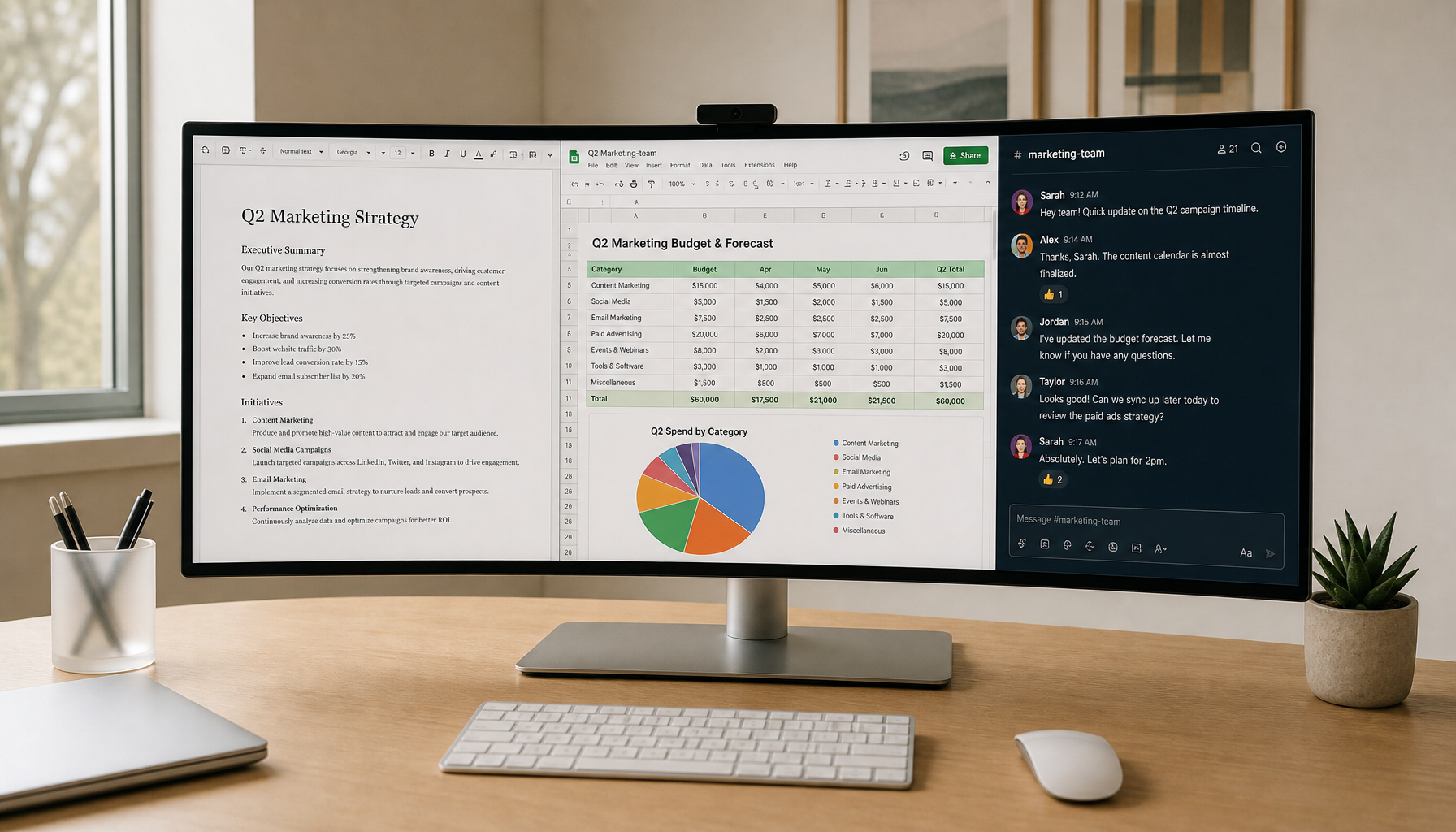
A portable smart display second screen can work for a MacBook, but it is not the safest default for everyone. If you want a desk-first, self-contained display with touch and built-in apps, it can make sense. If you care most about fast setup, lighter carry weight, and a cleaner Mac extension, a basic portable monitor is usually the safer choice.

When a Portable Smart Display Makes Sense
The real question is not just whether the screen connects, but whether it fits your work style. For hotel desks, temporary workspaces, and home-office setups where the display can stay put, a smart display can be attractive because it does more than act like a panel. For frequent travel, small café tables, and quick pack-and-go use, that same extra functionality often turns into extra friction.
For MacBook users, reliability comes before extras. Apple's guidance on macOS HiDPI scaling for external displays is the main reason 4K matters here, because sharper text and cleaner UI scaling usually matter more than a touch layer or built-in apps. And if the setup leans on wireless casting, a practical latency warning from wireless mirroring use cases is worth taking seriously before you buy.
A useful rule of thumb is simple: if the display has to feel like a dependable Mac extension first, choose the simplest path that gets you there. If it also needs to function on its own, then a smart display becomes more interesting.
For shoppers who want to browse the category first, mobile touch screen options are the broadest place to start.
What MacBook Compatibility Really Depends On
Start with the connection path. A portable smart display may offer USB-C, HDMI, or wireless casting, but those paths do not behave the same way in real use. USB-C and HDMI are usually the cleaner choices when you want a steady extended desktop. Wireless is more convenient when you are moving around a lot, but it adds a pairing step and can feel less predictable in crowded Wi-Fi environments.

That matters even more on base MacBook models. Macworld notes that base M1, M2, and M3 MacBook Air and MacBook Pro models officially support only one external display through their built-in ports, so buyers with those machines should not assume a multi-screen setup will just work without extra hardware or a different display strategy. If you are planning a portable smart display second screen around a base model, check that limit first.
Text clarity is the next filter. On macOS, 4K displays usually scale better than 1080p panels because Apple uses HiDPI rendering to keep text and interface elements sharper. That does not guarantee perfect readability at every size, but it does mean a 4K panel has a better chance of looking right once you choose the right "Looks like" setting.
Wireless casting is the other place people get surprised. It can be fine for slides, messages, or a dashboard, but it is less forgiving when you drag windows, edit text, or move quickly between apps. In practice, that is where a portable smart display MacBook compatibility test should begin: not with the app list, but with the connection you will use most often.
If you want setup help after the first connection test, a first-time setup guide is a better next step than guessing through menus.
MegPad as a MacBook Second Screen
The featured option here is the KTC MEGAPAD 32" 4K Android 14 Google EDLA Smart Touch Monitor with 8550mAh Battery. It is a 31.5-inch 4K smart touch display with Android 14, a built-in 8550mAh battery, USB-C, HDMI 2.0, and USB 3.0. Those are useful facts for a MacBook buyer, but they do not mean it is automatically a plug-and-play second screen for every workflow.
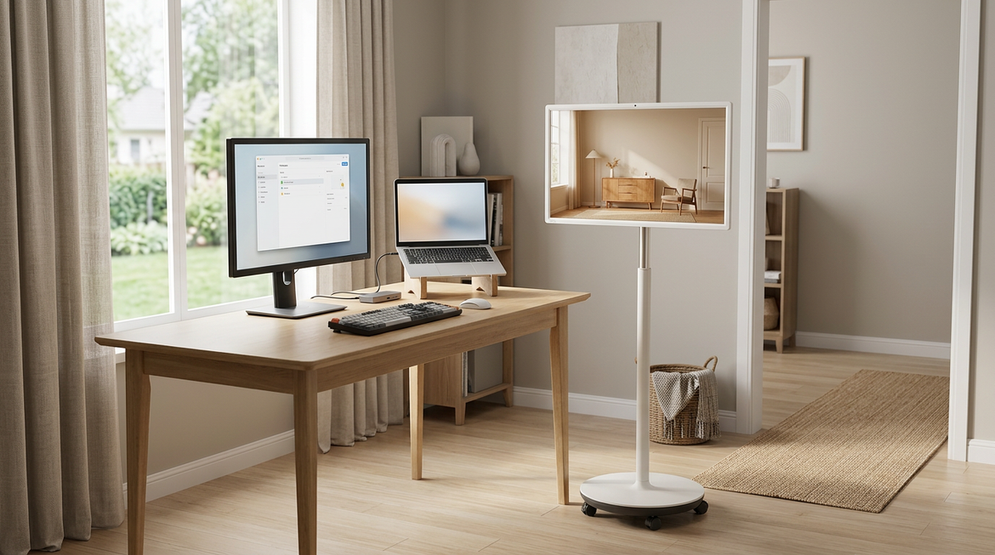
Where it fits best is desk-first hybrid use. If you work from a hotel room, a temporary office, or a home desk and want a larger display that can also stand on its own, the MegPad-style setup makes sense as a candidate. Its size and battery make it feel closer to a mobile desk display than to a travel monitor.
Where it breaks down is frequent carry and cramped surfaces. The unit is much heavier and more desk-committed than a small portable monitor, so it is not the best answer if your second screen has to disappear into a bag every day. The touch layer and Android apps are useful mainly when you want the screen to do double duty away from the Mac, not because they automatically improve macOS productivity.
For readers who want a product comparison angle, the integrated battery display comparison is a reasonable follow-up after you decide whether the extra stand-alone features are worth carrying.
Setup, Scaling, and Power Checks
-
Confirm the connection path first. Plug in the MacBook with the same cable or adapter path you plan to use daily. If you need HDMI, USB-C video, or a hub, test that exact path before anything else.
-
Set a safe baseline resolution. If the image does not appear cleanly at first, start low and move up only after the display is stable. The goal is to prove the signal path before you worry about perfect sharpness.
-
Check macOS scaling before judging the panel. A 4K screen can look great or awkward depending on the "Looks like" setting. If text is too small or the interface feels crowded, change scaling before blaming the display itself.
-
Verify charging or power behavior separately. Do not assume the display will power your MacBook just because it has USB-C. Power delivery behavior depends on the exact port path and device support, so check whether the Mac is charging, holding steady, or slowly draining during a normal work session.
-
Only then test wireless features. If the wired path is stable, you can decide whether casting adds enough convenience to be worth the extra friction. If the wired path is unstable, wireless is usually not the fix.
If you keep getting drops or no-signal problems, the issue may be cable quality, port choice, or power behavior rather than the display itself. A connection-drop troubleshooting guide is often the fastest way to isolate the failure point.
Which Setup Fits Your Work Style
The chart below helps separate scene fit from raw specs. It does not rank every product absolutely. It shows where each type of setup tends to make the most sense for a MacBook second screen.
Which setup fits your MacBook second-screen use
A quick fit map for desk-first smart display, travel-first portable monitor, and office-style monitor. It highlights where each setup is a better practical match based on portability, desk presence, and Mac-friendly display behavior.
View chart data
| Scenario | Desk-first smart display | Travel-first portable monitor | Office-style monitor |
|---|---|---|---|
| Desk-first smart display | 3.0 | 1.0 | 2.0 |
| Travel-first portable monitor | 1.0 | 3.0 | 2.0 |
| Office-style monitor | 2.0 | 1.0 | 3.0 |
For most MacBook owners, the smart display only wins when desk space is available and standalone features matter. If your day is mostly writing, spreadsheets, or coding, the better fit is often a simpler portable monitor. If your setup stays in one place, an office-style 4K monitor is usually the cleanest long-term choice.
A quick fit check:
| Buyer need | Better fit | Why it wins | Main trade-off |
|---|---|---|---|
| Desk-first hybrid work | Smart display | Larger screen, built-in system, battery-backed flexibility | Heavy and less travel-friendly |
| Frequent travel | Portable monitor | Lightweight, simpler cable path, easier to pack | Fewer standalone features |
| Mostly fixed office use | Office-style monitor | Strongest day-to-day stability and screen comfort | Not meant to move often |
If you are comparing travel options, the H15F9 portable monitor is the clearer fit when weight and setup speed matter more than smart features. If you want a fixed desk screen instead, 27-inch 4K office monitors are a more natural Mac workspace choice than a carry-around smart display.
Buying Checks Before You Add to Cart
Before you buy, verify four things: the exact connection path your MacBook will use, whether the screen size still feels readable at your desk distance, whether the display needs a hub or adapter, and whether you actually want a travel-first screen or a desk-first one. Warranty, returns, shipping, and support are useful confidence checks, but they do not prove compatibility on their own.
If the setup is meant for hotel desks or temporary offices, a portable smart display second screen can be worth the trade-offs. If you need to move it often, keep the carry weight and setup time front and center. The safest purchase is the one that matches your actual routine, not the most feature-rich panel on the page. For a broader checklist, see the hybrid-work buying guide.
Related Resources
FAQs
Can a MacBook Use a Portable Smart Display as a Second Screen?
Yes, in some setups. The important question is whether your MacBook can use the display through the exact cable, adapter, or wireless path you plan to rely on. If the display is meant to act like a true external monitor, treat that path as the main test, not the extras.
Does MacOS Scale Well on a 4K Portable Smart Display?
Usually better than on lower-resolution panels. Apple's HiDPI scaling helps 4K displays keep text and UI elements sharper, but readability still depends on screen size, viewing distance, and the scaling option you choose in system settings.
Is Wireless Casting Reliable for Everyday Work?
It can be fine for casual or presentation use, but it is less dependable for precision work. Wi-Fi quality, interference, and pairing friction can all affect the experience. For text-heavy tasks or fast window switching, a wired path is usually the safer choice.
Will a Portable Smart Display Charge My MacBook Over USB-C?
Not automatically. USB-C can carry both video and power, but charging behavior depends on the specific device, cable, and power delivery support. Check whether your MacBook and the display support the exact one-cable setup before counting on it.
What Is the Main Advantage of a Smart Display Over a Basic Portable Monitor?
The main advantage is standalone flexibility. A smart display can run apps, stay useful without the Mac, and sometimes handle touch or battery-powered use. The trade-off is more complexity, more weight, and less simplicity for pure MacBook extension.
When Should I Pick a Portable Monitor Instead?
Pick the portable monitor when your priority is reliability, lighter carry weight, and fast setup. If you move between desks often, the simplest wired monitor usually creates less regret than a feature-rich display you do not fully use.
Final Takeaway
A portable smart display second screen is a good MacBook choice only when you want a desk-first setup with some standalone flexibility. If you mainly want sharper text, less friction, and a lighter carry, a standard portable monitor is usually the better buy. Check your connection path, scaling comfort, and power expectations first, then choose the display that matches how you actually work.