Mini-LED vs OLED for office desks comes down to one question: which panel is easier to read and easier to live with for long days of documents, email, and spreadsheets? In most productivity setups, Mini-LED is the lower-anxiety default. OLED can still work well, but only when pixel density, desk distance, and your tolerance for static-window risk line up.

What Actually Determines Text Clarity
For office work, panel type is only part of the story. Text clarity usually comes from a mix of resolution, pixel density, scaling, and how far you sit from the screen. Microsoft's ClearType guidance is useful here because it shows why standard RGB stripe layouts tend to behave more predictably for Windows text rendering.
On a desk, that means two monitors with the same diagonal can still feel very different. A higher-PPI display can hide more of the little rendering quirks that show up in thin fonts, browser tabs, and spreadsheet lines. RTINGS' text clarity testing supports the practical rule: if you sit close and read small text all day, density matters before branding does.
Resolution, PPI, and Desk Distance
A 27-inch 4K display is a helpful office reference point because the extra pixel density usually makes text look cleaner at normal desk distance. That does not make lower-resolution screens unusable, but it does change how quickly fringing or softness becomes noticeable.
If your chair is close to the panel, small artifacts become easier to spot. If you sit farther back, the same display may feel more forgiving. That is why Mini-LED vs OLED text clarity office debates should start with desk geometry, not panel marketing.
Subpixel Layout and Text Fringing
OLED text can look less uniform when the subpixel layout does not line up neatly with Windows rendering assumptions. PC Monitors' explanation of QD-OLED and WOLED fringing issues is a good reminder that not all OLED layouts behave the same.
In real office use, the problem shows up most on thin strokes, small UI text, and dark text on light backgrounds. If you are sensitive to colored edges on letters, that is the first OLED-specific thing to check.
Scaling, Font Size, and App UI Density
Scaling can improve readability, but it also changes how much fits on screen. That is the trade-off many office buyers feel after the fact: clearer text often means a larger UI, while denser workspaces can make fonts feel cramped.
For spreadsheets, browser tabs, and document apps, a stable scaling choice matters more than chasing a spec-sheet headline. A display can be technically sharp and still feel awkward if the UI size is wrong for your distance.
Mini-LED Contrast Versus OLED Black Levels
This is where the conversation often gets mixed up. Mini-LED does not automatically make text sharper, and OLED does not automatically make text softer. Mini-LED mainly changes backlight behavior, while OLED changes how each pixel emits light.
OLED's black levels can make dark themes look polished, and Mini-LED's contrast can make documents feel more defined. But contrast is not the same thing as text sharpness. That distinction matters if your real goal is easier reading, not a more dramatic image.
Mini-LED vs OLED for Office Text
For most office desks, Mini-LED is the safer baseline because standard LCD-style rendering tends to fit Windows text better. OLED can look excellent, but the result depends more on density and subpixel layout. RTINGS' Mini-LED vs OLED monitor comparison is a useful reminder that brightness, contrast, and desk conditions all influence what feels easiest to read.
The short version is this: if you want the least fussy productivity setup, Mini-LED usually wins on predictability. If you want premium contrast and are willing to check density carefully, OLED becomes more plausible.
| Comparison factor | Mini-LED tendency | OLED tendency | Office relevance | Buyer takeaway |
|---|---|---|---|---|
| Text sharpness at desk distance | Usually more predictable on standard Windows text | Can be very sharp at high density, but varies by layout | Small fonts and many windows expose differences quickly | Check PPI and scaling before choosing by panel type alone |
| Subpixel/text fringing risk | Lower on typical LCD-style layouts | Higher on some layouts, especially with thin strokes | This is the main office-text complaint on OLED | If colored edges bother you, Mini-LED is the calmer pick |
| Contrast on documents and dark themes | Strong, but backlight-based | Very strong because pixels turn off individually | Affects perceived polish more than raw sharpness | OLED helps if visual contrast is a priority |
| Brightness in typical office light | Usually easier to live with in brighter rooms | Good in controlled rooms, but less forgiving near glare | Matters near windows and overhead lights | Bright offices often favor Mini-LED |
| Static UI anxiety | Lower, because it avoids OLED-style burn-in worry | Higher if taskbars and inboxes stay open all day | This affects ownership comfort as much as image quality | Choose Mini-LED if you do not want to manage static content |
| Blooming or haloing | Can appear around bright text on dark UI | No local-dimming blooming, but other artifacts can show | Prevents an oversimplified Mini-LED win | Mini-LED is not artifact-free |
If your top priority is office text clarity alone, a sharp non-OLED office panel can still be the most practical answer. If you want to browse a broader Mini-LED collection or compare an OLED monitor lineup, use those pages as starting points, not proof that one category is automatically better for your desk.

Static Windows and Burn-In Anxiety
For office buyers, burn-in is less about one dramatic failure and more about cumulative exposure. RTINGS' longevity burn-in testing shows why static UI, taskbars, and spreadsheet grids stay at the center of OLED caution.
That does not mean OLED is off-limits for work. It does mean the comfort level changes when you keep the same inbox, taskbar, and reference panels open for hours every day. The anxiety is real even before damage is visible, and that alone can make Mini-LED feel easier to own.
What Static Office UIs Mean for OLED
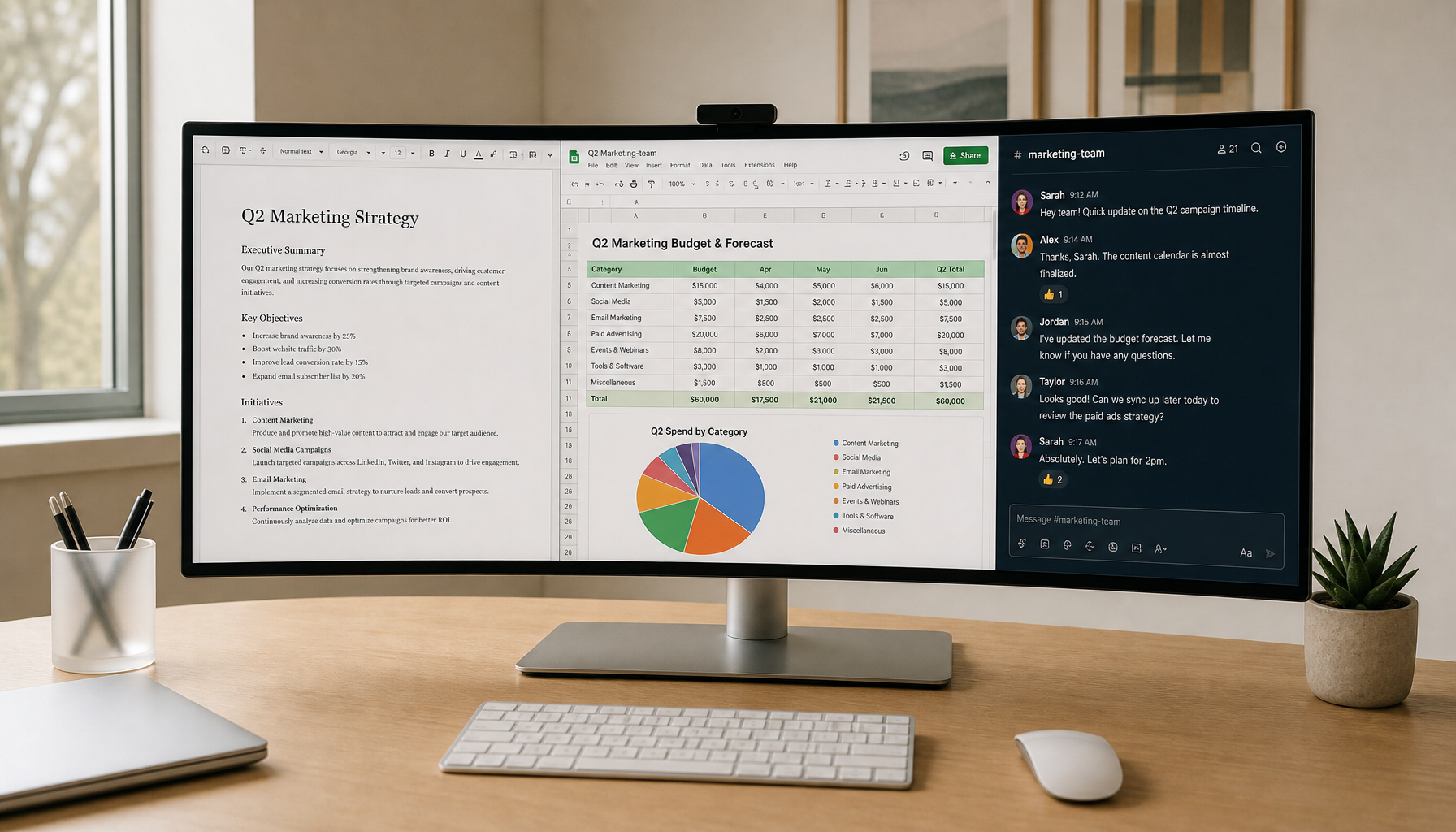
Static office layouts are the main reason Mini-LED vs OLED for static windows is not just a gaming discussion. If your desktop looks the same from morning to evening, the panel is seeing repeated exposure in the exact same places.
That risk is cumulative, so occasional office use is a different story from all-day static work. The practical question is not whether OLED can work at all. It is whether you want to think about protection habits every day.
OLED Habits That Reduce Office Risk
You can reduce concern by varying layouts, hiding static elements when possible, and using the monitor's built-in protection features if they are available. KTC's OLED burn-in prevention guide covers the kind of habits that matter most for office routines.
Those habits may help, but they do not create a zero-risk promise. If you like a low-maintenance desk, that is a meaningful reason to lean away from OLED.
Which Work Patterns Raise the Stakes
All-day spreadsheets, fixed taskbars, and always-open messaging apps raise the stakes more than mixed-use days do. Hybrid workers who switch between calls, docs, and web work may feel less pressure than people who live in one layout all day.
That is why the mini-LED vs OLED text clarity office choice is also an ownership-choice question. If you want fewer things to remember after purchase, Mini-LED is usually the easier path.
Brightness, Viewing Conditions, and Desk Setup
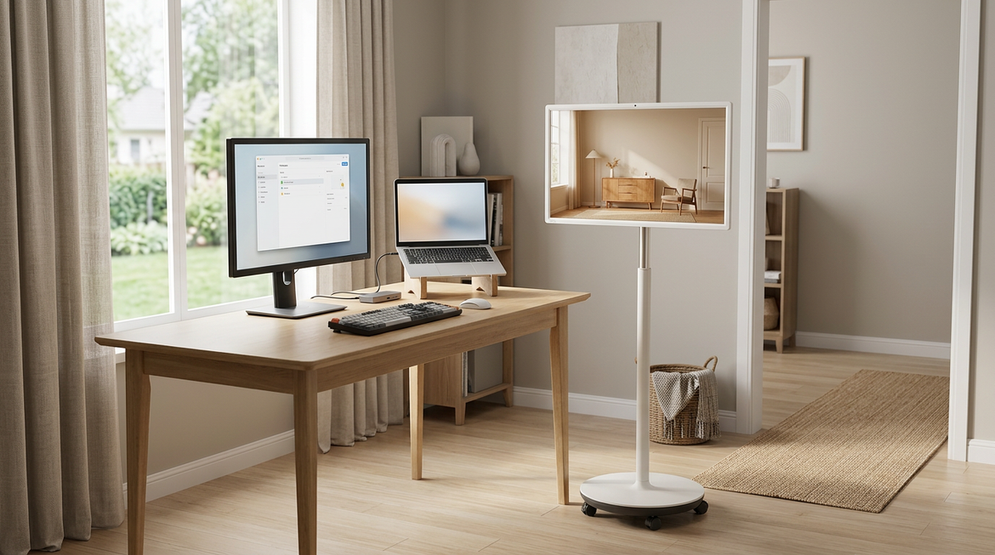
Room light changes the decision more than many shoppers expect. In bright offices, sustained brightness and glare control can matter more than perfect blacks. RTINGS' Mini-LED vs OLED monitor guidance points in the same direction: Mini-LED often has the easier legibility story when the desk sits near a window or under strong overhead light.
That does not make OLED poor in every bright room. It means you should judge the actual workspace, not just the monitor spec sheet. If your office lighting is hard to control, Mini-LED usually asks less of the room.
Bright-Room Desks and Window Light
Near windows, brightness headroom often matters more than perfect black levels. That is why bright-room desks commonly push buyers toward Mini-LED first.
If your screen faces a window or lives under strong indirect light, prioritize visibility before image drama. For that kind of desk, Mini-LED for bright rooms is a more useful search path than chasing the deepest black level.
Desk Distance, Screen Size, and Readability
A 27-inch screen at close range makes text behavior easier to judge. Sit closer and the same monitor can feel softer or more distracting. Sit farther back and the differences may shrink.
That is why desk depth and chair position belong in the buying decision. If your setup is shallow and you read small fonts all day, a high-density non-OLED or Mini-LED panel is usually the safer bet.
Stand, Height, and Viewing Angle
Even a good panel can look worse if the stand puts it too high, too low, or off-angle. Better height adjustment helps keep text in the comfortable viewing zone and reduces the urge to overcorrect with scaling.
That matters for hybrid desks where you switch between typing, reading, and video calls. The cleanest-looking display is still the one that sits correctly in front of you.
Which Monitor Fits Your Office Desk
Use Mini-LED if you want the calmer office default, especially for static windows, bright rooms, and long days at the same desk. OLED makes more sense when you value premium contrast, are comfortable managing static content, and can confirm that the density is high enough for your reading distance.
If you want a concrete Mini-LED example to check against those conditions, the KTC Mini LED 27" 180Hz 2K HDR1400 Gaming Monitor | M27T6 is a natural starting point for a 27-inch QHD Mini-LED setup. If you are comparing against OLED, the KTC OLED 27" 2K 240Hz/0.03ms USB-C Gaming Monitor | G27P6 is the matching office-side contrast check, but only if you are comfortable with OLED's text and static-content trade-offs.
The decision rule is simple: choose the calmer desk first, and the prettier image second. If your workday is mostly documents and static windows, Mini-LED is usually the cleaner fit. If your desk is controlled, your density is high, and you want OLED contrast, that can be reasonable too.
Quick Office Buying Checklist
- Check resolution and pixel density before you check panel type.
- Confirm scaling and font size at the desk distance you actually use.
- Think about how many static windows, taskbars, and dashboards stay open all day.
- Judge the room for glare and window light, not just brightness numbers.
- Verify whether the monitor feels comfortable for long reading sessions, not only quick demo images.
- Prefer a model with a stand or arm setup that keeps the screen at a comfortable height.
- If text clarity is your top priority and you want the least friction, rule out OLED unless the density and work pattern clearly fit.
Related Resources
FAQ
Why Can OLED Text Look Softer on an Office Desk?
It is usually not because OLED is inherently bad. The issue is more often subpixel layout, scaling, and how close you sit to the screen. When those factors line up poorly, small text can show colored edges or look less uniform than on a standard LCD-style panel.
Can Mini-LED Match OLED for Text Clarity?
Yes, in many office setups it can. Mini-LED often feels more predictable for documents and spreadsheets because it uses LCD-style rendering behavior, but the final result still depends on resolution, PPI, scaling, and viewing distance.
How Much Should I Worry About Burn-In for Spreadsheets and Taskbars?
If your desk stays on the same static layout for many hours every day, it is a real factor to consider. The concern is cumulative, not instant, so the question is whether you want to manage that risk and those habits over time.
What Resolution Is Best for Office Text on a 27-Inch Monitor?
Higher density is usually better, and 27-inch 4K is a useful reference point for very clean text. That said, a good 27-inch QHD panel can still work well if your scaling is right and you do not sit extremely close.
Can a Bright Office Tip the Choice Toward Mini-LED?
Often, yes. Bright rooms make sustained brightness and glare control more important, which usually favors Mini-LED. If you work near a window or under strong overhead light, that should weigh heavily in the decision.
Final Takeaway
For office desks, Mini-LED is usually the safer first choice because it is easier to live with for static windows, bright rooms, and all-day reading. OLED is the more conditional pick: it can look excellent, but only when density, desk distance, and your tolerance for burn-in anxiety all make sense. If you want the least stressful productivity setup, start with Mini-LED and rule OLED in only when the fit is clearly strong.