Mini-LED text clarity is usually the safer choice for bright-room office work, spreadsheets, and long static sessions, but OLED can still look sharper in some high-density setups. The real decision depends on room light, scaling, and whether you want to avoid burn-in anxiety or prioritize black-level contrast.

Why Text Clarity Feels Different
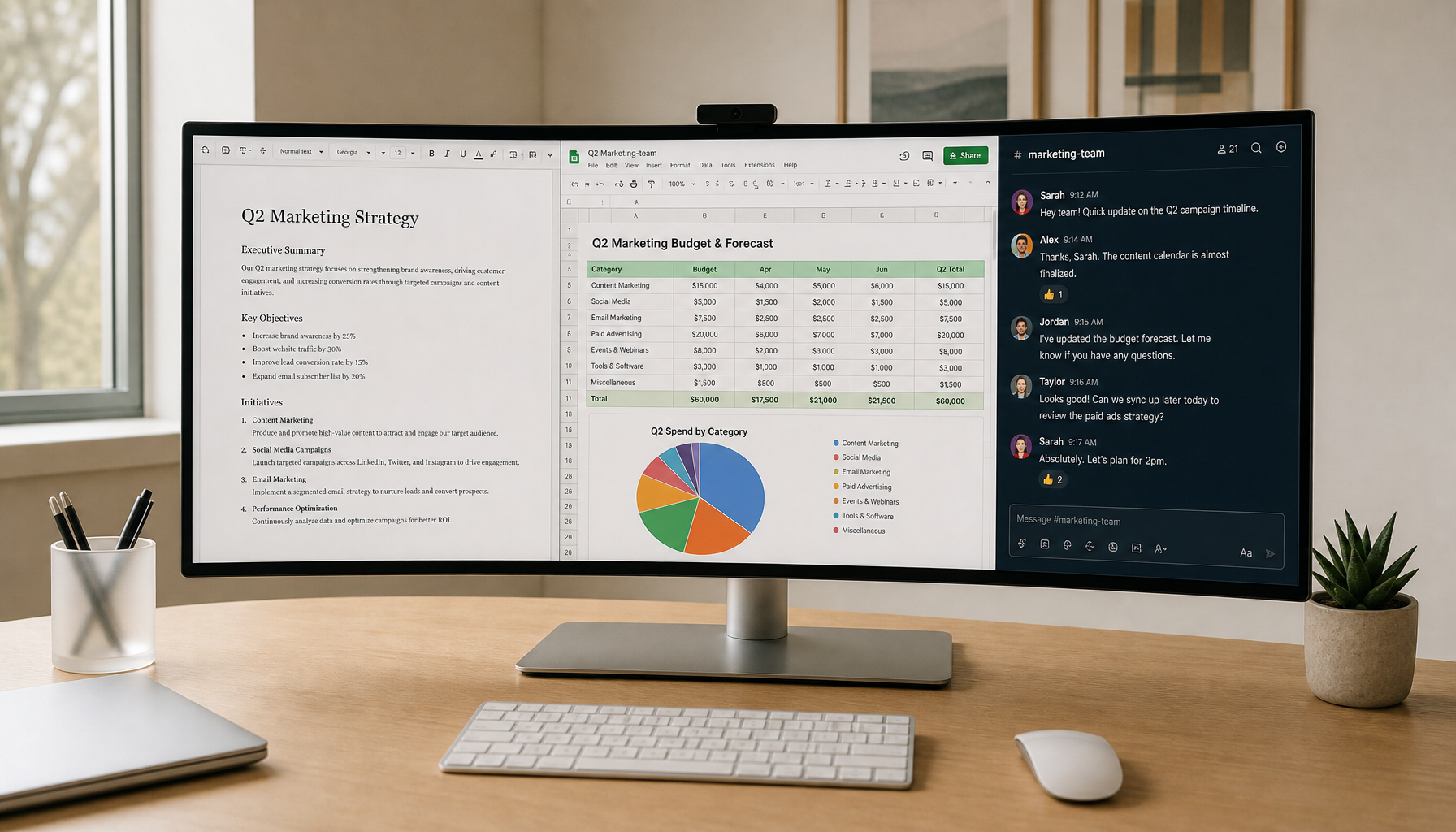
Two premium monitors can feel very different once you spend a whole day in Excel, browsers, or code editors. The difference is not just resolution. It also comes from pixel structure, scaling, and how the screen handles white backgrounds, thin UI lines, and cursor movement.
For most desk buyers, the main question is not which panel looks best in a demo clip. It is which one stays comfortable after hours of static text. Mini-LED text clarity tends to feel more predictable in bright rooms, while OLED can look exceptionally clean when the pixel density and text rendering are working in your favor. text scaling and sharpness guide is useful background here because scaling often matters as much as the panel type.
In real office use, the pain points are practical. Small type gets harder to read when edges fray. White spreadsheets feel harsher when brightness is limited. Static toolbars and gridlines can make ownership feel more fragile than the spec sheet suggests.

Mini-LED in a Workday Setup
Mini-LED is the more forgiving option when your desk gets bright and your workload stays static. It can hold up better on white documents and web pages because sustained brightness matters more than brief HDR peaks during office hours. That does not make Mini-LED universally sharper, but it does make it easier to live with across a long workday.
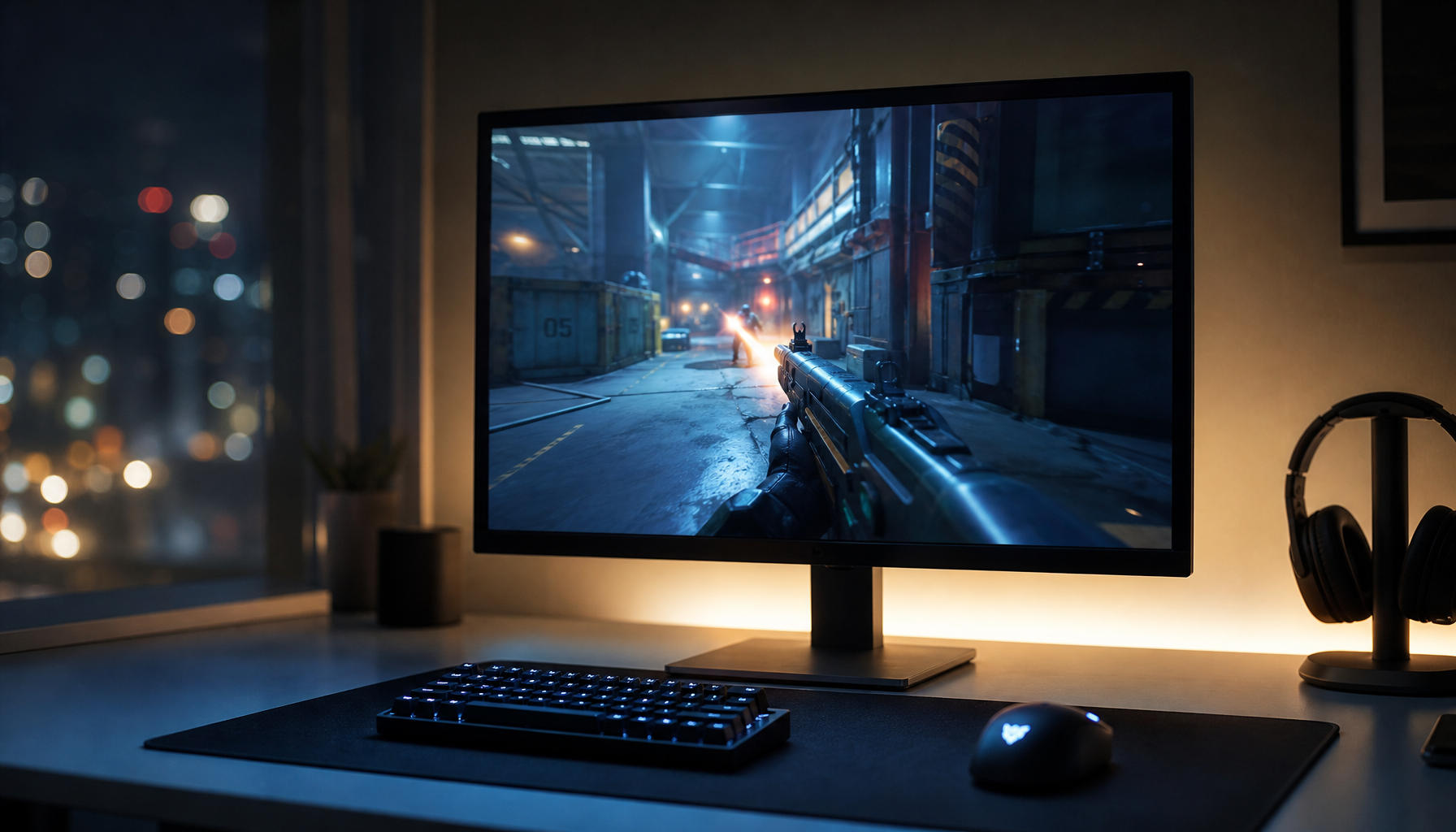
Local dimming is the trade-off. It improves contrast in HDR and dark scenes, but it can also create halos around cursors, gridlines, and thin UI elements in SDR office apps. That is why Mini-LED text clarity can feel excellent in one app and slightly distracting in another. If your workday is mostly documents, mail, and browser tabs, the best Mini-LED behavior is usually the one you barely notice.
The ownership side is simpler. Mini-LED does not carry the same burn-in concern that OLED buyers think about when they leave taskbars, spreadsheets, or toolbars on-screen all day. For mixed work-and-play desks, that lower-maintenance feel is often the deciding factor. The All-Mini-LED Monitors collection is the right browsing path if you want to compare that class of display without jumping straight into a specific model.
OLED for Spreadsheets and Static Apps
OLED can be excellent for contrast, dark themes, and movie-like image quality. For office buyers, though, the question is usually not whether OLED looks impressive in a scene switch. It is whether it stays comfortable after a full day of sheets, dashboards, and browser tabs.
The biggest text complaint is often subpixel behavior, not raw resolution alone. At typical desk densities, OLED subpixel layouts can make small text look slightly fringed or less tidy than expected. That effect depends on size, scaling, and viewing distance, so it is not a universal flaw, but it is a real reason some users prefer Mini-LED for all-day work.
OLED also shifts the decision toward maintenance comfort. Do Screensavers Still Prevent Burn-in on Modern Monitors, or Are They Obsolete is a helpful follow-up if burn-in worry is part of your buying process. For desk buyers, that concern alone is often enough to move OLED from "interesting" to "not my daily monitor."
Choose the Right Resolution First
If your goal is cleaner text, start with resolution and size before you overthink panel branding. Higher pixel density usually changes office comfort more than refresh rate does. In practice, the cleanest text comes from a setup that keeps type small enough to stay crisp without forcing awkward scaling.
- Pick 27-inch 4K if you want the balanced route. It is often the easiest way to get sharp text without making the desk feel oversized. A 27-inch 4K panel is a strong middle ground for people who split time between work and light gaming.
- Pick 27-inch 5K if text clarity is the top priority. This is the clearest-feeling option for dense documents, creators, and users who notice small rendering differences immediately.
- Pick 1440p Mini-LED if brightness and HDR matter more. It is a better fit when you want strong daytime visibility and easier ownership, even if it does not reach the same text density as 4K or 5K.
- Be careful with scaling. A monitor that looks sharp at native settings can feel softer if your OS scaling, app scaling, or cable path is poorly set up. That is why a higher-PPI display often feels like a quieter upgrade than a raw spec jump.
For readers who want a deeper buying framework, the Office Monitor collection is a useful starting point, and the blog guide What Monitor Resolution Matches High-Density Display Sharpness? helps connect size, scaling, and sharpness. If your setup is already in the 4K range, the 4K Monitor collection is the most direct category to compare.
| Scenario | Bright-room readability | Text clarity | Static UI comfort | Ownership friction |
|---|---|---|---|---|
| Mini-LED | High | Good | High | Low |
| OLED | Moderate | Excellent | Low | High |
| Higher-resolution office setup | Moderate | Excellent | High | Low |
Best Mini-LED Picks for Mixed Use
If you want Mini-LED as a workday monitor, the best fit depends on how much text clarity you want versus how much brightness and gaming flexibility you need. Mini-LED text clarity is strongest when you choose the right resolution and do not expect one panel to solve every office complaint.
- For the strongest text-first balance, choose KTC Mini LED 27" 4K 160Hz HDR1400 Gaming Monitor | M27P6. It is the featured Mini-LED option when you want 27-inch 4K sharpness, full ergonomic adjustment, and HDR headroom in the same desk setup.
- For a value-oriented 1440p Mini-LED setup, choose KTC Mini LED 27" 180Hz 2K HDR1400 Gaming Monitor | M27T6. It fits buyers who want bright-room productivity and easier ownership without paying for 4K.
- For a faster 1440p Mini-LED balance, choose KTC Mini LED 27" 200Hz 2K HDR1000 Gaming Monitor | M27T6S. It is a reasonable check-before-buying option if your day mixes work, gaming, and occasional creator tasks.
If you are comparing the wider Mini-LED lineup, the 2K Monitor collection and the Gaming Monitor collection can help you sort by resolution and speed before you decide.
Final Checks Before You Buy
Before you choose Mini-LED over OLED, check your room, your scaling, and your daily app mix. If your desk is bright and your screen stays full of static windows, Mini-LED is usually the easier choice. If you want the deepest blacks and are comfortable managing OLED trade-offs, the answer can flip. The best monitor is the one that matches your actual workday, not the one that looks best in a showroom.
Mini-LED for Office Buyers: The Practical Verdict
Mini-LED remains the lower-maintenance pick for bright offices and static documents. Start with 27-inch 4K or 5K when text density is the priority, then match the panel to your room lighting and tolerance for burn-in management.