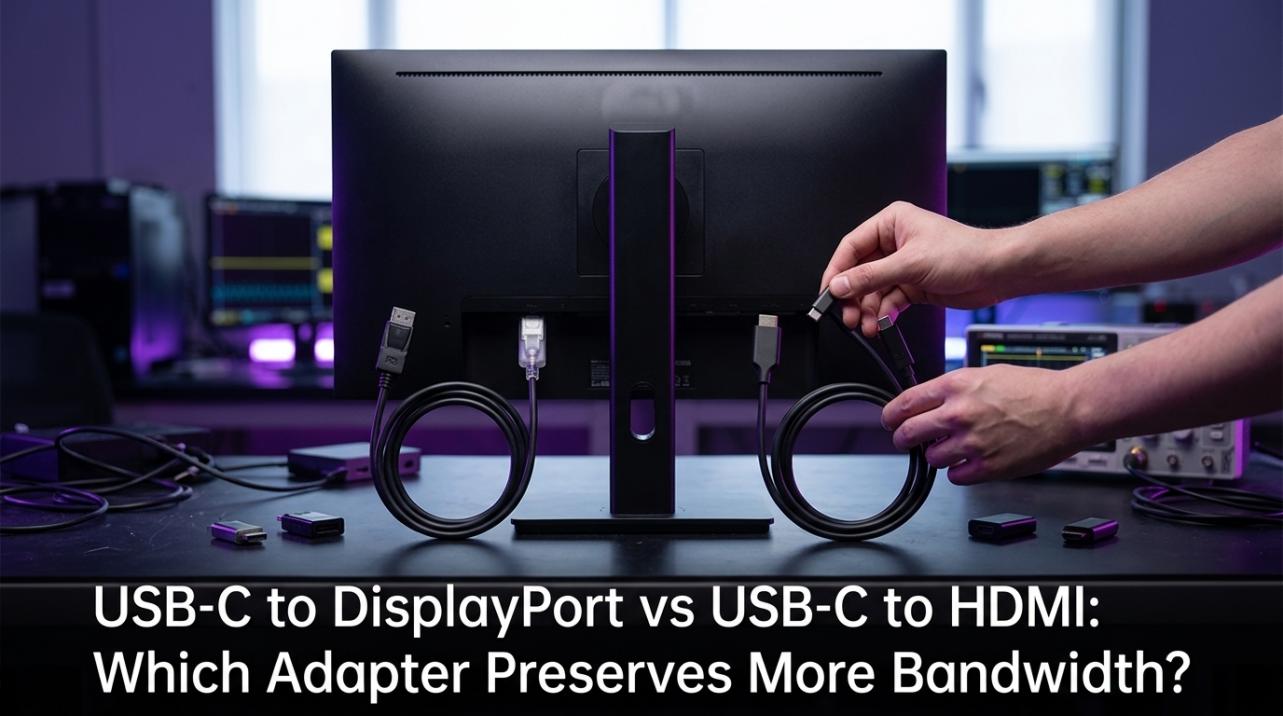
One 1.4 interface standard can power many 4K 144Hz monitors because it carries much more usable video data than one 2.0 interface standard and can add DSC when both the monitor and graphics hardware support it. One 2.0 interface standard usually runs out of bandwidth first, so it falls back to 4K 60Hz or image-quality compromises.
If your new 4K gaming monitor shows 144 Hz on one port and only 60 Hz on another, the panel is usually not the problem. At 4K, moving from 60 Hz to 144 Hz more than doubles the amount of video data the connection has to carry, which is why older inputs hit a wall fast. This guide shows what that wall looks like in real monitor use and how to avoid blurry text, reduced color, or wasted refresh rate.

Why 4K 144Hz Is So Demanding
Resolution and refresh rate stack up quickly
A 4K 144Hz signal needs about 28.66 Gbit/s of raw video data at 24-bit color, before you account for transport overhead and timing data. For context, the same source puts 4K 60Hz at about 11.94 Gbit/s and 4K 120Hz at about 23.88 Gbit/s. That is why a monitor connection that feels perfectly fine at 4K 60Hz can fail completely once you ask for 144 Hz.
On a gaming monitor, that bandwidth budget is shared by more than just resolution and refresh rate. Higher color depth, HDR, and full-color desktop output all add pressure to the link, so the display often degrades in steps when the connection cannot keep up: lower refresh first, then lower chroma, lower bit depth, or loss of HDR. That matters most on 27-inch to 32-inch 4K monitors, where sharp text and UI detail are part of the value you paid for.
The 1.4 Interface Standard vs the 2.0 Interface Standard: The Bandwidth Gap That Matters
Raw bandwidth is not the same as usable bandwidth
The important comparison is not just the headline number on the box. One 2.0 interface standard has 18.0 Gbit/s of signaling bandwidth but only about 14.40 Gbit/s of usable video bandwidth, while one 1.4 interface standard has 32.40 Gbit/s raw and about 25.92 Gbit/s usable. That is the core reason one 2.0 interface standard is comfortable at 4K 60Hz, while one 1.4 interface standard can reach much higher refresh rates on modern monitors.
Standard |
Headline bandwidth |
Usable video bandwidth |
Practical 4K result on monitors |
2.0 interface standard |
18.0 Gbit/s |
14.40 Gbit/s |
4K 60Hz is realistic; 4K 144Hz is not |
1.4 interface standard |
32.40 Gbit/s |
25.92 Gbit/s |
4K 120Hz class uncompressed; 4K 144Hz needs help |
1.4 interface standard + DSC |
32.40 Gbit/s + compression |
Effectively much higher |
4K 144Hz becomes practical on supported monitor paths |
The 1.4 interface standard did not win by lane speed alone
When an industry body published the 1.4 interface standard on March 1, 2016, it did not raise the maximum link rate beyond the earlier 1.3 version of that standard. The real upgrade for monitor buyers was adding DSC 1.2 transport, Forward Error Correction, and HDR metadata support. In other words, the 1.4 interface standard did not magically make uncompressed 4K 144Hz fit; it added the tools that let many monitors deliver that mode in a usable way.
Why the 1.4 Interface Standard Can Reach 4K 144Hz on Many Gaming Monitors
DSC is the missing piece
The 1.4 interface standard is the first version of that standard to support DSC 1.2 transport, and an industry body describes that compression as visually lossless with up to a 3:1 ratio. That is why the 1.4 interface standard can push beyond its uncompressed ceiling. In plain monitor terms, the port carries a signal that would otherwise be too large, while trying to preserve the look of full-resolution desktop and gaming content.
That is why many monitor guides say the 1.4 interface standard reaches 4K 120Hz natively and 4K 144Hz with DSC. For a gaming monitor, this is often the cleanest path to full resolution, high refresh, and better color settings at the same time. It is also why a port label alone is not enough: the graphics hardware, the monitor input, firmware support, and the selected mode all have to support DSC for the full result to appear.
This is why two “4K 144Hz” monitors can behave differently
A monitor spec sheet may advertise 144 Hz, but the real limit is the full signal path behind each input. On a 27-inch 4K 160Hz display such as a 27-inch 4K 160Hz/1ms HDR-rated gaming monitor, the practical question is which input can actually expose the 160 Hz mode rather than falling back to 120 Hz or 60 Hz. The same rule applies to ultrawide monitors and some portable monitors over a USB-C-compatible display mode: the connector shape is not the answer by itself.
Why the 2.0 Interface Standard Usually Falls Short
Lower refresh is the first compromise
Because one 2.0 interface standard does not have enough bandwidth for 4K 144Hz, the clean fallback is usually 4K 60Hz. That is why many buyers discover that a high-refresh 4K monitor works perfectly over one 2.0 interface standard for movies, console-like 60 Hz use, or general desktop work, but not for the monitor’s headline desktop refresh rate. In practice, one 2.0 interface standard is a much better fit for 1440p at high refresh than for 4K 144Hz.
Even when the port is labeled as a 2.0 interface standard, device-level limits can still block specific modes. A source may support the standard in general but still fail on a particular timing because of firmware, display-identification behavior, monitor input limits, or the exact output path. That is why support for the 2.0 interface standard does not automatically mean every compatible device can drive every monitor at the same mode.
Chroma subsampling is how some links save bandwidth
When bandwidth runs short, one common workaround is chroma subsampling. Full RGB or 4:4:4 keeps complete color information for every pixel, while 4:2:2 and 4:2:0 reduce color detail to cut data load. That tradeoff is much less visible in movies than on a desktop monitor, because movies hide color loss better than fine text, browser tabs, map labels, and UI edges.

For monitor buyers, the practical warning is simple: reduced chroma makes text and colored edges look softer. Early user reports around first-wave 4K 144Hz monitors described this exact behavior at maximum refresh. If your display only reaches its top refresh rate by switching away from RGB or 4:4:4, that is not a free win for desktop use.
Bit depth can push a borderline connection over the edge
10-bit color carries far more shade levels than 8-bit, which helps gradients, HDR highlights, smoke, shadows, and sky transitions look smoother. The cost is bandwidth. On a high-refresh monitor, a mode that works at 8-bit may stop working at 10-bit unless the link also uses DSC or reduced chroma. That is why some 4K gaming monitors let you choose between maximum refresh and maximum color quality on older inputs.
How to Choose the Right Port on a Monitor
Read the port timing table, not just the headline spec
The best buying habit is to check the monitor’s exact per-port limits, the source output spec, and the cable class together. A monitor may be sold as “4K 144Hz,” but that top mode might only be available through the 1.4 interface standard, only with DSC enabled, or only with HDR off. This is especially important for hybrid setups where a gaming computer, a work laptop, and a second device share the same screen.

Cable naming can also confuse buyers. There is no separate “1.4 interface-standard cable” or “2.0 interface-standard cable” in the way many listings imply; what matters is whether the cable can reliably carry the bandwidth your selected mode needs. For a desktop monitor, the safest approach is still to put the highest-demand device on the highest-bandwidth input and verify the active mode in both the graphics control panel and the monitor’s on-screen display.
Use-case guidance for gaming, ultrawide, and portable monitors
For a gaming monitor, the 1.4 interface standard is usually the right choice when you want the best chance of full native resolution, high refresh, sharp desktop text, and fewer color compromises. If your source only offers the 2.0 interface standard, 4K 60Hz is the realistic target, and 1440p high refresh may be the better trade if you care more about motion than pixel density.
The same logic scales to ultrawide monitors and portable displays. More pixels, more refresh, HDR, and 10-bit color all compete for the same link budget, so higher-end ultrawide modes can hit similar limits even below 4K. Portable monitors are often even more sensitive because their USB-C-compatible or mini display input may not mirror the full capabilities of a desktop gaming display.
Practical Next Steps
If you want a monitor setup that actually delivers what the spec sheet suggests, treat the port as part of the display, not an afterthought. The panel, the port generation, DSC support, the source device, and the active color format all determine whether “4K 144Hz” means full desktop-quality output or a compromised fallback.
- Match your highest-demand monitor to the 1.4 interface standard first if you want 4K 144Hz on a desktop computer.
- Check the manual for per-port timing limits, DSC support, and whether 144 Hz is tied to a specific input.
- Preserve RGB or 4:4:4 at your everyday desktop mode if text clarity matters.
- Test the monitor at native resolution, target refresh, HDR setting, and actual cable before assuming the link is full quality.
- If you only have the 2.0 interface standard, choose between 4K 60Hz and a lower resolution with higher refresh instead of chasing unstable 4K 144Hz.
- If you need 4K 144Hz over that interface specifically, look for support from a newer interface standard rather than the 2.0 version.
FAQ
Q: Can one 2.0 interface standard run 4K 144Hz if I lower image quality?
A: It may accept reduced settings on some displays, such as lower chroma or lower bit depth, but full-quality 4K 144Hz desktop output is not a realistic 2.0 interface-standard target.
Q: Does one 1.4 interface standard always mean uncompressed 4K 144Hz?
A: No. One 1.4 interface standard has enough bandwidth for roughly 4K 120Hz uncompressed in common 8-bit 4:4:4 use, but 4K 144Hz usually depends on DSC.
Q: Is DSC bad for gaming monitors?
A: Usually no. It is designed to look visually lossless and is widely used to make demanding monitor modes practical, but you should still verify your exact setup if you are sensitive to text sharpness, HDR behavior, or color-format changes.