The choice between 1440p and 4K on a 27-inch monitor in 2026 comes down to your viewing distance, graphics card strength, and primary workload. For most gamers sitting beyond 32 inches or using mid-range GPUs, 1440p delivers smoother frame rates and comparable perceived sharpness without the scaling compromises of 4K. Closer desk setups under 25 inches or creative professionals with high-end GPUs benefit more from 4K's extra pixel density for text clarity and detail work.

The PPI Reality Check: Is 4K Actually Sharper at 27 Inches?
At 27 inches, a 1440p resolution provides approximately 109 pixels per inch (PPI), whereas 4K increases this density to roughly 163 PPI, according to industry pixel density comparisons. PPI measures how tightly pixels are packed; higher numbers generally mean sharper text and finer details that reduce eye strain during long sessions.
The real test is whether your eyes can perceive that difference from your actual seating position. OSHA guidelines for computer workstations recommend keeping monitors 20 to 40 inches from your eyes to minimize strain. Beyond roughly 32 inches, the extra detail from 4K often becomes invisible to most people, making 1440p the more practical choice for standard desk depths.
The visual acuity threshold, often called the "Retina" crossover, occurs around 31.5 inches for 1440p and 21.1 inches for 4K on this screen size. If you sit closer than 25 inches, the 4K panel delivers noticeably crisper fonts and image edges. At distances over 32 inches, however, both resolutions look similarly sharp, and the added GPU demand of 4K provides little visual return.
When the 4K Advantage Fades at 27-inch Viewing Distance
Perceived sharpness falls with distance for both 1440p and 4K; the chart highlights the zone where 4K still has a visible edge and where the difference becomes marginal or effectively invisible.
View chart data
| Category | 1440p | 4K |
|---|---|---|
| 18 | 95.0 | 100.0 |
| 21 | 88.0 | 95.0 |
| 24 | 80.0 | 90.0 |
| 27 | 72.0 | 82.0 |
| 30 | 64.0 | 74.0 |
| 32 | 58.0 | 68.0 |
| 36 | 52.0 | 60.0 |
| 40 | 47.0 | 54.0 |
This threshold explains why many users report little daily difference between the two resolutions on 27-inch panels. Check your typical desk setup first: measure from eyes to screen. If that distance exceeds 32 inches, the pixel-density advantage of 4K largely disappears, making 1440p the smarter buy for performance-focused setups.
Learn more about 27 inch monitors or explore 4K monitor options that match different desk configurations.
GPU Demands in 2026: Can Your Card Handle 4K High-Refresh?
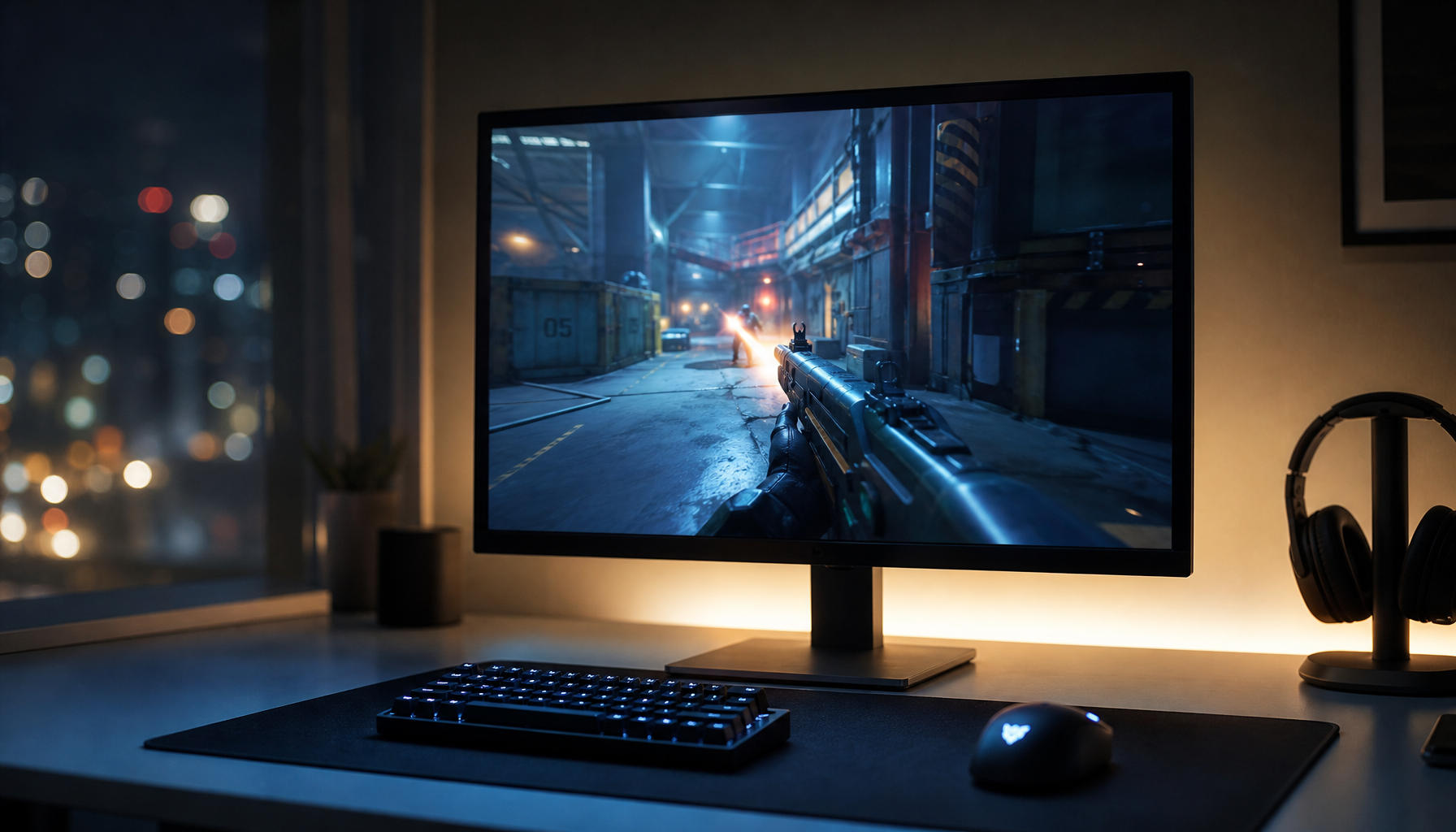
Graphics card capability remains the largest practical limiter for 4K on a 27-inch display. High-end models such as the RTX 5090 and 5080 can drive 4K at 160Hz or higher with comfortable headroom, effectively solving the resolution without heavy upscaling or settings compromises. Mid-tier cards like the RTX 5070 Ti deliver strong 1440p performance above 200 FPS but drop to roughly 110 FPS at 4K ultra in demanding titles, forcing a choice between fluidity and sharpness.
Lower-tier GPUs often require aggressive upscaling technologies to maintain playable frame rates at 4K, which can reduce the native clarity benefit that 4K is meant to provide. In competitive gaming, many players therefore prefer the higher refresh rates and smoother motion possible at 1440p.
Motion clarity depends on more than raw resolution. The VESA ClearMR standard offers a clearer way to compare blur performance across displays than traditional response-time specs alone. Higher refresh rates at 1440p frequently deliver better perceived motion smoothness than lower frame rates at 4K, especially in fast-paced esports.
2026 RTX 50-Series: 1440p vs 4K Gaming Headroom
Tiered FPS bands showing where 4K high-refresh is realistic versus where 1440p is the practical fit.
View chart data
| Category | 1440p Ultra | 4K Ultra |
|---|---|---|
| RTX 5090 | 250.0 | 220.0 |
| RTX 5080 | 220.0 | 180.0 |
| RTX 5070 Ti | 200.0 | 110.0 |
| Lower-tier RTX 50-series | 140.0 | 70.0 |
This GPU tier split creates a clear decision point. If your card falls below the RTX 5080 class, 1440p usually provides a better balance of high frame rates and responsive gameplay. Pairing resolution to your GPU prevents frustration from low frame rates or forced visual compromises.
Read our guide on how to choose the perfect monitor to match your graphics card and explore whether 4K offers a performance advantage or disadvantage for competitive gaming.
Productivity and the 'Scaling Tax': Workspace vs. Clarity
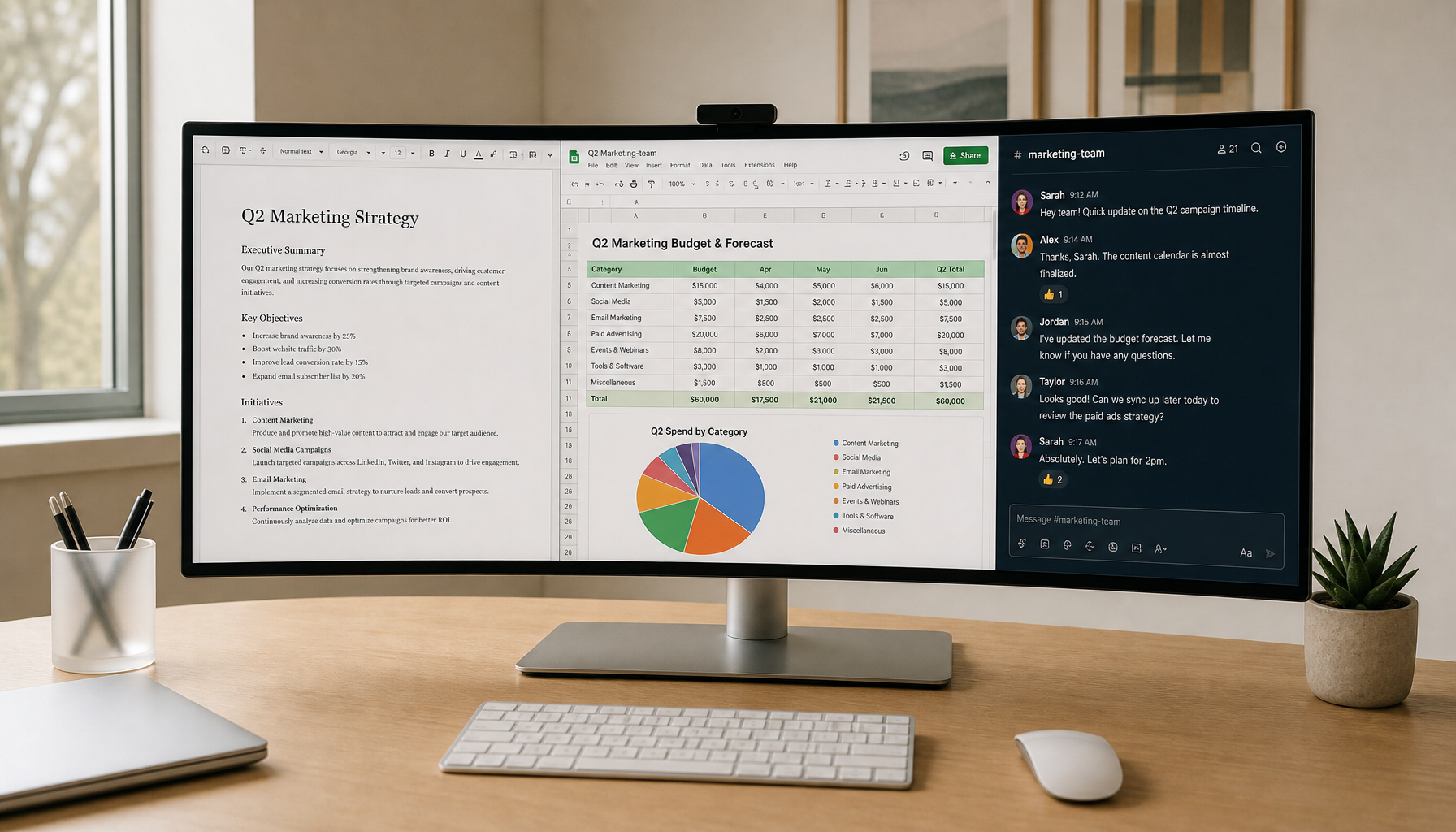
Many buyers assume a 4K 27-inch monitor will automatically provide more desktop real estate for multiple windows. In practice, Windows 11 recommends 150% scaling on 4K panels to keep text and UI elements legible, which results in the same logical workspace as a native 1440p display at 100% scaling.
You gain smoother font rendering and reduced jagged edges, but you do not gain extra room to fit additional applications side by side. Some users experiment with 125% scaling to reclaim space, yet this often introduces eye strain or slightly blurry text on 27-inch screens.
The benefit of 4K therefore shows up most clearly in tasks that reward fine detail, such as photo editing, video timeline work, or reading dense documents. For general productivity like browsing, coding, or spreadsheet work at typical desk distances, the clarity improvement may not outweigh the higher cost and GPU load.
Mini-LED panels add another consideration. Local dimming zones can create subtle blooming or haloing around bright text on dark backgrounds in SDR desktop use. Many owners toggle dimming features off for everyday work, trading peak HDR performance for a cleaner office experience.
If your workflow involves heavy text reading or multitasking, test your current monitor's scaling settings first. The "scaling tax" means 4K primarily improves visual polish rather than usable screen area at this size.
The KTC M27 Series: Choosing Your Performance Profile
KTC's M27 series targets the 27-inch resolution debate with options that align to different priorities. The KTC Mini LED 27" 180Hz 2K HDR1400 Gaming Monitor | M27T6 serves as the high-refresh value pick for gamers who want fluid gameplay and strong contrast without pushing GPU limits at 4K.
For users with powerful GPUs or creative workloads, the KTC Mini LED 27" 4K 160Hz HDR1400 Gaming Monitor | M27P6 delivers the full pixel density advantage along with HDR1400 brightness and precise local dimming. Its 1152-zone backlight helps maintain excellent contrast while supporting the higher resolution demands.
Those prioritizing ultimate response times may consider the KTC OLED 27" 2K 240Hz/0.03ms USB-C Gaming Monitor | G27P6, which offers near-instantaneous pixel response at 1440p. OLED provides perfect blacks but trades off peak brightness and long-term burn-in resistance compared with Mini-LED panels.

Each model in the M27 lineup matches specific use cases rather than claiming universal superiority. Match the resolution and panel technology to your measured viewing distance and GPU tier before deciding.
Decision Framework: 1440p vs. 4K for Your 2026 Setup
Use these three rules to select the right resolution for your 27-inch monitor:
- Distance Rule: Choose 4K if you sit closer than 25 inches for maximum sharpness. Opt for 1440p if your viewing distance exceeds 32 inches, where the pixel difference largely disappears.
- GPU Rule: High-end RTX 5080 or 5090 cards make 4K viable at high refresh rates. Mid-range or lower GPUs usually deliver better overall experience at 1440p with higher frame rates and less upscaling.
- Workflow Rule: Creative professionals editing photos or video benefit from 4K's detail. Competitive gamers and general productivity users often prefer 1440p for smoother motion and easier desktop scaling.
Mini-LED models like the M27 series stand out for bright rooms and mixed use because they avoid OLED's burn-in risk while providing strong HDR performance. Test your current setup by measuring your eye-to-screen distance and noting your typical frame rates in demanding games. These checks usually reveal the clearer path between the two resolutions.
Frequently Asked Questions
Is 4K worth it on a 27 inch monitor in 2026? It depends on your distance and GPU. At typical desk depths over 30 inches with a mid-range card, the visual upgrade is often marginal compared with the performance cost. Closer viewing and top-tier GPUs make 4K more compelling.
What is the best resolution for a 27 inch gaming monitor? 1440p remains the practical winner for most gamers seeking high refresh rates above 165Hz. 4K suits only those with flagship GPUs who sit close enough to appreciate the density.
How does 1440p vs 4K affect productivity and creative work? 4K improves text smoothness and detail for design work, but 150% scaling removes most extra workspace. For general office tasks or coding, 1440p often feels more comfortable without forcing scaling adjustments.
Does Windows scaling make 4K better or worse on 27-inch displays? 150% scaling on 4K produces the same logical desktop size as native 1440p. The main gain is sharper fonts rather than more room for windows, which can disappoint users expecting extra real estate.
How important is viewing distance when choosing 27 inch monitor resolution? Distance is the most decisive factor. Beyond 32 inches the extra pixels of 4K become difficult for most eyes to resolve, making 1440p the more efficient choice for standard setups.
Will future Windows updates change the 4K scaling experience? Sub-pixel rendering and auto-scaling improvements continue, yet the fundamental workspace math at 27 inches stays similar. Test current scaling behavior on your desk before committing to 4K for productivity.