Upgrading to a mini LED gaming monitor provides incredible peak brightness and stunning visuals. While some users worry about blooming—a faint glow around bright objects on dark backgrounds—this characteristic is largely invisible during actual gameplay. If you want to know how to reduce monitor blooming for absolute perfection, a few simple adjustments are all you need. This guide covers five easy settings to help you optimize your display, ensuring perfect deep blacks and a brilliant, worry-free viewing experience.

Can You Completely Fix Blooming On A Mini LED Gaming Monitor?
Much of the concern surrounding the halo effect comes from artificial stress tests, such as moving a bright white cursor across a pitch-black screen. In reality, modern video games and movies contain complex, colorful scenes where this faint glow is naturally masked. A high-quality mini LED gaming monitor uses advanced algorithms to manage its backlight zones efficiently. During actual gameplay, whether you are exploring a dark cave or looking at bright explosions, the blooming effect is generally imperceptible to the human eye.
While the physical number of dimming zones on your panel is fixed, the software controlling them is highly customizable. Even the best mini LED monitors offer users direct control over how aggressively these zones operate. You do not need to worry about hardware limitations ruining your experience. Through careful calibration of your operating system and monitor menus, you can optimize the backlight behavior to ensure any residual light spill is virtually eliminated from your daily viewing experience.
Setting 1: Optimize Your Local Dimming Control (High Vs Low)
Accessing On-Screen Display Controls
The most impactful adjustment to optimize your backlight is found directly inside your monitor’s On-Screen Display (OSD) menu. Manufacturers label this hardware control differently depending on the brand. When learning how to reduce monitor blooming, adjusting your local dimming settings is the easiest and most effective first step you can take to refine your picture quality.
High Dimming Mode For Deep Blacks
Setting your local dimming to "High" or "Strong" allows the monitor to shut off power to zones displaying black. This creates absolute, pure black levels that rival OLED panels. This mode is excellent for playing HDR games or watching high-contrast movies. It ensures the dark areas of the screen remain pitch-black, delivering the incredible dynamic range that Mini-LED technology is famous for.
Low Or Medium Mode For Desktop Use
For standard desktop use, web browsing, or working in text editors, you can change your local dimming settings to "Low" or "Medium." Keeping a low level of base illumination across the entire screen creates a smoother visual transition between dark and light zones. This completely masks any faint halos around white text on a dark mode website, providing a clean, uniform look for standard productivity tasks.

Setting 2: Adjust Windows HDR And SDR Peak Brightness
Using The Windows Calibration Tool
Pushing your monitor's brightness to maximum levels when it is not required can make the backlight zones work harder than necessary. In Windows 11, you should download the official Windows HDR Calibration application. This tool allows you to set the maximum luminance precisely to your monitor's hardware specifications (such as 1000 nits). Accurate calibration ensures the operating system sends the correct signals, maximizing contrast without overdriving the backlight zones.
Managing SDR Content In HDR Mode
Windows 11 allows you to view SDR (Standard Dynamic Range) content seamlessly while the monitor remains in HDR mode. There is a specific slider in the Windows display settings labeled "SDR content brightness." Lowering this slider is highly recommended. Keeping this slider at a moderate level ensures that non-HDR content remains balanced. It prevents the backlight zones from staying fully lit for standard desktop applications, which keeps the image crisp and free of any unwanted glow.
Ensuring Proper Zone Activation
Proper brightness management guarantees your local dimming settings trigger exactly when required by the media, rather than staying permanently engaged. When the overall screen brightness is properly controlled, the visual transition between an active LED zone and an inactive LED zone remains exceptionally smooth and natural to the eye.

Setting 3: Tweaking The Monitor Contrast And Black Equalizer
Fine-Tuning Hardware Contrast
Beyond sheer brightness, how your monitor processes contrast directly influences backlight behavior. If you ever notice a slight glow, navigating to your OSD and lowering the contrast slightly (for example, from 50 to 45) is a quick optimization. This slight reduction seamlessly blends the edge between an active backlight zone and an inactive one, smoothing out the light transition and ensuring the picture remains flawless.
Managing Black Equalizers
Many gaming monitors feature a setting called "Black Equalizer," "Shadow Boost," or "Night Vision." These settings are designed for competitive shooters to help players see enemies in dark environments by artificially raising the black levels and turning dark shadows into grey. While useful for competitive gaming, these features naturally prevent the screen from displaying true black.
Restoring Pure Black Levels
To maximize the capabilities of your panel, you should turn off black equalizers for standard viewing. Artificially raising dark grey tones prevents the Mini-LEDs from shutting off completely. By setting all shadow boost features to their neutral or zero state, the monitor can freely drop the power to the backlight zones in dark areas, delivering the stunning, inky black levels you expect.
Setting 4: Calibrate In-Game HDR Black Levels Correctly
Setting The Absolute Black Floor
Windows settings do not always override individual game engines automatically. You must calibrate the video settings inside every game you play to get the best result. Many modern games feature an HDR calibration screen asking you to adjust a slider until an image is barely visible. On an HDR gaming monitor, you must set this absolute black floor to zero (0 nits). Setting this to zero allows the game engine to instruct the monitor to completely power off the LED zones in shadows.
Adjusting Paper White And UI Brightness
The "Paper White" setting controls the brightness of user interface (UI) elements like the crosshair, health bar, or minimap. Lowering the paper white slider to a comfortable, moderate level ensures the UI does not trigger maximum zone brightness unnecessarily. This keeps the on-screen text clear and prevents the zones behind the UI from glowing against the darker game world.
Utilizing Game-Specific Engine Limits
Every video game handles peak brightness differently. Always use the built-in calibration screen to match your HDR gaming monitor specifications accurately. Entering the correct peak brightness values allows the monitor to map tones perfectly. This ensures bright light sources like the sun or magical spells look incredibly vibrant without causing any unnecessary light spill into the surrounding dark pixels.

Setting 5: Use Ambient Lighting (Bias Lighting) To Trick Your Eyes
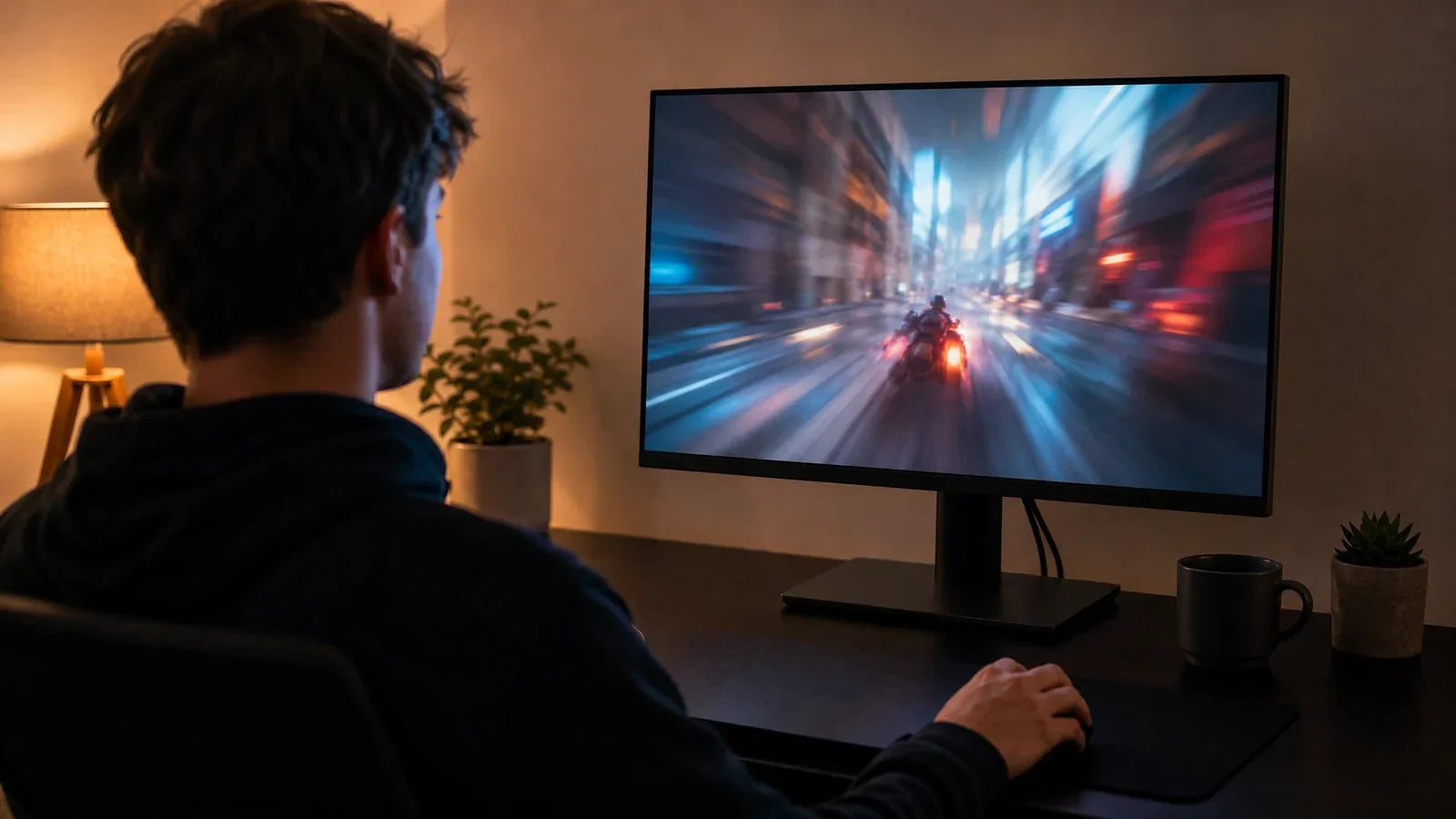
If you have adjusted all software parameters and want to further enhance your viewing experience, you can easily optimize your physical room environment. Knowing how to reduce monitor blooming also involves understanding human vision. When you sit in a pitch-black room, your pupils dilate fully. In this state, your eyes become hyper-sensitive to any light source on the screen.
You can optimize this biological reaction by adding ambient lighting, specifically bias lighting. Bias lighting involves placing a soft light source behind the monitor, reflecting off the wall. This raises the ambient light level in your peripheral vision, causing your pupils to constrict slightly. This simple biological reaction makes the dark areas on the screen appear significantly deeper and completely masks any faint glowing effects.
Many of the best mini LED monitors include built-in rear RGB lighting specifically designed for this purpose. For the best optical illusion, set this rear lighting to a static, neutral color. If your monitor lacks built-in rear lighting, attaching a simple, inexpensive LED light strip directly to the back of the monitor chassis achieves the exact same premium visual upgrade.
Calibrate HDR for Perfect Blacks
Blooming is a minor characteristic of backlighting technology that is easily managed and rarely noticed during real-world use. By optimizing your local dimming, managing Windows brightness, and adjusting in-game black levels, you guarantee a flawless picture. Taking a few minutes to calibrate your HDR gaming monitor ensures you enjoy the massive benefits of this technology—insane peak brightness and immunity to burn-in—while maintaining perfect, deep blacks during every gaming session.
FAQs about mini LED monitor issues
Does turning off local dimming settings fix blooming?
No, turning off local dimming settings disables the individual zones, forcing the entire backlight to remain on constantly. This turns all deep blacks into a uniform grey. You should keep the setting turned on to enjoy the high contrast and deep blacks that the technology provides.
Why do the best mini LED monitors occasionally show a faint glow?
The best mini LED monitors use a specific number of dimming zones to illuminate millions of pixels. Occasionally, when a single bright pixel sits on a purely black background, the zone lighting that pixel may illuminate a small area around it. However, modern algorithms make this practically invisible during actual video playback or gaming.
Is a mini LED gaming monitor better than OLED for brightly lit rooms?
Yes. A mini LED gaming monitor is significantly brighter than an OLED panel, allowing it to easily overcome glare in sunlit rooms. Additionally, it does not suffer from permanent burn-in risks, making it a much safer and more durable choice for users who play games with static HUDs or work from home.