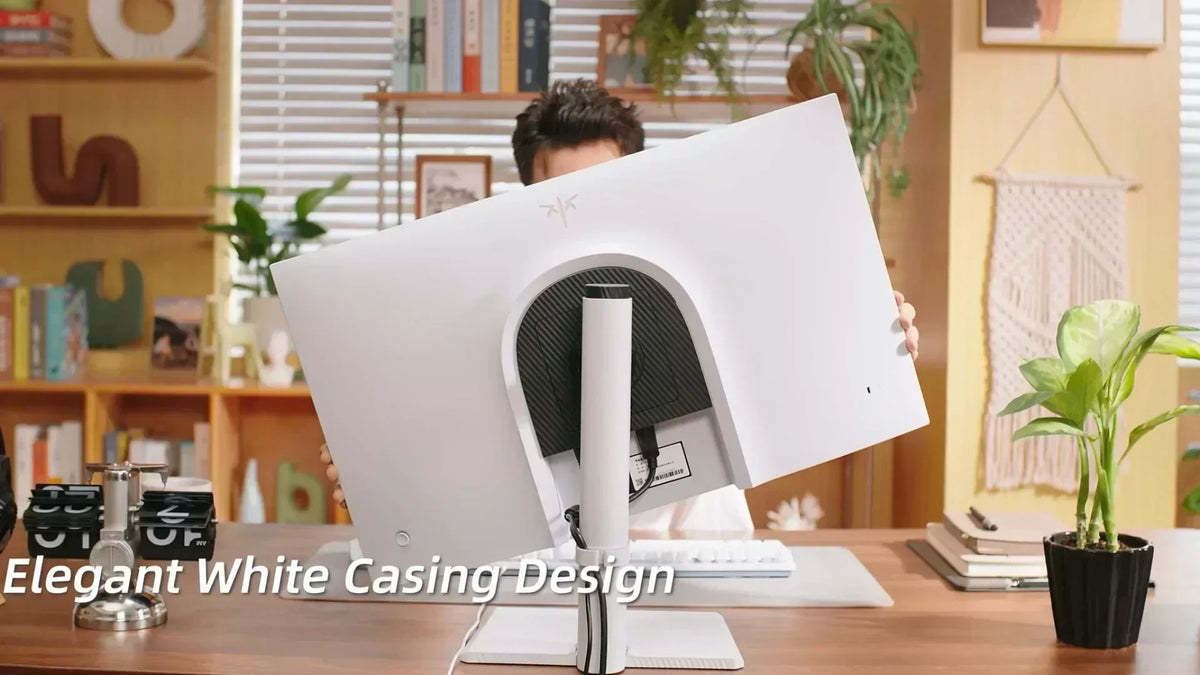
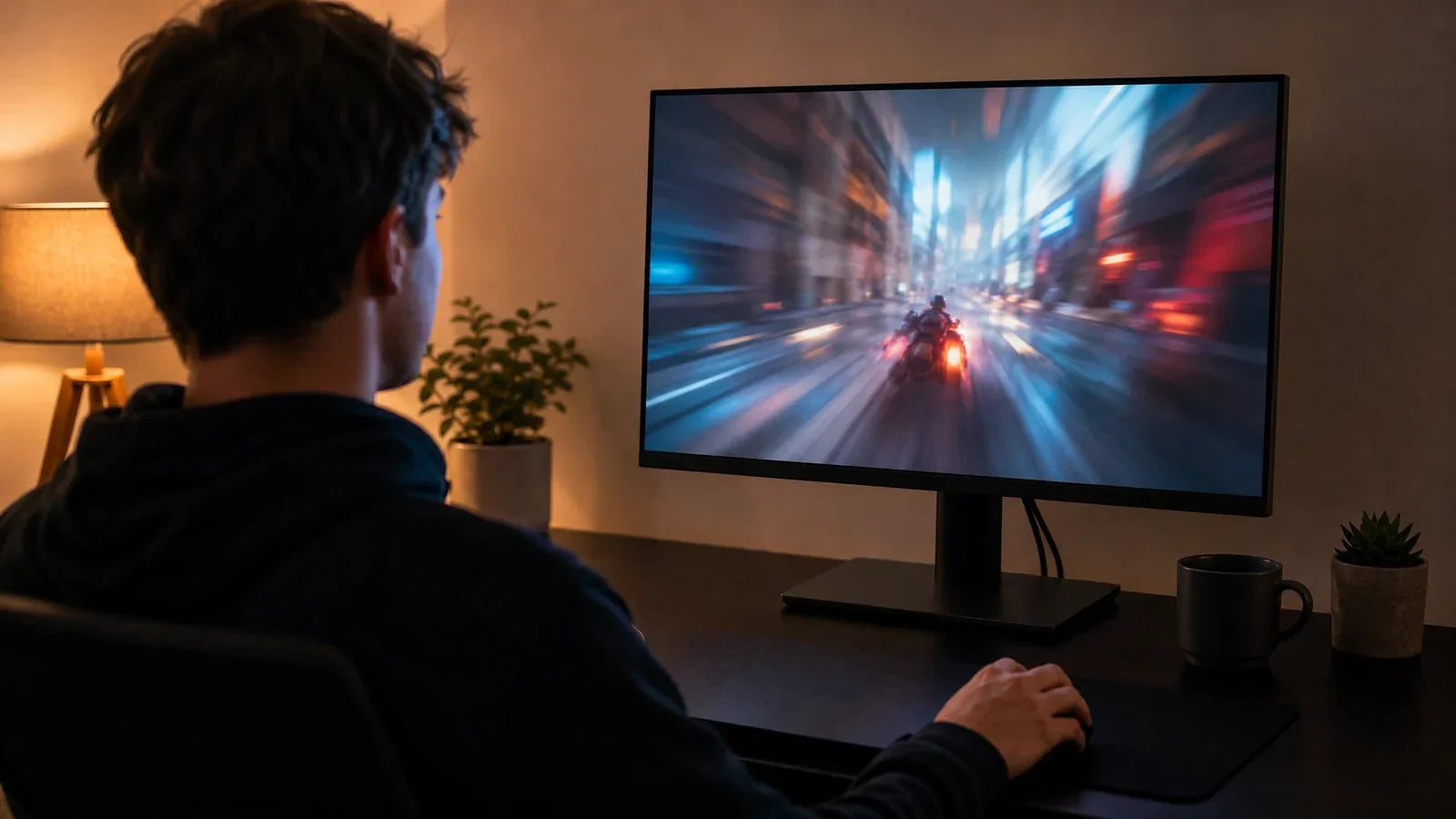
A portable TV on an adjustable rolling stand suits rooms where screen height, seating, or viewing position changes throughout the day. A wall-mounted screen also offers comfortable viewing when its height matches a fixed seating layout. Rolling stands become especially valuable in shared rooms, mixed sitting and standing setups, and living spaces where one fixed position cannot accommodate every activity.

How to Tell If Your Screen Is Too High or Too Low
Check your posture after 10 to 15 minutes of continuous viewing. Subtle shifts in your chin angle, shoulder alignment, or sitting posture often signal that the screen height requires adjustment.
| Screen Issue | Common Signs | What to Change |
| Too high | Raised chin, backward neck extension, or tension near the base of the skull | Lower the display or reduce the upward tilt angle. Screens mounted high above fireplaces frequently cause this strain. |
| Too low | Dropped chin, rounded upper back, or forward head posture | Raise the display, particularly when transitioning from casual sofa viewing to upright desk work. |
| Too far away | Leaning forward, narrowing eyes, or sliding toward the edge of the seat | Move the screen closer or increase text scaling until your back remains comfortably supported. |
| Too far to one side | Repeated head rotation or asymmetric shoulder tension | Realign the screen directly in front of your primary viewing position. |
These adjustments are critical during extended work, gaming, video conferencing, or streaming sessions, where minor postural misalignments compound into chronic neck strain over time.

Set the Right Screen Height, Distance, and Tilt
Always adjust the display from your habitual sitting or standing position. Relax your shoulders and align your head directly over your torso before adjusting the screen orientation.
Match Screen Height to Your Natural Gaze
- For desk work: Position the top edge of the monitor at or slightly below eye level. The screen center should sit approximately 15 to 20 degrees below horizontal eye level.
- For sofa viewing: Align the center of the display with your relaxed seated eye level. Persistent chin elevation indicates the screen is mounted too high.
- For neck ergonomics: Base your setup on neutral head posture rather than an arbitrary floor measurement, as chair height, posture habits, and body proportions vary significantly.
A display is positioned ergonomically when your chin rests in a neutral position, and your eyes gaze slightly downward without flexing the cervical spine.
Establish an Optimal Viewing Distance
A viewing distance of 20 to 40 inches is standard for desk setups. On-screen text must remain crisp and readable while your back stays firmly supported against the chair.
A larger portable display viewed from a couch requires a greater separation distance. The entire picture should fit comfortably within your field of view without requiring repetitive head panning.
Display resolution also dictates the ideal viewing range. Low-resolution text appears pixelated at close range, whereas a high-resolution panel may require operating system display scaling to maintain legible UI elements and typography.
Utilize Tilt to Mitigate Glare
Establish height and viewing distance first, then tilt the panel toward your line of sight.
A slight tilt angle helps:
- Minimize direct reflections from windows
- Eliminate overhead lighting glare
- Enhance visual clarity from a reclined seating position
Excessive downward tilt cannot compensate for a screen mounted excessively high. Lower the entire unit if your chin remains elevated during viewing.

When a Movable Stand Works Better Than a Wall Mount
Movable rolling stands adapt to dynamic seating arrangements, changing activities, and multiple rooms. In contrast, wall mounting is best suited for dedicated rooms with fixed seating layouts.
| Mounting Setup | Height Flexibility | Angle Articulation | Room-to-Room Portability | Ideal Scenario |
| Adjustable rolling stand | Continuous height adjustment across the rated range | Supports tilt, swivel, and full rotation | Yes | Multi-use spaces and dynamic activities |
| Fixed wall mount | Locked during installation | None to minimal | No | Single dedicated viewing position |
| Tilting wall mount | Fixed height | Vertical tilt adjustment | No | Managing glare in a fixed seating room |
| Full-motion wall mount | Limited vertical movement after mounting | Extends, swivels, and tilts | No | Covering multiple seating zones in one room |
A movable TV stand with wheels is ideal for homes where:
- Multiple users have different seated eye heights.
- A single screen serves productivity, entertainment, and workouts.
- Furniture layouts change frequently.
- Rental lease agreements prohibit drilling into walls.
- Users regularly alternate between sitting and standing positions.
While an articulating wall mount provides swivel and tilt options across side angles, the unit remains confined to a single wall. A fixed wall bracket is best when seating is permanent, and floor space beneath the screen must remain entirely unobstructed.
Repositioning the Display for Different Activities
Office work, couch entertainment, and standing workouts require distinct eye heights and focal distances. Adjust the display position whenever your activity transitions.
| Activity | Screen Height & Alignment | Distance and Angle | Postural Ergonomics Check |
| Desk Work | Directly behind the keyboard, with the top edge at or below eye level | Close enough to read text without leaning forward | Touchscreens and controls are reachable without leaning or shoulder protraction. |
| Sofa Viewing | Center of the display aligned with relaxed seated eye line | Swiveled directly toward the primary seating area | Head rests naturally against support without cervical hyperextension. |
| Standing Fitness | Elevated to match standing eye height | Positioned clearly within peripheral vision during active exercises | The screen is visible throughout movements without bending the neck downward. |
Using a Portable TV as a Work Monitor
A portable TV can function as an effective workstation display when equipped with compatible inputs, sharp text rendering, stable OS scaling, and sufficient vertical travel. Connecting a dedicated wireless keyboard and mouse prevents awkward forward reach during long work sessions.
Keeping Workout Spaces Safe
Position the mobile base outside your immediate movement path, engage the caster locks, and ensure power cables and fitness equipment remain clear of the base wheels.
Evaluating Height Range, Mounting Fit, and Base Stability
Ensure the rolling stand matches your display’s weight, dimensions, VESA pattern, and target viewing height. Stand height alone does not indicate where the center of the panel will rest.
Measuring Screen Position Requirements
Measure your seated eye level from the floor at both your desk and sofa, then measure your standing eye height in workout areas.
Cross-reference these measurements with the stand’s minimum and maximum screen-center travel limits to ensure the bracket accommodates your entire ergonomic range.
Verify standard VESA mounting patterns and maximum payload capacities. Remember to factor in mounted soundbars, webcams, and utility trays when calculating total load weight.
Inspecting Base Architecture and Casters
Check base dimensions against home clearance zones. Doorways, desk crossbars, sofa legs, floor transitions, and storage closets can obstruct movement even if the screen itself is compact.
Heavy-duty locking casters must roll smoothly across your specific flooring. Deep-pile carpet, uneven hardwood transitions, rug thresholds, and floor cord covers can impede navigation or reduce stability.
A broad, low-profile base provides substantially higher tip-over resistance than a narrow footprint carrying the same screen size.
Safe Movement Practices
- Propel the stand using its reinforced frame or handle; pulling directly on the display panel stresses the mounting bracket.
- Disconnect cables and secure cords away from the rolling wheels before moving between rooms.
- Navigate floor thresholds slowly and lock the wheels immediately upon reaching the destination.
Overloading or uneven weight distribution increases tip-over hazards. In households with children or pets, adhere to manufacturer safety warnings and official CPSC TV tip-over safety guidelines.
Choosing the Right Ergonomic Setup for Your Needs
A mobile rolling stand provides exceptional versatility for multi-room use, varied activities, and multiple family members, whereas a wall mount offers a clean, permanent solution for fixed viewing layouts. Evaluate screen-center adjustment range, VESA compliance, weight limits, base footprint, and caster locking mechanisms before choosing. The ultimate ergonomic advantage comes from positioning your screen so that your neck stays in a neutral alignment and your eyes remain relaxed.
Frequently Asked Questions
Q1. Can a portable TV replace a dedicated home office monitor?
Yes, provided it delivers low input lag, clear text clarity, standard computer display inputs, and adequate ergonomic height adjustability.
Q2. Are rolling TV stands safe on carpeted floors?
They are safe when equipped with large-diameter casters and a broad base engineered for carpet resistance. Always lock the wheel brakes and steer clear of loose rug edges.
Q3. What VESA specifications should I verify before purchasing?
Confirm the horizontal and vertical screw-hole spacing (e.g., 100x100mm, 200x200mm), screw thread depth, and the stand's maximum certified weight rating.
Q4. Can a wall-mounted TV cause chronic neck strain?
Yes. Mounting a screen too high (such as above a high mantelpiece) or off-center forces continuous neck extension or rotation, resulting in cervical spine fatigue.
Q5. Why are locking casters essential on mobile TV stands?
Locking casters prevent unintentional movement during touchscreen operation, cable adjustment, or accidental bumping, keeping the display securely grounded.