Budget-conscious creative agencies and prosumers can build a capable 5K creator workstation for under $1,500 in 2026 by choosing factory-direct OEM panels instead of premium branded displays. This approach prioritizes the display and calibration as the fixed foundation while treating the compute unit as a replaceable module, but it requires accepting some setup friction and ongoing maintenance in exchange for significant cost savings.

The 2026 Creator Dilemma: 5K Precision vs. The Brand Tax
Many creative teams face the same choice each upgrade cycle: pay a substantial premium for a branded 5K display that offers seamless integration or assemble a high-value setup using OEM components that deliver comparable core performance at a fraction of the price. The "brand tax" typically refers to the markup added for logos, bundled peripherals, and polished software support rather than fundamentally superior panel technology.
Vertical integration arbitrage makes the budget target realistic. By purchasing directly from manufacturers who supply panels to big brands, you can access 5K resolution, wide color coverage, and strong USB-C power delivery without the $500–$1,000 markup common in retail premium models. A professional-grade creative workstation under $1,500 becomes viable when you allocate funds strategically toward visual fidelity first and treat compute as modular.
This strategy suits solo freelancers and small agencies who value measurable specs over out-of-the-box convenience. Larger teams with heavy client-facing needs or limited internal IT support may find the hidden time costs of OEM setups outweigh the savings.
Why 5K Specs Matter for Creator Workflows
For Mac-based designers and editors, 5K resolution on a 27-inch panel delivers approximately 218 PPI. This density enables perfect 2× integer scaling in macOS, producing crisp text and interface elements without the performance penalty or slight blur associated with non-native scaling on 4K displays (source).

Professional color work further demands at least 99% coverage of the DCI-P3 color space to maintain consistency across digital deliverables and cinematic outputs. Industry standards treat this level of coverage as a baseline requirement rather than a nice-to-have for design, photography, and video editing teams (source).
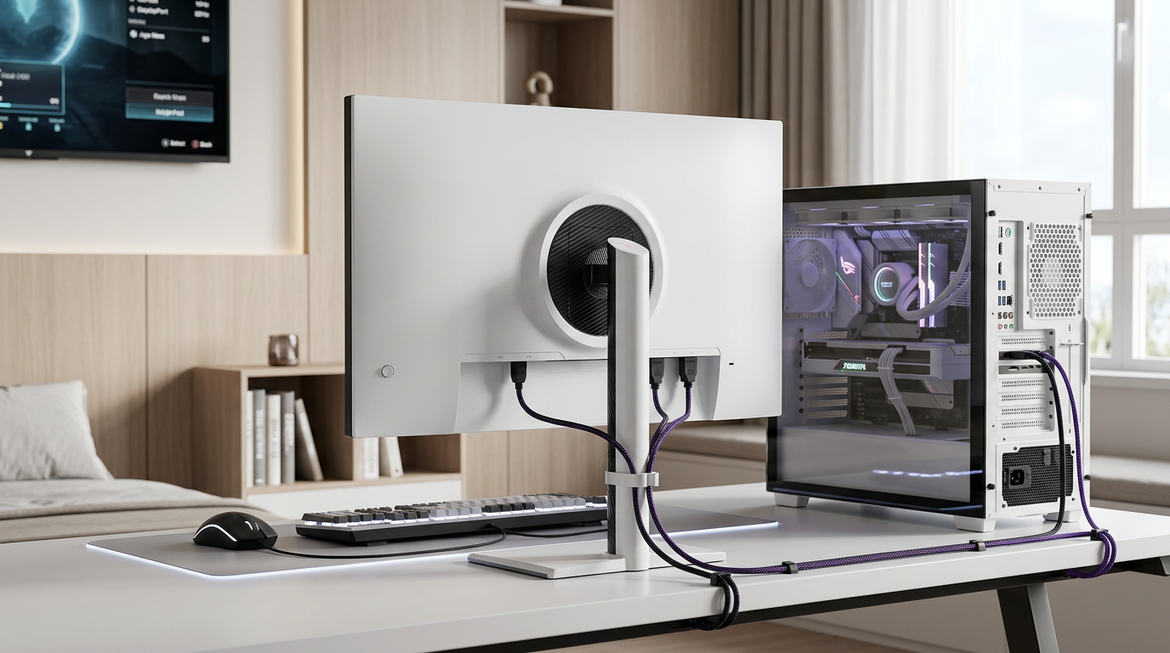
Ninety-watt USB-C Power Delivery stands out as another practical requirement. It allows a single cable to handle video, data, and laptop charging, which dramatically reduces desk clutter and cable management time. When evaluating any 5K option, check these three specs first: pixel density for sharpness, DCI-P3 coverage for color accuracy, and PD wattage for workflow simplicity.
Many creators wonder whether 4K suffices. In most 2026 agency workflows involving detailed retouching or multi-layer design files, the extra real estate and pixel precision of 5K reduce zooming and panning, which improves daily productivity enough to justify the resolution step-up for Mac users. Read our guide on What Delta E Values Actually Mean for Your Creative Work to understand how calibration interacts with these specs, or explore What Does Bit Depth Mean, and How Does 8-bit Differ From 10-bit Display? for deeper color science context.
OEM Panels vs. Premium Branded Displays: The Practical Value Shift
OEM 5K panels frequently use the same underlying glass and achieve similar peak brightness and color gamut measurements as panels inside premium branded displays. The primary differences appear in controller boards, firmware tuning, and bundled features rather than raw image quality. Factory-direct options can therefore bypass significant marketing markups while delivering comparable performance in benchmarks (source).
The real trade-off is the "friction tax." OEM panels often require third-party software for macOS brightness control and may exhibit occasional sleep/wake handshake inconsistencies that branded ecosystems handle more gracefully. These annoyances remain minor for many solo users but can accumulate into meaningful support overhead for larger agencies.
Scenario splits help clarify the choice. Solo freelancers and budget-conscious prosumers typically benefit most from the upfront savings, which can exceed $800 compared with flagship models. Small agencies may still prefer the OEM route if they standardize on one or two setups and accept a short learning curve. Large agencies with client pitch environments or strict IT policies often find the brand tax worthwhile for uniform support, built-in webcams, microphones, speakers, and the subtle professional signaling that an all-aluminum enclosure provides.
When the Brand Tax Becomes Worth Paying in a 5K Creator Workflow
A conservative tier comparison of premium branded displays versus OEM alternatives across common creator workflow scenarios. Higher bars indicate stronger fit on each decision axis; lower upfront cost savings means more budget retained.
View chart data
| Category | Premium Brand Tax - Solo Freelancer | OEM No Brand Tax - Solo Freelancer | Premium Brand Tax - Small Agency | OEM No Brand Tax - Small Agency | Premium Brand Tax - Large Agency | OEM No Brand Tax - Large Agency |
|---|---|---|---|---|---|---|
| Software Integration | 5.0 | 2.0 | 5.0 | 2.0 | 5.0 | 2.0 |
| Peripheral Density | 5.0 | 2.0 | 5.0 | 3.0 | 5.0 | 3.0 |
| Reliability | 5.0 | 2.0 | 5.0 | 3.0 | 5.0 | 3.0 |
| Client Perception | 4.0 | 2.0 | 5.0 | 3.0 | 5.0 | 3.0 |
| Upfront Cost Savings | 2.0 | 5.0 | 2.0 | 5.0 | 1.0 | 5.0 |
This chart helps visualize the likely pattern across typical setups. Premium options score higher on integration and perception for agency environments, while OEM builds excel on cost savings for independent creators.
The $1,500 Build Plan: Component Breakdown
A realistic $1,500 5K creator workstation allocates roughly $530 to the display, $600 to a base compute module such as an M4 Mac Mini, and $160 to a hardware colorimeter. This core trio consumes the majority of the budget, leaving approximately $210 for storage and peripherals (source).
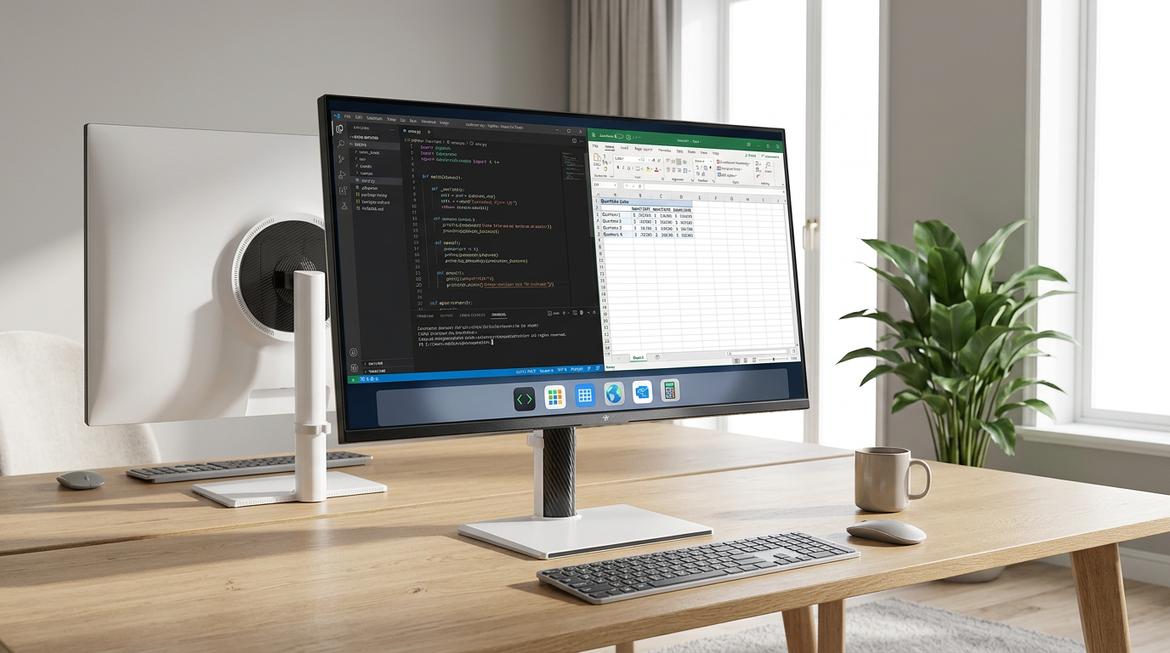
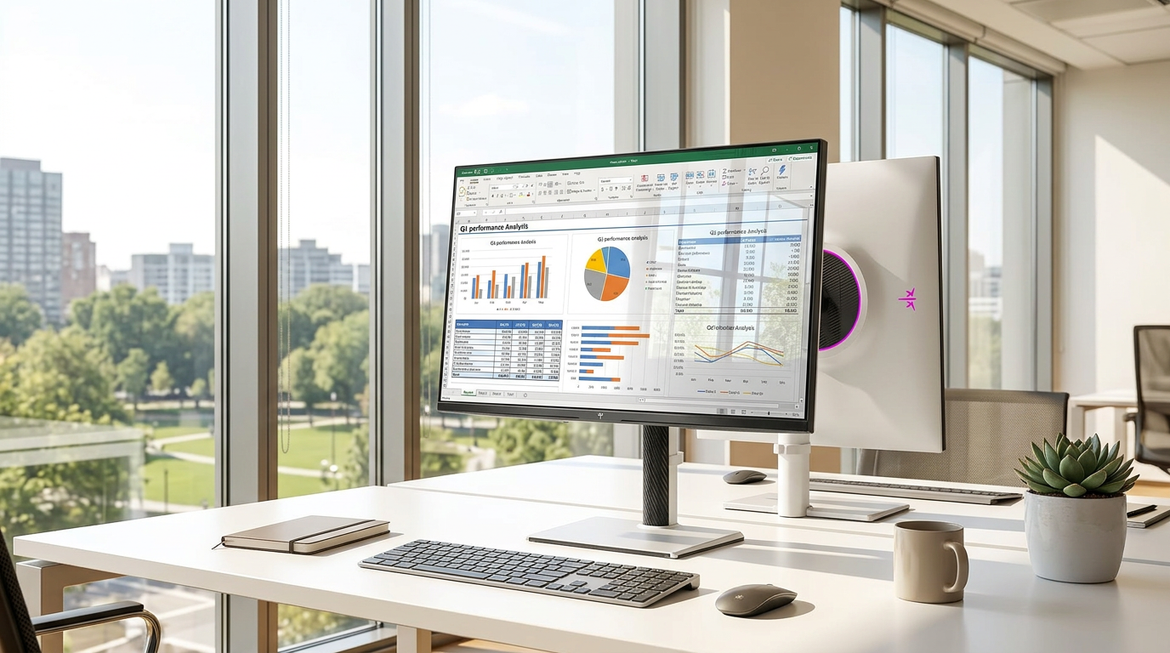
The KTC H27P3 serves as the anchor display in this configuration. It delivers native 5120×2880 resolution at 60 Hz, 99% DCI-P3 coverage, 500 nits peak brightness, and 90 W USB-C Power Delivery at a street price near $530. These specifications meet the professional requirements outlined earlier while staying comfortably inside the target budget. Check current pricing and full specifications on the KTC 27" 5K@60Hz 2K@120Hz Home&Office Monitor | H27P3 product page.
With internal storage limited on base compute units, the remaining funds must purchase an external NVMe SSD enclosure and drive for professional asset libraries. Peripherals become the final squeeze; a basic ergonomic keyboard and mouse can fit into roughly $90 if you shop sales or reuse existing items. This allocation works best when you already own some peripherals or accept a minimalist input setup.
For users who want a single-cable experience, see our article on How a USB-C Monitor Can Streamline Your Workspace.
Allocating the $1,500 Budget: Priorities and Tradeoffs
The display and calibration hardware represent fixed priorities because visual accuracy directly affects billable creative output. Regular hardware-based calibration remains necessary to counteract panel drift and changing ambient lighting conditions over time (source). Skipping this step undermines the professional claim of any budget 5K setup.
Compute power becomes the primary variable. A base Mac Mini or equivalent small-form-factor PC delivers capable performance for design, photo editing, and light video work, yet it lacks the thermal headroom and port density of higher-tier machines. Expect to rely on external storage, which introduces desk clutter and potential speed variability depending on the enclosure and connection type.
The biggest practical compromises involve ecosystem integration and peripherals. OEM panels typically need third-party brightness apps on macOS and may not wake as reliably as native solutions. Without built-in cameras, microphones, or speakers, you must add separate devices, which reduces the minimalist appeal many premium setups advertise.
This configuration is not a fit if your workflow involves frequent multi-stream 4K video editing, heavy client video calls, or zero tolerance for occasional software tweaks. It also assumes you will invest time in initial calibration and periodic verification. Our guide on How to Verify Your Display Calibration Is Actually Working provides practical steps to maintain accuracy without guesswork.
Next Steps for Setting Up Your 'No-Brand-Tax' Workstation
Begin by securing the visual foundation: order the 5K panel and a reliable colorimeter first. Calibrate immediately upon arrival using standard targets, then verify results with known reference images. Once the display performs consistently, add the compute module and external storage that best match your specific software stack.
This approach delivers professional 5K color accuracy and sharp Retina-class rendering without paying full brand premiums. The savings can be redirected toward faster storage, additional RAM, or simply kept as margin for future upgrades. For ergonomic placement advice, review Home Office Setup Guide: How to Choose the Right Ergonomic Monitor.
The KTC H27P3 currently stands out as the most accessible 5K option that satisfies the core specs without pushing the total build cost beyond the $1,500 ceiling. Treat the computer as the replaceable component and the calibrated 5K window as the long-term investment.
Frequently Asked Questions
Is a 5K monitor actually necessary for most design and editing work in 2026?
It depends on your primary software and client deliverables. If you work extensively in Photoshop, Illustrator, or Figma on a Mac, the 218 PPI of a 27-inch 5K panel eliminates scaling artifacts and reduces constant zooming. For pure video editing or web design on Windows, a well-calibrated 4K display with strong DCI-P3 coverage often suffices and frees budget for storage or RAM. Test your most common workflow at a retailer before committing.
How should I split the $1,500 budget if I already own a decent keyboard and mouse?
Reallocate the $90 peripheral allowance toward a faster external SSD or additional RAM for the compute module. Prioritize the display ($530), colorimeter ($160), and compute unit ($600) first, then use any surplus for a Thunderbolt 4 enclosure that maximizes external drive performance. This keeps the visual foundation intact while addressing the most common storage bottleneck in base-model machines.
Will an OEM 5K panel like the H27P3 work reliably with macOS for agency client presentations?
It works well for solo and small-team use after initial calibration and software setup. Expect to install a third-party brightness control utility and possibly a sleep/wake utility. Large agencies that run standardized fleets or conduct frequent high-stakes video calls may prefer the zero-configuration experience of a premium display to minimize support tickets. Test the specific panel with your presentation software before standardizing.
How often will I need to recalibrate an OEM 5K panel to maintain professional color accuracy?
Most users should recalibrate monthly or after any major environmental change such as new lighting or seasonal daylight shifts. Panels can drift over time, and the $160 colorimeter investment pays for itself quickly by preventing reprints or client revisions caused by inaccurate colors. Treat calibration as a 10-minute monthly routine rather than a one-time setup task.
What should I do if my workload grows beyond what a $600 compute module can handle?
The modular nature of this build lets you upgrade only the computer while keeping the calibrated 5K display for years. Many users start with a base Mac Mini or SFF PC and later move to a higher-core model or even a Mac Studio without replacing the monitor. This future-proofs the largest visual expense and keeps total ownership cost lower than replacing an integrated premium all-in-one system.
Can this $1,500 setup replace a full Apple Studio Display for a freelance designer?
It can replace the display portion for color-critical work once calibrated, but you lose the integrated 6K camera, six-speaker audio system, and native macOS integration. Freelancers who primarily need accurate preview and sharp text often find the savings worthwhile. Agencies that rely on the Studio Display’s built-in peripherals for client Zoom calls usually keep the branded unit or add equivalent standalone devices, which narrows the cost gap.